 Hullspark
Your first cleanup with Attachment Sweep
Four steps, about 10 minutes. Nothing is deleted for good: files go to the space trash, and you can restore them.
You need to be a Confluence site administrator.
The pictures are real screens, shown in Japanese; the app follows your Confluence language. The example files are a Word document, a PDF and images. Click a picture to enlarge it.
-
1Open the app
In Confluence, click Apps, then Attachment Sweep.
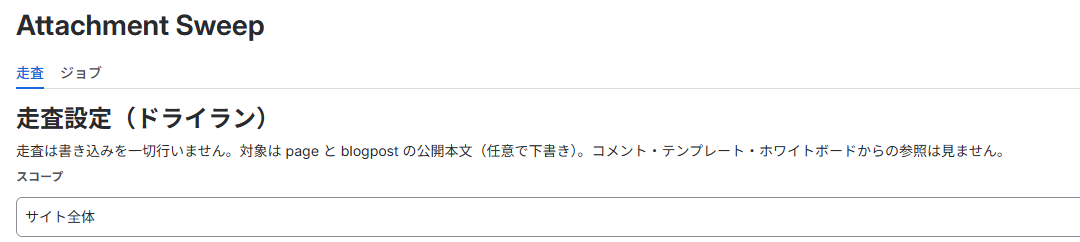
You’ll see: two tabs, Scan and Jobs.
-
2Start a scan
Click Start scan (dry run).

You’ll see: progress on the Jobs tab. When it ends, the Scan tab lists the files: “4 unreferenced (503.1 KB total)”.
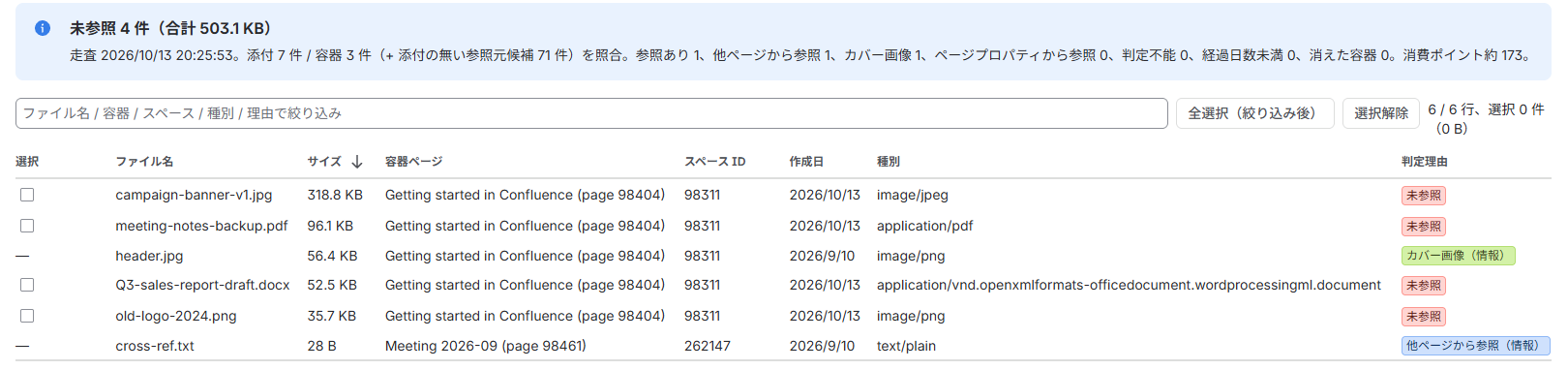
The example site holds a Word document, a PDF and images. -
3Select files
① Select files marked Unreferenced. ② Click Dry run (preview targets).
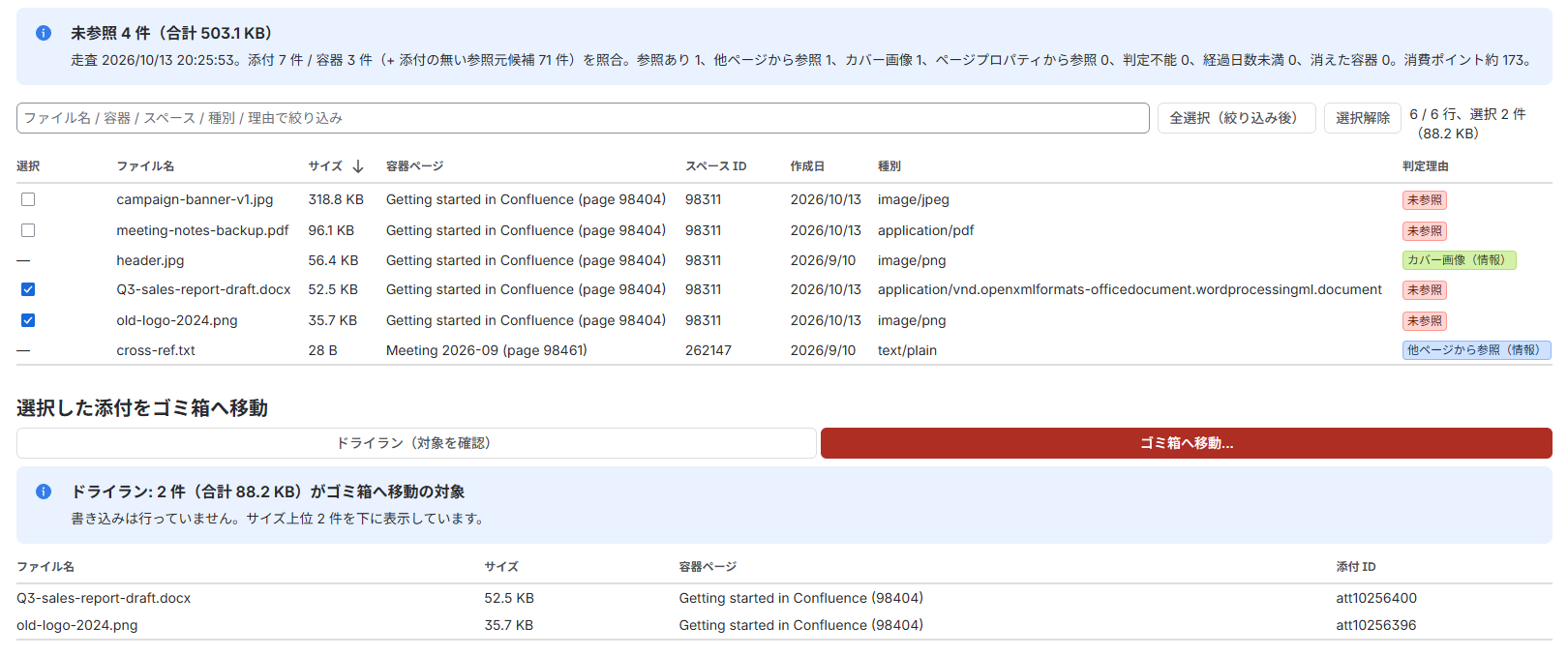
Selected here: a Word document (Q3-sales-report-draft.docx) and an image (old-logo-2024.png). You’ll see: “Dry run: 2 item(s) (88.2 KB total) targeted for Trash”. Nothing has been written.
-
4Move them to the trash
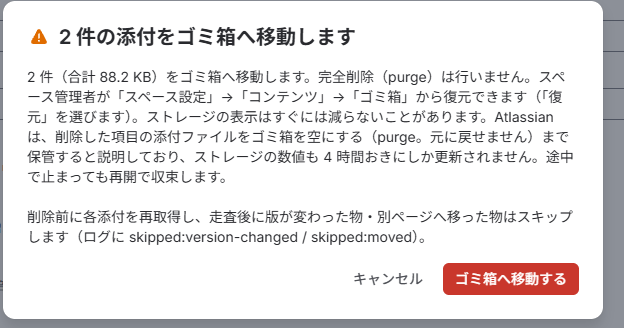
① Click Move to Trash…. ② Click Move to Trash.

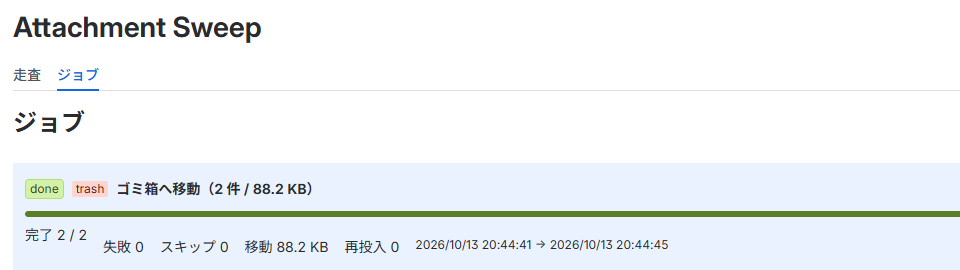
You’ll see: on the Jobs tab, the row “Move to Trash (2 item(s) / 88.2 KB)” marked done.
To get a file back, restore it
Open the space. Go to Space settings → Content → Trash and click Restore.

Why didn’t my storage go down?
Files in the trash still count. The space comes back only when you empty (purge) the trash, and a purged file cannot be restored. Attachment Sweep never purges.
More answers
I can’t find the app in Confluence.
Only Confluence site administrators see it. Everyone else gets the message “Site administrators only”. Ask a site administrator to open it.
How long does a scan take?
It depends on how many pages and attachments you have. The scan runs in the background, so you can close the browser and come back.
Which files can I select?
Only files marked Unreferenced: no scanned page, cover image or page property points to them. Any other reason in the Reason column means keep the file.
Why is a new file not in the list?
Files newer than 7 days are never candidates. You can change this under Minimum age in days.
What does the scan not check?
Comments, templates and whiteboards. A file used only there looks unreferenced, so check it before you move it. Drafts are checked only if you turn on Also check drafts.
Should I scan one space or the entire site?
A one-space scan cannot see links from other spaces. If in doubt, choose Entire site. The scan runs with your permissions, so pages you cannot view are not checked.
Move to Trash… does not work.
It needs a dry run of the same selection, and a scan from the last 24 hours. After that, scan again.
Some files were skipped.
The app checks each file again just before moving it. A file with a newer version, or one moved to another page since the scan, is skipped and noted in the log.
Who can restore or purge?
A space administrator of that space. Only files still in the trash can be restored.
Is there a direct link to the space trash?
Yes: https://YOUR-SITE.atlassian.net/wiki/pages/viewtrash.action?key=SPACEKEY. Replace YOUR-SITE and SPACEKEY.
What works without a licence?
Scan and dry run. Moving files to the trash needs the 30-day free trial or a subscription.
Does my content leave my site?
No. Attachment Sweep runs on Atlassian (a Forge app) and does not send your content outside your site. See the Marketplace listing.
Need help?
Email support@hullspark.com, in English or Japanese. We reply Monday to Friday, 10:00–18:00 Japan time, and aim to answer within 2 business days. More on the Support page.
Confluence and Atlassian are trademarks of Atlassian. Attachment Sweep is made by Hullspark and is not made or endorsed by Atlassian.
Attachment Sweep で最初の片づけ
4 ステップ、約 10 分です。完全には消えません。ファイルはスペースのゴミ箱に入り、そこから戻せます。
Confluence のサイト管理者だけが使えます。
画像は実際の画面です。例のファイルは Word 文書、PDF、画像です。画像を押すと大きくなります。
-
1アプリを開く
Confluence で アプリ → Attachment Sweep を押します。
こう見えます: 走査 と ジョブ のタブ。
-
2走査する
走査を開始(ドライラン) を押します。
こう見えます: 進み具合は ジョブ タブに出ます。終わると 走査 タブに「未参照 4 件(合計 503.1 KB)」と一覧が出ます。
例のサイトには Word 文書、PDF、画像が入っています。 -
3ファイルを選ぶ
① 未参照 のファイルを選びます。② ドライラン(対象を確認) を押します。
ここでは Word 文書(Q3-sales-report-draft.docx)と画像(old-logo-2024.png)を選んでいます。 こう見えます: 「ドライラン: 2 件(合計 88.2 KB)がゴミ箱へ移動の対象」。書き込みは行っていません。
-
4ゴミ箱へ移す
① ゴミ箱へ移動… を押します。② ゴミ箱へ移動する を押します。
こう見えます: ジョブ タブに「ゴミ箱へ移動(2 件 / 88.2 KB)」の行が出ます。done で完了です。
容量の数字が減らないのはなぜ?
ゴミ箱の中のファイルは、まだ容量に数えられます。ゴミ箱を空にすると容量が空きますが、空にしたファイルは戻せません。Attachment Sweep はゴミ箱を空にしません。
そのほかの質問
Confluence にアプリが見当たりません。
Confluence のサイト管理者にだけ表示されます。それ以外の人には「サイト管理者だけが使えます」と出ます。サイト管理者に開いてもらってください。
走査にはどのくらいかかりますか?
ページと添付ファイルの数で変わります。走査は裏で続くので、ブラウザを閉じても大丈夫です。
どのファイルを選べますか?
未参照 のファイルだけです。走査したページ、カバー画像、ページプロパティのどこからも指されていません。判定理由 がほかの表示なら、残してください。
新しいファイルが一覧にありません。
7 日より新しいファイルは候補になりません。最低経過日数 で変えられます。
走査が見ないものはありますか?
コメント、テンプレート、ホワイトボードです。そこだけで使われているファイルは未参照に見えます。移す前に確かめてください。下書きは 下書きも見る を選んだときだけ見ます。
スペース 1 つとサイト全体、どちらで走査しますか?
スペース 1 つの走査では、ほかのスペースからのリンクが見えません。迷ったら サイト全体 を選びます。走査はあなたの権限で動くため、あなたが見られないページは確かめられません。
「ゴミ箱へ移動…」が使えません。
同じ選択でのドライランと、24 時間以内の走査が必要です。過ぎたら走査し直してください。
飛ばされたファイルがあります。
移す直前に、ファイルをもう一度確かめています。走査のあとで新しい版ができたファイルや、別のページへ移ったファイルは飛ばし、ログに残します。
復元やゴミ箱を空にする操作は、誰ができますか?
そのスペースの管理者です。復元できるのは、ゴミ箱に残っているファイルだけです。
スペースのゴミ箱を直接開けますか?
はい。https://YOUR-SITE.atlassian.net/wiki/pages/viewtrash.action?key=SPACEKEY の YOUR-SITE と SPACEKEY を置き換えます。
ライセンスがないと何ができますか?
走査とドライランです。ゴミ箱への移動には、30 日間の無料試用か購読が必要です。
内容がサイトの外に出ますか?
出ません。Attachment Sweep は Atlassian 上(Forge アプリ)で動き、内容をサイトの外へ送りません。Marketplace の掲載もご覧ください。
困ったら
support@hullspark.com へどうぞ。日本語でも英語でも大丈夫です。平日 10:00–18:00(日本時間)に対応し、2 営業日以内の返信を目標にしています。ほかの答えは サポートのページ にあります。
Confluence と Atlassian は Atlassian の商標です。Attachment Sweep は Hullspark の製品で、Atlassian が作ったものでも推奨するものでもありません。