 Hullspark
Your first review date with Page Review Reminders
Pages go out of date and nobody notices. Page Review Reminders gives a page a reviewer and a due date. When the date is near, the reviewer gets a comment. Four steps and about 5 minutes.
Anyone who can edit a page can set a review date on it. The all-pages dashboard is for Confluence site administrators.
The pictures are real screens from a test site. Dates and numbers are examples. Click a picture to enlarge it.
Install
Install Page Review Reminders from the Marketplace listing. Choose your Confluence site.
You’ll see: Page Review Reminders in the Apps menu of a site administrator. Setting a date needs a free trial or a subscription. Without one the app is read-only.
-
1Open the page menu
Open a page. Click the … menu and then Apps. Click Set review policy.
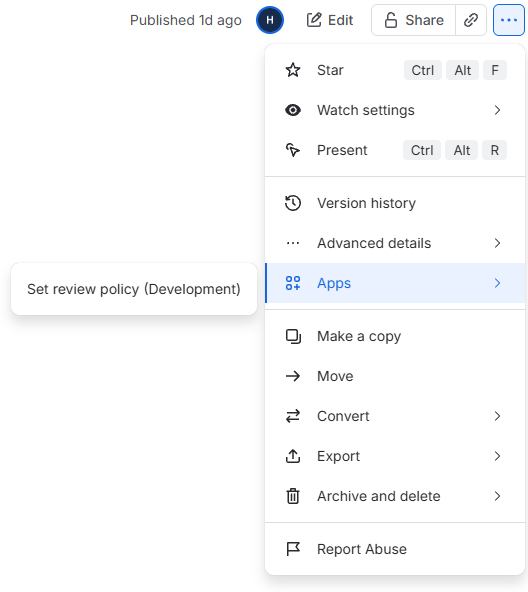
You’ll see: the dialog Set review policy. Its first line shows the state of the page now.
-
2Set a reviewer and a date
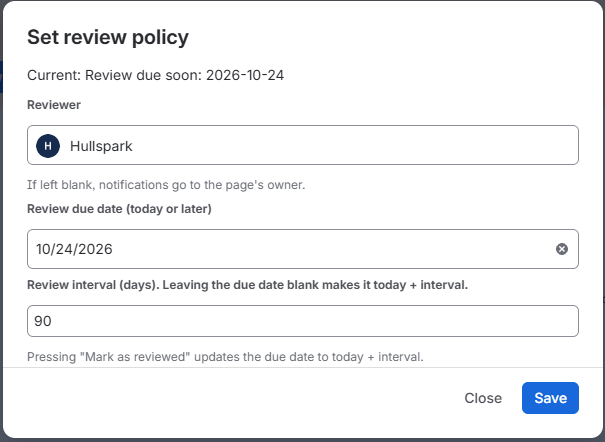
① Pick a Reviewer. ② Pick a Review due date. ③ Click Save.
Reviewer is optional. Leave it empty and the page owner gets the reminder. Pick a date within 14 days if you want to try step 4 now.
-
3Check the byline
Reload the page.

You’ll see: the line under the page title reads “Review due soon: 2026-10-24”. A date more than 14 days away reads “Review: due 2026-12-01”.
-
4Mark the page as reviewed
A banner appears when the due date is near. Click Mark as reviewed in it.

You’ll see: a banner titled “The review due date is approaching (2026-10-24)”. After the click the banner goes away. The due date moves to today plus the review interval.
How a reminder looks
Once a day the app checks the pages that have a review date. For a page that is due soon or overdue it posts one comment and mentions the reviewer. With no reviewer it mentions the page owner.

Confluence then sends its own notice for the mention. You see it under the bell and by email as your Confluence settings say. Every page gets at most one reminder in 30 days.
See every page at once
For site administrators.
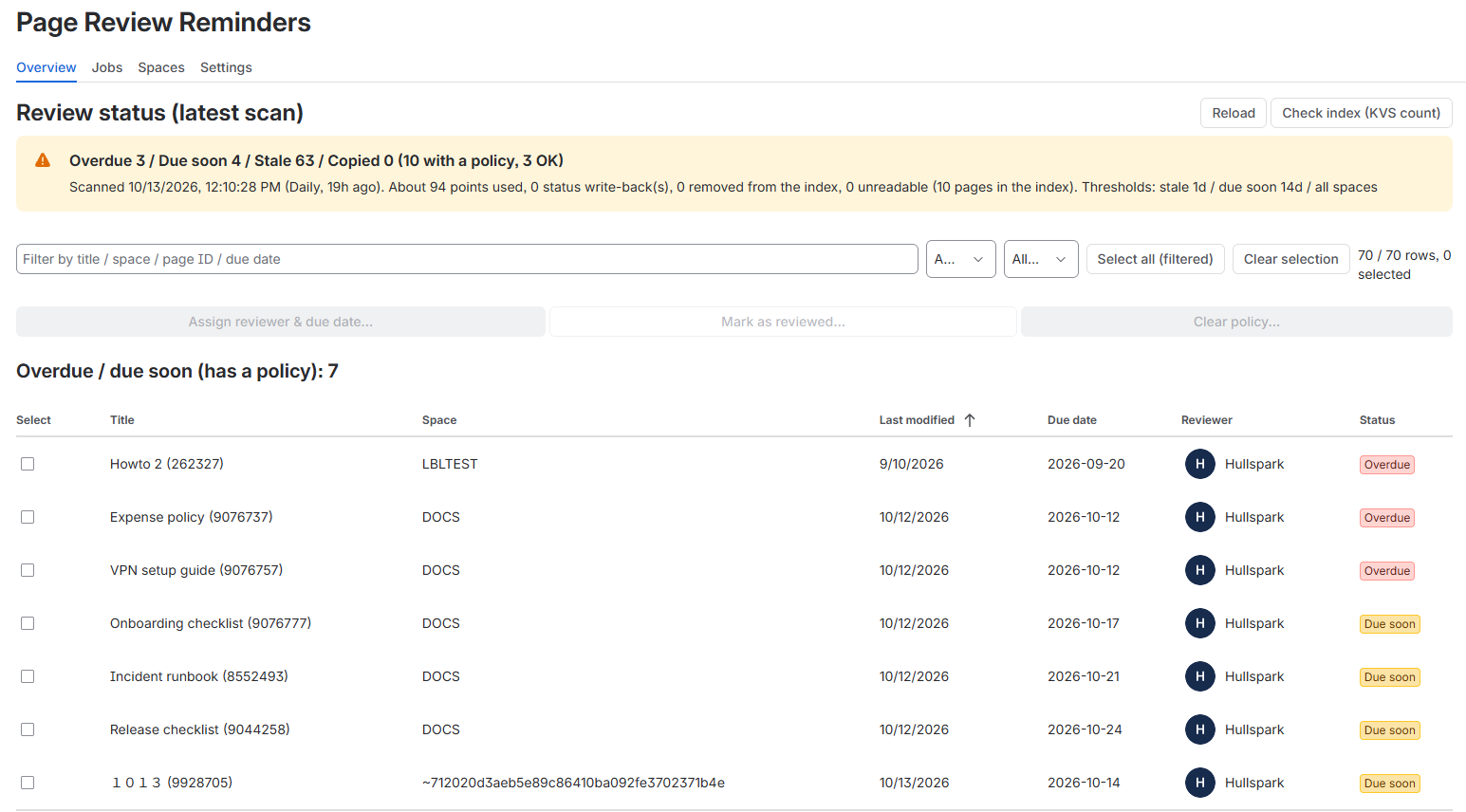
Click Apps and then Page Review Reminders. The Overview tab opens first.
If it says “No scan results yet”, open Settings and click Scan now.
You’ll see: “Overdue 3 / Due soon 4 / Stale 63 / Copied 0 (10 with a policy, 3 OK)” and a list of the pages.
To undo
Click the Review item under the page title. Then click Clear policy.
The app writes only a page property. It does not change the page text. Mark as reviewed cannot be taken back. Set the date again with Save policy. A reminder comment stays on the page. Delete it like any other comment.
To stop all reminders, an administrator turns off Notify reviewers with a comment (@mention) in the Settings tab and clicks Save.
What it does not do
- Setting a date needs a free trial or a subscription. Without one the app is read-only.
- The due date must be today or later.
- A page gets at most one reminder in 30 days.
- The app sends no email itself. It posts a comment.
- The reminder comment is in English.
- A copied page can keep an invalid policy. The dashboard lists it as Copied (invalid).
More answers
I can’t find the app in Apps.
Only Confluence site administrators see the dashboard. Everyone else sets a date from the … menu of a page. Other people see Only site admins can use this.
Who can set a date on a page?
Anyone who can edit the page. Confluence refuses the change for everyone else.
Why did I get no email?
The app posts a comment and mentions you. Confluence sends the notice. Look under the bell first. Then check your notification settings in Confluence.
How often does it check?
Once a day. A site administrator can check at once with Scan now in Settings.
Where are the pages assigned to me?
On the Confluence Home page. Look for Pages to review.
How do I set a date on many pages?
Use the dashboard. Open Overview and tick the pages. Click Assign reviewer & due date…. The dialog shows “Dry run: 5 page(s) affected”. Click Run when the count is right.
What does Stale mean?
A page with no review date that nobody has changed for 365 days by default. You can change the number in Settings.
A date I set with the API is missing from the dashboard.
The app lists only the dates it knows. Open Settings and click Rebuild index. It reads every page once.
What does Copied (invalid) mean?
Copying a page can copy its review date. The copy keeps a date that belongs to another page. Set it again or click Clear policy… on the dashboard.
Does my content leave my site?
No. Page Review Reminders runs on Atlassian (a Forge app) and does not send your content outside your site. See the Marketplace listing.
Need help?
Email support@hullspark.com in English or Japanese. We reply Monday to Friday and aim to answer within 2 business days. More on the Support page.
Confluence and Atlassian are trademarks of Atlassian. Page Review Reminders is made by Hullspark and is not made or endorsed by Atlassian.
Page Review Reminders で最初のレビュー期日
ページは古くなっても気づかれません。Page Review Reminders はページに担当者と期日を付けます。期日が近づくと、担当者にコメントが届きます。4 ステップで約 5 分です。
ページを編集できる人なら、そのページに期日を付けられます。全ページのダッシュボードは Confluence のサイト管理者向けです。
画像は実際の画面で、英語の画面です。日付と数字は例です。画像を押すと大きくなります。
インストール
Marketplace の掲載から Page Review Reminders をインストールします。Confluence のサイトを選びます。
こう見えます: サイト管理者のアプリのメニューに Page Review Reminders が出ます。期日の設定には、無料試用か購読が必要です。ないときは read-only になります。
-
1ページのメニューを開く
ページを開きます。「…」のメニューで Apps を押します。Set review policy を押します。
こう見えます: Set review policy のダイアログ。1 行目に、いまのページの状態が出ます。
-
2担当者と期日を決める
① 担当者(レビュアー)を選びます。② レビュー期日を選びます。③ 保存を押します。
担当者(レビュアー)は空でも構いません。空ならページの所有者に届きます。ステップ 4 をすぐ試すなら、14 日以内の日付を選びます。
-
3バイラインを確かめる
ページを再読み込みします。
こう見えます: ページタイトルの下の行に「Review due soon: 2026-10-24」と出ます。14 日より先の日付は「Review: due 2026-12-01」と出ます。
-
4レビュー済みにする
期日が近づくとバナーが出ます。バナーのレビュー済みにするを押します。
こう見えます: 「レビュー期日が近づいています(2026-10-24)」というバナー。押すとバナーが消えます。期日は今日にレビュー間隔を足した日に変わります。
リマインダーの見え方
アプリは 1 日 1 回、期日のあるページを調べます。期限間近か期限切れのページに、担当者へのメンション付きでコメントを 1 件投稿します。担当者がいないときは、ページの所有者にメンションします。
メンションの通知は Confluence が送ります。ベルのアイコンと、Confluence の通知設定どおりのメールで届きます。1 つのページへのリマインダーは 30 日に 1 回までです。
全ページをまとめて見る
サイト管理者向けです。
アプリを押して、Page Review Reminders を押します。Overview のタブが最初に開きます。
「走査結果はまだありません」と出たら、Settings を開いていま走査を押します。
こう見えます: 「期限切れ 3 / 期限間近 4 / 更新なし 63 / 複製由来 0(方針あり 10 件、うち OK 3)」とページの一覧が出ます。
戻すには
ページタイトルの下の Review の項目を押します。方針を解除を押します。
アプリが書くのはページのプロパティだけです。ページの本文は変えません。レビュー済みにするは取り消せません。期日を戻すには方針を保存でもう一度決めます。リマインダーのコメントはページに残ります。ほかのコメントと同じように削除します。
リマインダーを全部止めるのは管理者です。Settings のタブで担当者へコメントで通知する(@メンション)を切って、保存を押します。
できないこと
- 期日の設定には、無料試用か購読が必要です。ないときは read-only になります。
- 期日は今日以降の日付です。
- 1 つのページへのリマインダーは 30 日に 1 回までです。
- アプリはメールを送りません。コメントを投稿します。
- リマインダーのコメントは英語です。
- 複製したページには、無効な方針が残ることがあります。ダッシュボードでは複製由来(無効)と出ます。
そのほかの質問
アプリのメニューに見当たりません。
ダッシュボードが見えるのは Confluence のサイト管理者だけです。ほかの人はページの「…」のメニューから期日を付けます。ダッシュボードを開くとサイト管理者のみ利用できますと出ます。
ページに期日を付けられるのは誰ですか?
そのページを編集できる人です。ほかの人の変更は Confluence が断ります。
メールが届きません。
アプリはコメントを投稿して、あなたにメンションします。通知を送るのは Confluence です。まずベルのアイコンを見てください。次に Confluence の通知設定を確かめてください。
どのくらいの頻度で調べますか?
1 日 1 回です。サイト管理者は Settings のいま走査ですぐに調べられます。
自分が担当のページはどこにありますか?
Confluence のホームにある Pages to review です。
たくさんのページに期日を付けるには?
ダッシュボードを使います。Overview でページにチェックを付けて、担当者・期日を割当…を押します。ダイアログに「ドライラン: 5 件が対象」と出ます。件数が合っていれば実行するを押します。
「更新なし」とは何ですか?
期日がなく、既定では 365 日だれも変更していないページです。日数は Settings で変えられます。
API で付けた期日がダッシュボードにありません。
アプリは自分が知っている期日だけを並べます。Settings を開いて索引を再構築を押します。全ページを 1 回読みます。
「複製由来(無効)」とは何ですか?
ページを複製すると、期日もコピーされることがあります。コピーには別のページの期日が残ります。付け直すか、ダッシュボードで方針を解除…を押します。
内容がサイトの外に出ますか?
出ません。Page Review Reminders は Atlassian 上(Forge アプリ)で動き、内容をサイトの外へ送りません。Marketplace の掲載もご覧ください。
困ったら
support@hullspark.com へどうぞ。日本語でも英語でも大丈夫です。平日に対応し、2 営業日以内の返信を目標にしています。ほかの答えは サポートのページ にあります。
Confluence と Atlassian は Atlassian の商標です。Page Review Reminders は Hullspark の製品で、Atlassian が作ったものでも推奨するものでもありません。