A Wix app for shops in Japan that book their sales in accounting software. It turns the paid orders of a period into a CSV that Yayoi or freee can import, with rows split by the 10% and the reduced 8% consumption tax, so you stop typing a month of sales by hand. The screen is in Japanese only.
Free for up to 20 orders a month. Customer names and addresses do not go into the CSV, and the data is processed in your browser.
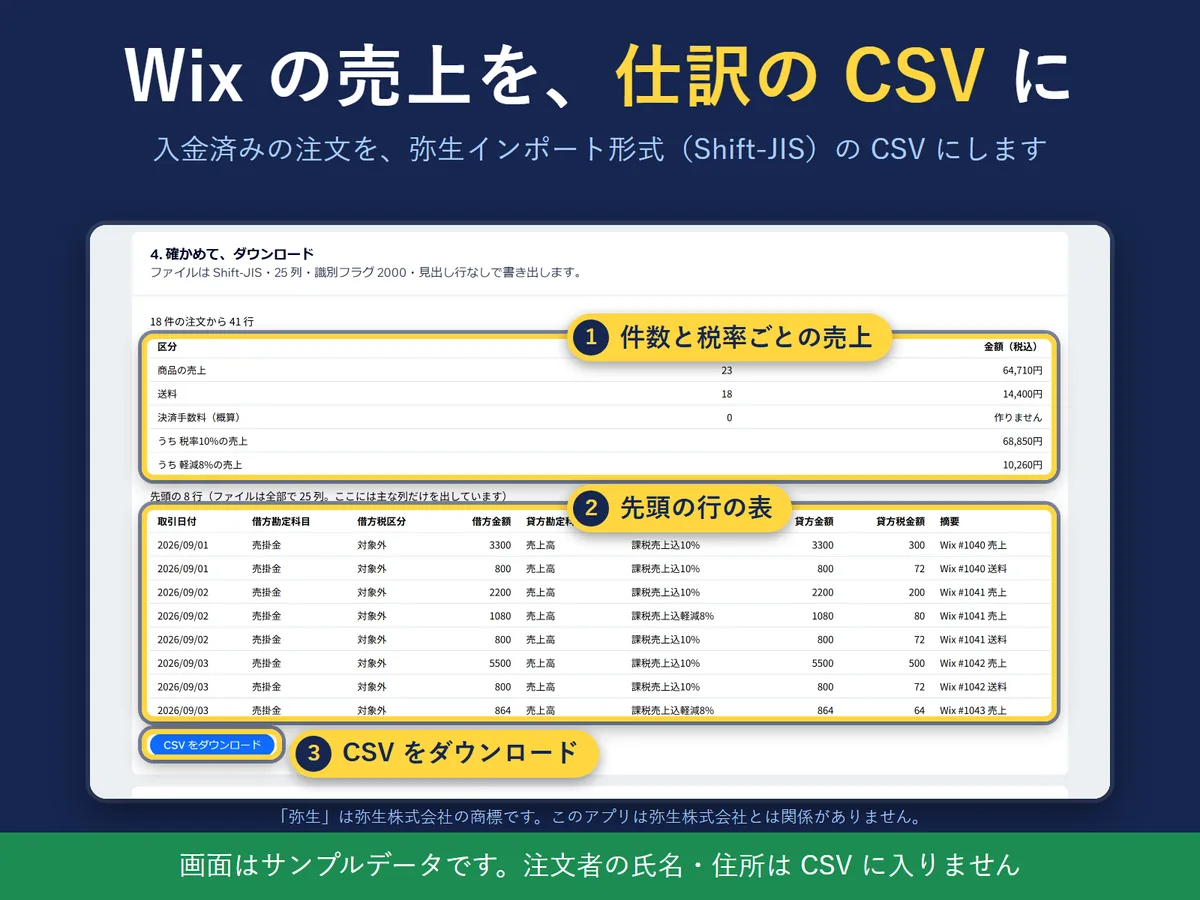
Check, then download (Japanese screen, sample data).
In four lines
The problemEvery month the online shop’s sales are typed into accounting software by hand. The more orders, the longer it takes, and splitting by tax rate and rounding are easy to get wrong.
Where it livesA page in your Wix dashboard with four steps: 1. choose the period, 2. names of accounts and tax categories, 3. payment fee, 4. check and download. The labels on the screen are in Japanese.
What you doChoose a period and load the orders. Pick the output format: the Yayoi import format (Shift-JIS) or the freee transaction import format (UTF-8 with BOM). Check the counts, the sales by tax rate and the first rows, then download the CSV.
The resultYou check the numbers before importing instead of typing them. Products, shipping and extra fees such as cash-on-delivery fees go on separate rows, and the tax is worked out for 10% and reduced 8% separately.
Who it is for
Shops in Japan on Wix Stores that sell in yen, charge Japanese consumption tax and keep their books in Yayoi Kaikei (Next or desktop) or freee Kaikei.
Owners or bookkeepers who want a month of paid orders as an import file rather than a manual entry.
Not for you if your books are in another accounting program (no other format is supported, and Yayoi Online is not covered), if you sell in a currency other than yen, or if you need an English screen.
How it works in 3 steps
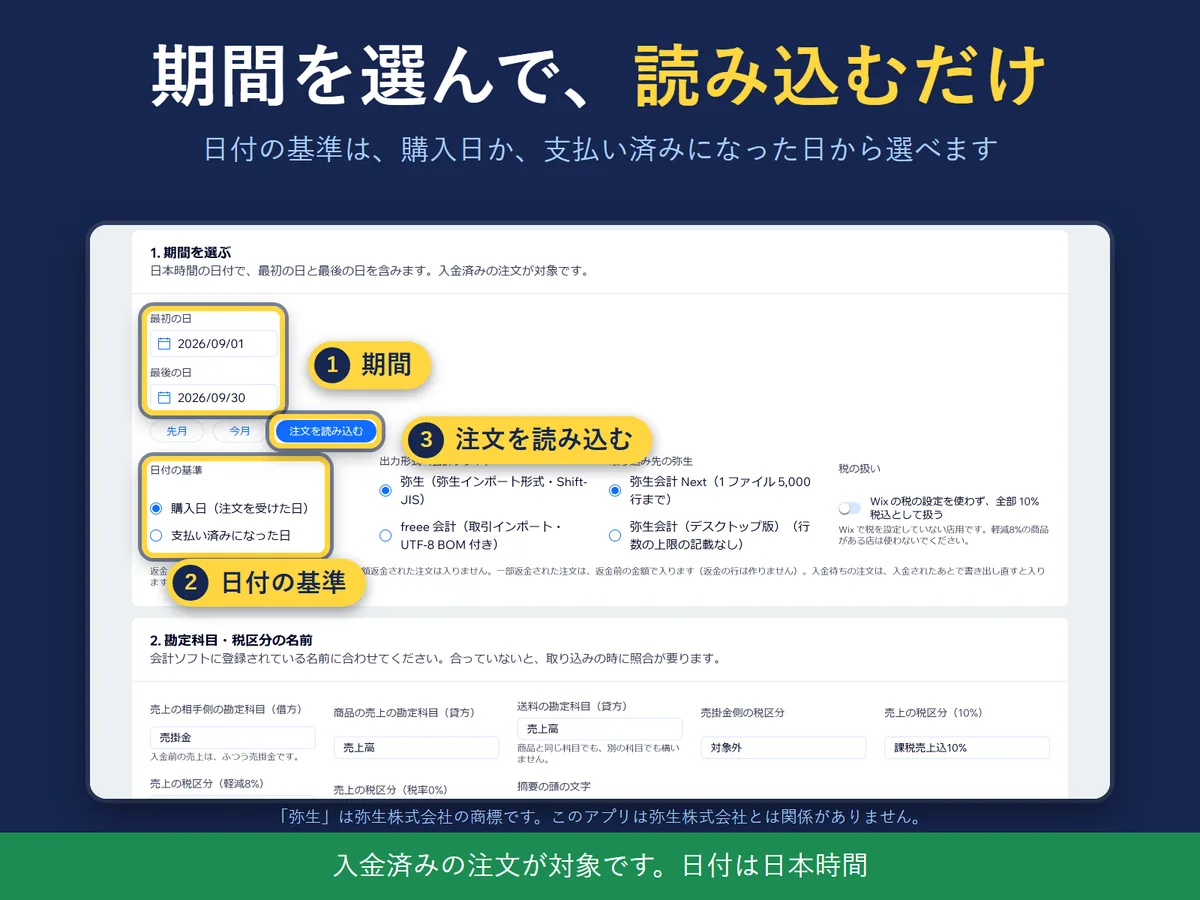
Choose the period. Last month, this month or any dates. The date can be the purchase date or the date the order was paid.
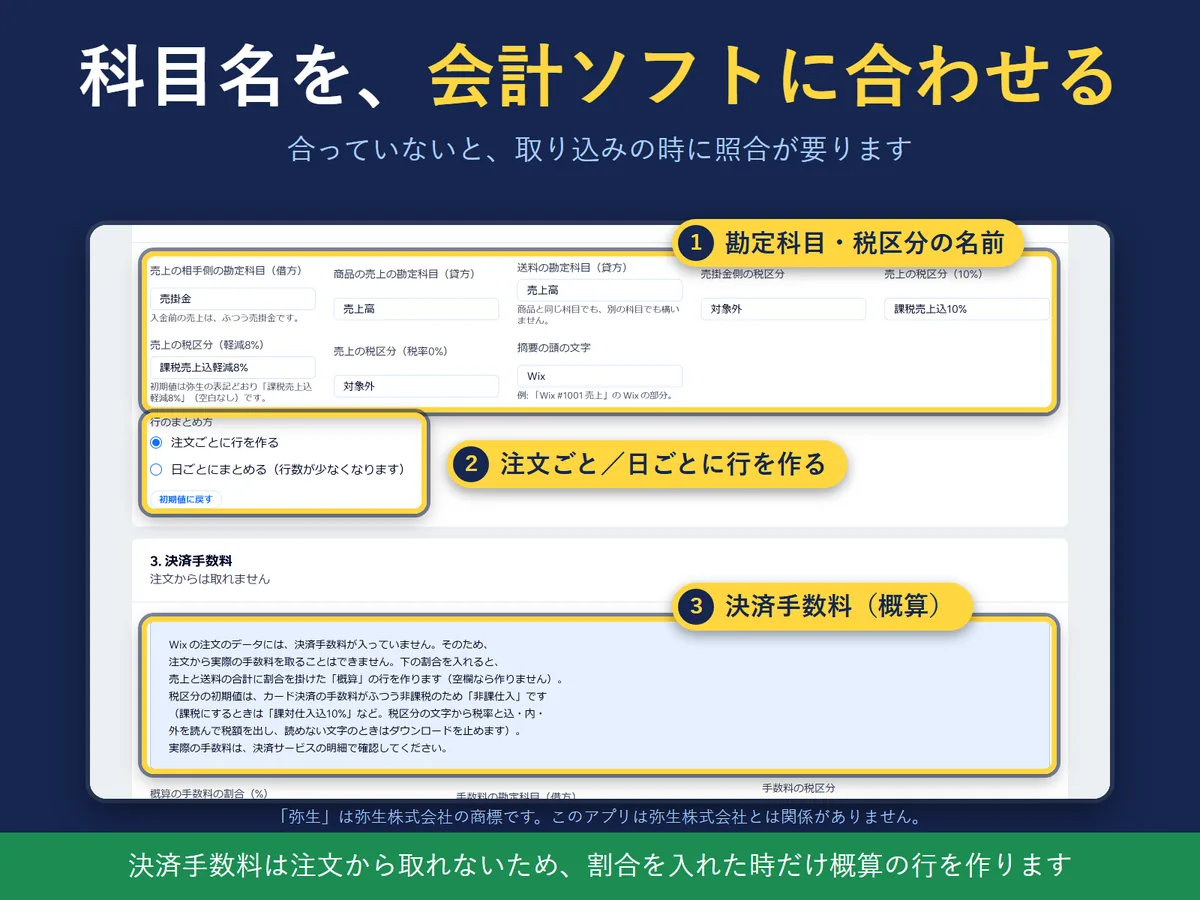
Match the names. Enter the account and tax category names exactly as they are registered in your accounting software. Optionally enter a payment fee rate.
Check and download. See the number of orders, the sales by tax rate and a table of the first rows, then download the CSV and import it in your accounting software.
What it does
Sales as a journal CSV
Step 4 shows the number of orders, sales by tax rate and a table of the first rows before you download. Amounts are whole yen including tax, with rows split by 10% and reduced 8%. Products, shipping and extra fees such as cash-on-delivery fees are separate rows, and the tax is rounded down per row.
Pick the period and load
Choose last month, this month or a custom period. The first time you open the page, a made-up example shows what the table looks like.
Choosing the period (Japanese screen, sample data).
Names that match your accounting software
Most import errors come from an account or tax category name that does not match the one registered in the accounting software. Set the names once, in the style your software uses.
Matching the names (Japanese screen, sample data).
Yayoi and freee formats
The Yayoi import format is for Yayoi Kaikei Next and the desktop edition; Yayoi Next takes up to 5,000 rows per file, so a longer list is downloaded as several files. The freee format is the transaction import: orders with several tax rates or with shipping become the rows of one transaction, and the order number is the management number. The screen lists the import steps for each.
Payment fees only as an estimate
Wix orders do not carry payment fees, so the app cannot read them. If you enter a rate, it adds an approximate fee row; leave the rate empty and no fee row is made.
What it can and cannot do
Only paid orders in yen are included. Cancelled orders, fully refunded orders and orders still waiting for payment are left out. A partly refunded order is included at its amount before the refund, and no refund row is made, so adjust it in your books.
Refund status is read when you export, so refunding an order later changes what the same period gives when exported again.
Customer names, addresses and contact details do not go into the CSV. The order data reaches the page in your browser, only the date, number, amount and tax are used, and nothing is stored or sent elsewhere.
If your Wix store has no tax set, the order tax rate can be 0% and a warning appears. You can choose to treat everything as 10% tax-included instead. If you sell reduced-rate items, set the tax in Wix.
Free: up to 20 orders per month, counted by the month of the order date, the earliest first. The screen shows how many were not included. Exporting the same month again does not add to the 20. Pro has no limit on orders. The price is on the Wix App Market listing.
The screen and the files are in Japanese only.
Questions
Which accounting software can I import into?
The Yayoi import format for Yayoi Kaikei Next and the desktop edition, and the transaction import of freee Kaikei. You choose the format on the screen. Yayoi Online and other programs are not supported.
Do customer names and addresses go into the CSV?
No. The file holds the date, order number, amounts and the account and tax category names you set. The CSV is made in your browser.
How are the 10% and reduced 8% rates handled?
Amounts are written as whole yen including tax, with rows split by tax rate. The tax included is worked out from the tax-included amount and rounded down. Products, shipping and extra fees are separate rows.
Are refunds and cancelled orders included?
Cancelled orders, fully refunded orders and orders waiting for payment are not included. A partly refunded order is included at its amount before the refund.
Are payment fees included?
Not unless you enter a rate. Wix orders do not carry them, so the app adds an approximate row only when you enter a rate.
The import in my accounting software fails. What should I check?
Most often an account or tax category name does not match the name registered in the software. Fix the names in step 2 and download again.
What is the difference between Free and Pro?
Free puts up to 20 orders per month in the CSV, and the screen says how many were left out. Pro has no limit. The price is on the Wix App Market listing.
Is there an English screen?
No. The screen is in Japanese only, because it is made for shops in Japan.
Wix is a trademark of Wix.com Ltd. This page and the app are not affiliated with, made by or endorsed by Wix.
“Yayoi” is a trademark of Yayoi Co., Ltd. and “freee” is a trademark of freee K.K. This app is not related to, provided by or endorsed by either company.
 Hullspark