 Hullspark
Three states, so a blank is never read as “free of it”
Contains is red and also written out, so it is not told apart by colour alone. Does not contain is a pale cell marked “Not in”. Not entered is a dotted box with “?”.
アレルゲン一覧表(メニュー用)
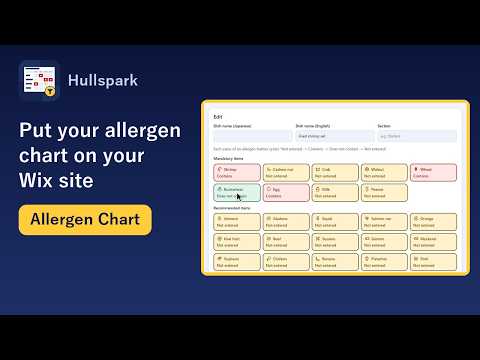
A Wix app that shows the allergen information you enter as a chart on your site: one card per dish, with Contains, Does not contain or Not entered for each allergen. Visitors can pick what they must avoid and narrow the dishes. A Wix Restaurants menu has no allergen field of its own.
See it on the Wix App Market 日本語のページ
Free for up to 30 dishes. A display aid: it does not detect allergens, and you are responsible for what you enter.
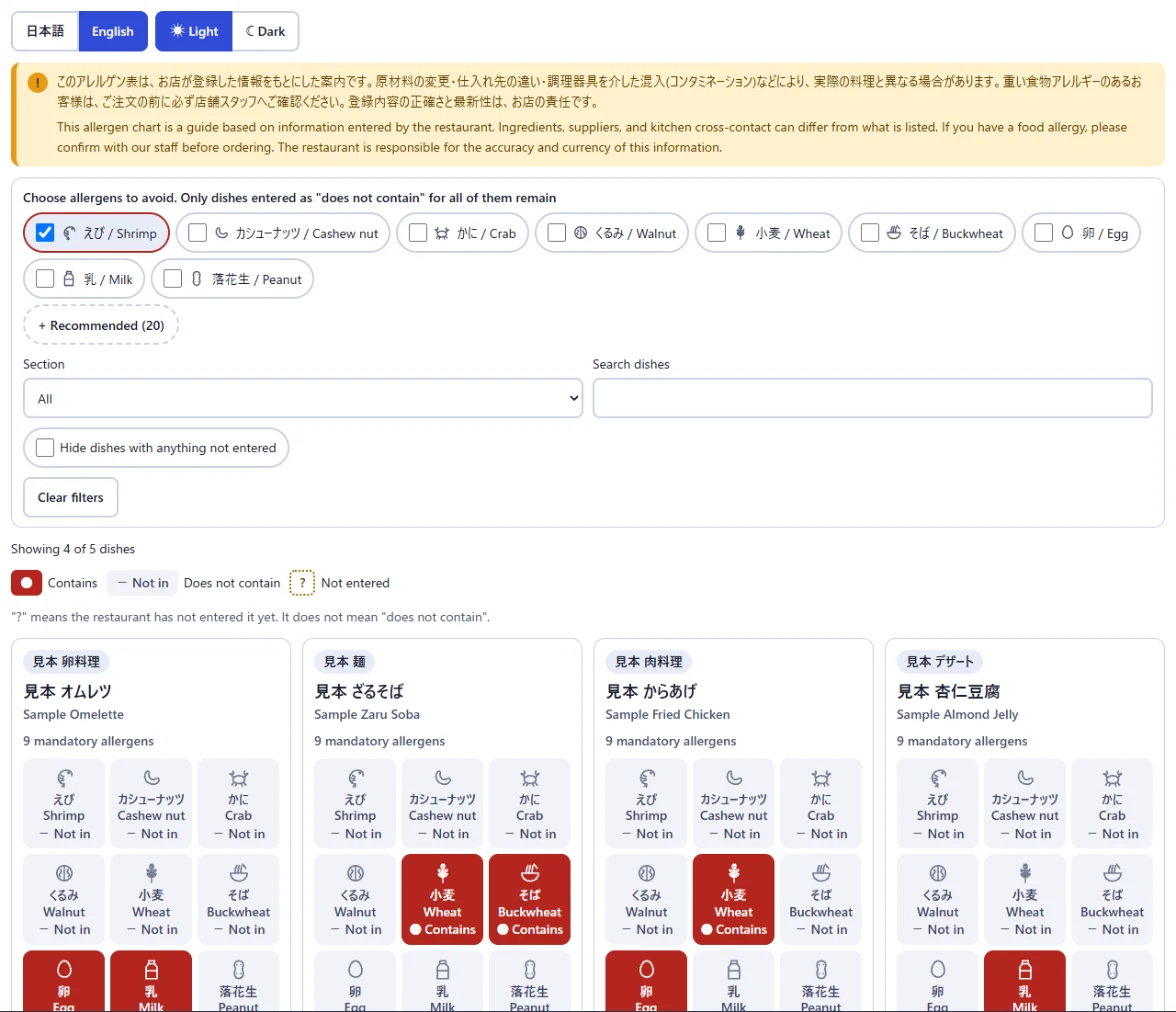
Contains is red and also written out, so it is not told apart by colour alone. Does not contain is a pale cell marked “Not in”. Not entered is a dotted box with “?”.
A visitor picks the allergens to avoid, and only dishes entered as Does not contain for every one of them stay. Not entered never counts as Does not contain. The 20 recommended items open from “+ Recommended (20)”.
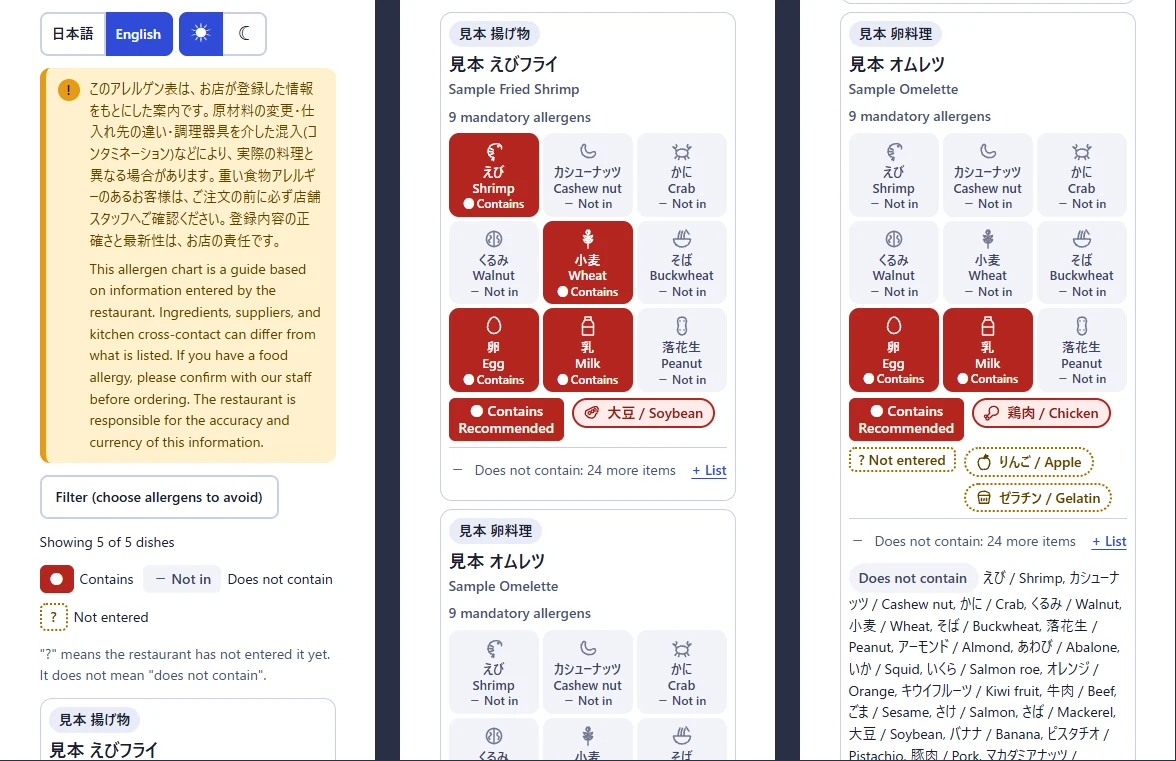
A note above the chart says the restaurant is responsible for what it entered, and that anyone with a food allergy should confirm with staff before ordering. It shows in Japanese and English. If the table has not been confirmed for 180 days or more, a reminder appears too. You cannot turn either off.
Switch the display between Japanese and English and between light and dark. Text is 14px or larger.
No. Wix's own help center says an allergen section for menu items is not available. This app adds a separate chart: you set Contains, Does not contain or Not entered for each dish and allergen, and a widget shows it on your site.
No. The app only shows what the restaurant entered. Every new dish starts as Not entered, and the chart shows “?” for it so a blank is not read as “does not contain”.
No. It is a display aid. It does not judge what any law requires, and the restaurant is responsible for the accuracy and currency of what it enters. A caution note stays above the chart in Japanese and English and cannot be turned off.
The Japanese set: the 9 mandatory items and the 20 recommended items of the Consumer Affairs Agency's list. The EU set (14 items) and the US set (9 items) are part of the paid Pro plan.
If you use Wix Restaurants Menus (new), you can import dish names from the menu with one button; only dish names are read, and orders, customers and payments are not. You still enter the allergen information yourself. Without the new menu app, add dishes by hand or import a CSV (UTF-8 or Shift_JIS).
Up to 30 dishes, with the Japanese allergen set. The paid Pro plan raises the limit to 1,000 dishes and adds the EU and US sets, CSV export, a print view, text size and a comparison with your menu. The price is on the Wix App Market listing.
They pick the allergens they want to avoid, and the chart narrows to dishes entered as not containing every one of them. Dishes that are Not entered never count as not containing.
If the table has not been confirmed for 180 days or more, a reminder appears above the chart on your site so an old chart does not look current. Review the table and press “I checked the table” to refresh the date. The notice cannot be turned off.
Yes. The dashboard and the chart are in English and Japanese, in light and dark, with text at 14px or larger. Dish and allergen names follow your shop's language setting.
The chart on your site goes away. The data you entered stays as yours and comes back if you reinstall. To have it deleted, email support@hullspark.com. No personal data is stored.
Wix is a trademark of Wix.com Ltd. This page and the app are not affiliated with, made by or endorsed by Wix.
Questions? Support or support@hullspark.com. Privacy policy
Listing on the Wix App Market