A Wix app that adds tags to your orders for you. Set a rule, such as “order total is at least this amount”, and every approved order that matches gets the tags, so you can filter the orders list by them.
Free plan: 2 rules. Pro: up to 100 rules and past orders.
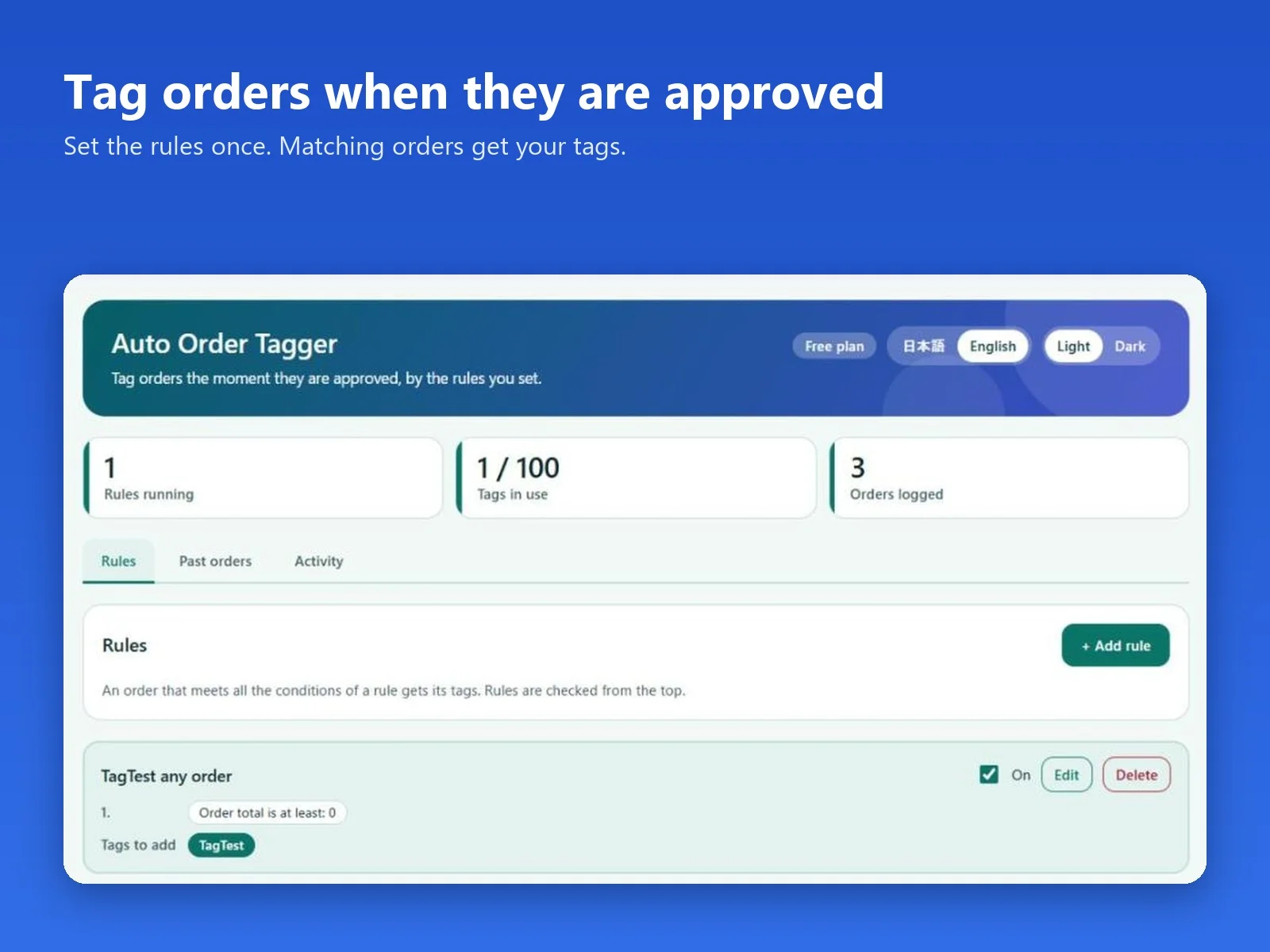
The rules screen.
In four lines
The problemWix lets you tag an order by hand, one order or a selection at a time. If you tag the same kind of order again and again, it is a chore that is easy to forget.
Where it livesOpen the app from your site dashboard. It has a rules screen and an Activity tab.
What you doAdd a rule: enter an order total and the tags to add. When an approved order’s total is at least that amount, the order gets the rule’s tags.
The resultTagged orders can be picked out in the Wix orders filter, and the Activity tab shows what was tagged and when.
Demo video. Nothing loads from YouTube until you press play.
Who it is for
Wix store owners who want large orders, or any orders above an amount, to stand out in the orders list without opening each one.
Owners who take offline or manual payments and want those orders tagged too.
This page describes only the order total rule, the one tested on real orders. If you need another condition, ask Support first.
How it works in 3 steps
Add a rule. Enter an order total and the tags to add.
Orders are tagged when approved. When an approved order’s total is at least the amount, the rule’s tags are added. Orders paid offline, such as manual payment, are tagged as well.
Filter by the tag. Private tags show on the Wix orders screen and in its filter. Check the Activity tab to see what was tagged.
What it does
Tags orders by a total you set
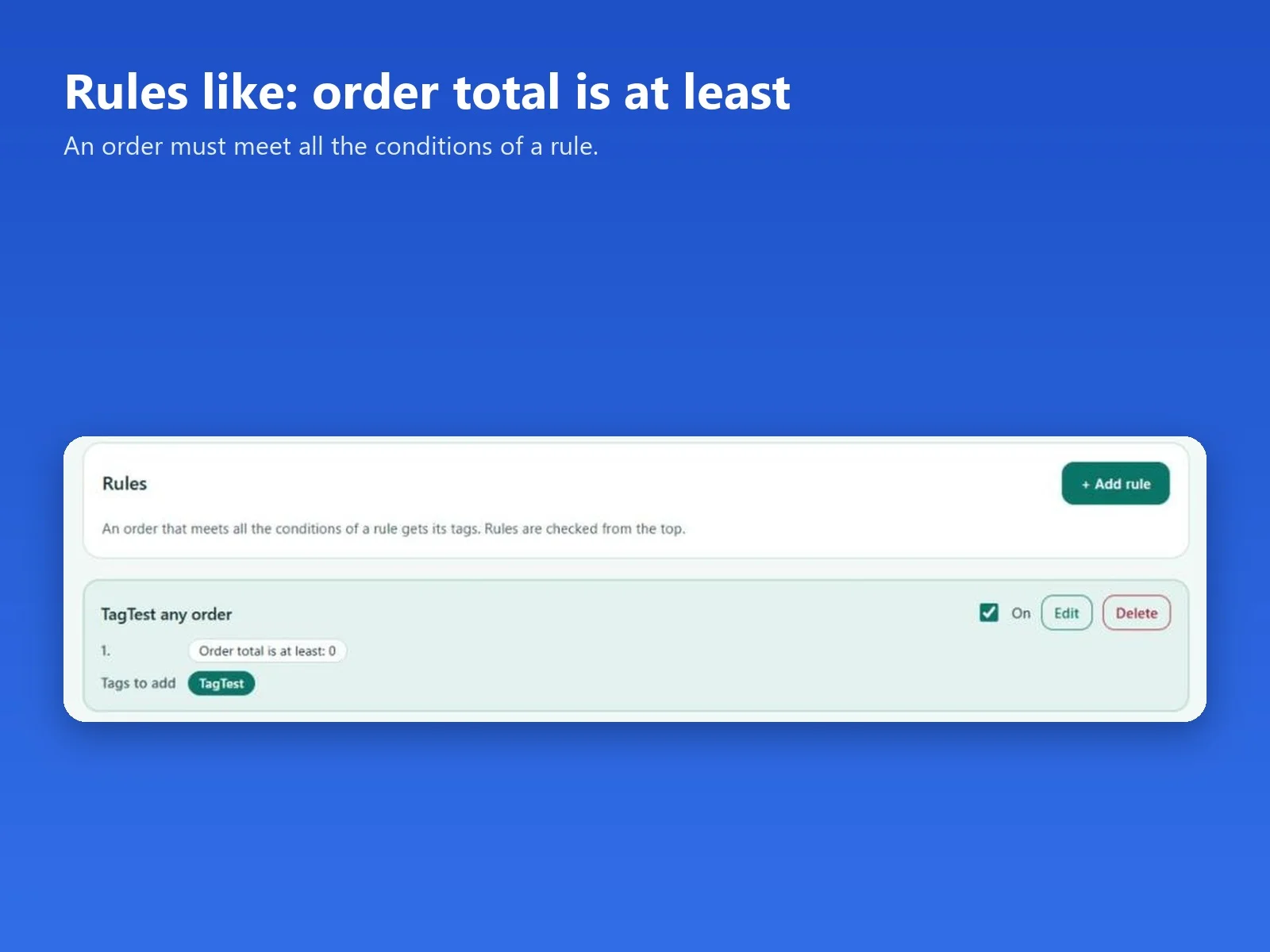
A rule holds an order total and one or more tags. When an approved order’s total is at least that amount, the order gets the tags.
Adding a rule.
Private tags, shown in the orders filter
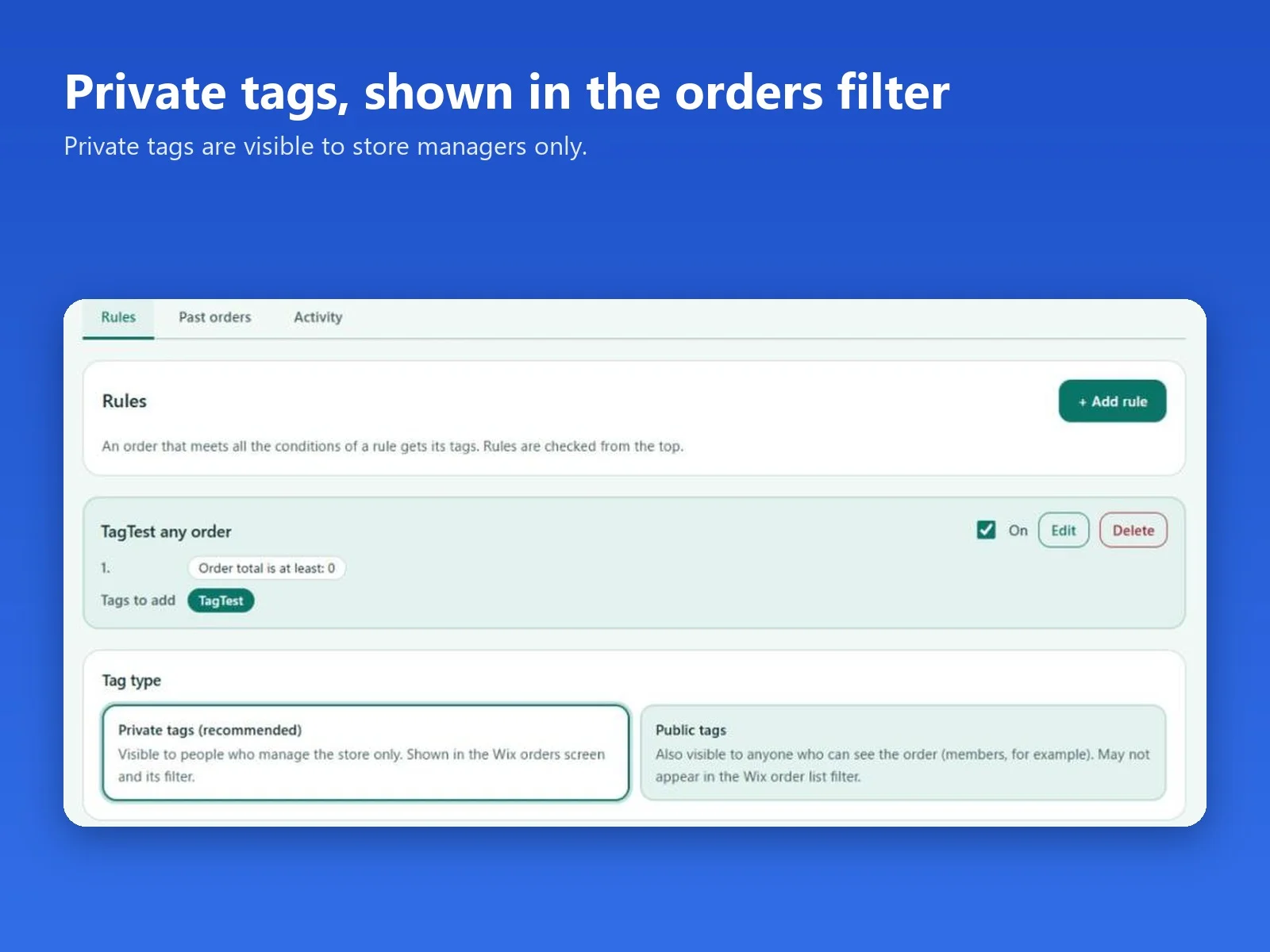
Tags are private by default and are visible only to the people who manage the store. The app says private tags show on the Wix orders screen and in its filter, and that public tags may not appear in the filter, so private is the recommended choice.
The Tag type setting.
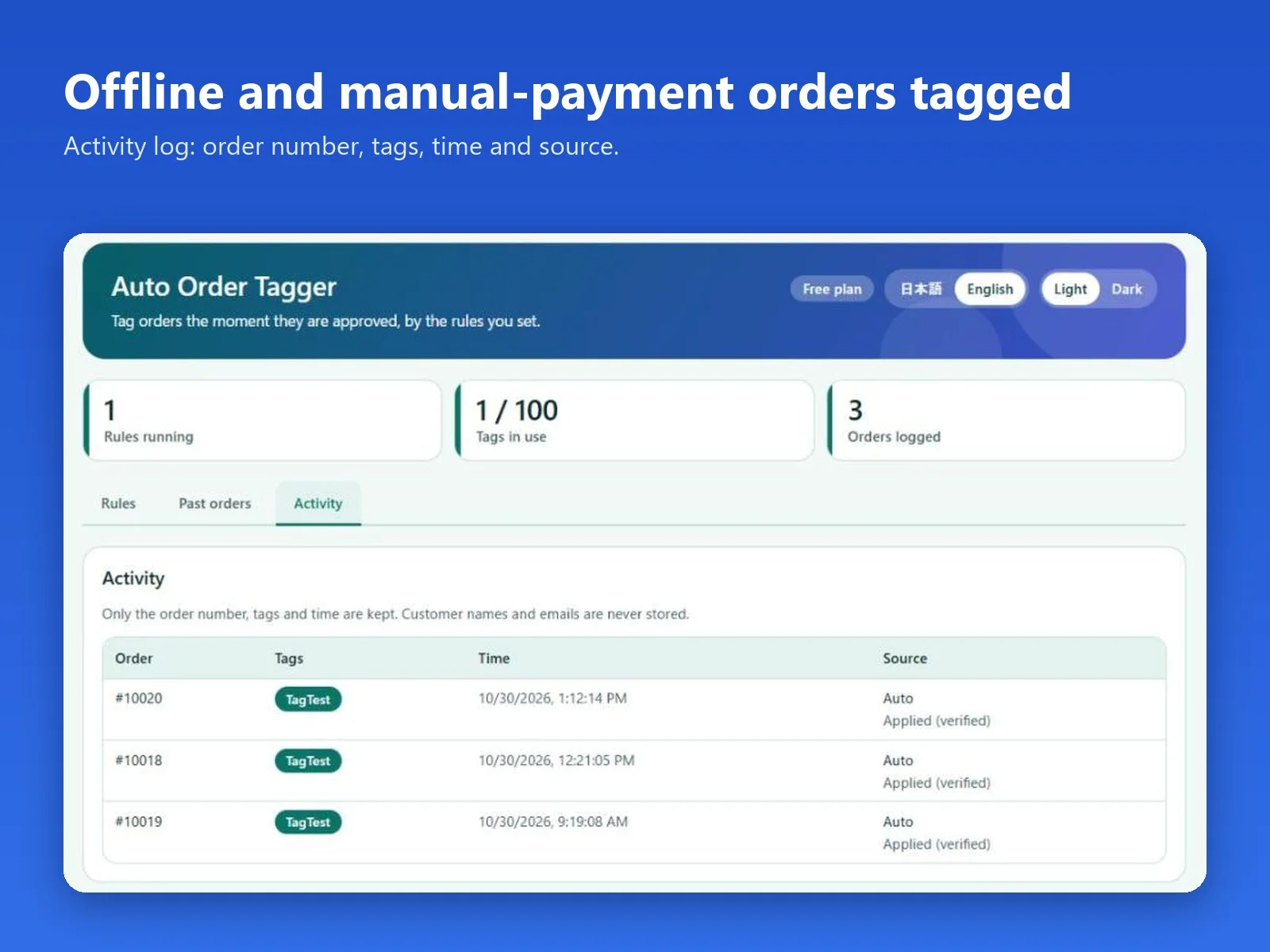
An Activity log
The Activity tab lists each tagged order with its order number, the tags, the time and the source.
The Activity tab.
What it can and cannot do
Free: 2 rules, applied to every new approved order. Pro ($3.99 per month): up to 100 rules, and your rules can also be applied to past orders.
Rules run when an order is approved, including orders paid offline.
Tags are private by default. Public tags may not show in the Wix orders filter.
Questions
Which orders get tagged?
You set the rule: enter an order total and the tags to add. When an approved order's total is at least that amount, it gets the rule's tags.
When do the tags get added?
When an order is approved. That includes orders paid offline, such as manual payment.
Where do the tags show up?
Tags are private by default. The app says private tags show on the Wix orders screen and in its filter, and that public tags may not appear in the filter, so private is the recommended choice.
Can I see what the app tagged?
Yes. The Activity tab lists each tagged order with its order number, the tags, the time and the source.
What is the difference between Free and Pro?
Free runs 2 rules on every new approved order. Pro allows up to 100 rules and can also apply your rules to past orders. Pro is $3.99 per month.
Is the app available in Japanese?
Yes. The Wix App Market listing is in English and Japanese.
 Hullspark