 Hullspark
How to print each staff member's daily schedule from Wix Bookings
You want a sheet for each stylist, trainer or therapist that says who is on when today. Wix Bookings can show the day by staff member on screen, but its help center says the schedule cannot be printed from the Booking Calendar. Here is what you can do with Wix alone, where it stops, and one option that makes a sheet per person.
Hullspark · updated 2026-10-29
Short answer
- On screen: the Booking Calendar's Staff view puts the day's sessions in a column for each staff member in charge [2]. It has no print button. Wix lists printing the schedule as a request it is collecting votes for [1].
- On paper, Wix's own way: filter the Booking List by staff member and session date, then print that list [3]. Wix suggests posting a printed Booking List as the daily agenda at reception [3].
- In a spreadsheet: Wix's printing article suggests exporting a report as a CSV and printing that if your schedule is the same every week [1]. The Booking List can also be exported as a CSV [3].
- One sheet per person, no customer details: an app can group the day by staff member. See the app section below.
What Wix gives you out of the box
| Way | Good for | Catch |
|---|---|---|
| Staff view in the Booking Calendar [2] | Reading the day on screen, one column per staff member | No print button [1] |
| Booking List with the staff member filter [3] | A list for one person, with the session date and time filter alongside | The printed list shows the columns on screen. Session date & time and Charge client cannot be hidden [3] |
| Booking List export to CSV (All, Filtered or Selected) [3] | Tidying the list in a spreadsheet before printing | A manual round trip every day. Scroll to the end of the list first so every booking has loaded [3] |
| Booking Calendar: Manage > Export booking data [4] | A date range of bookings as a CSV | The fields are fixed and include client name, email, phone and address [4] |
Doing it with the Booking List
- In your Wix dashboard, open the Booking List.
- Click Filters. Pick the session date and time, and the staff member. Wix lists both as filters [3].
- Check the list shows only that person's bookings for the day.
- Print the list from your browser, or choose Filtered in Export and open the CSV to tidy it first [3].
- Repeat for each staff member. For a team of five that is five filter rounds a day.
Where the built-in way stops
- One person at a time. A separate sheet for each person means filtering and printing once per staff member.
- Client details can come along. The Calendar's CSV export includes client name, email, phone and address and its fields cannot be removed [4]. A sheet pinned to the wall then shows them.
- Page layout is the browser's. You print what the screen shows or what the spreadsheet looks like. There is no sheet made for the day.
- People ask for this. A Wix forum member asked for a printed list of all bookings and wrote that Wix had told them it was not possible [5].
One option: our own app
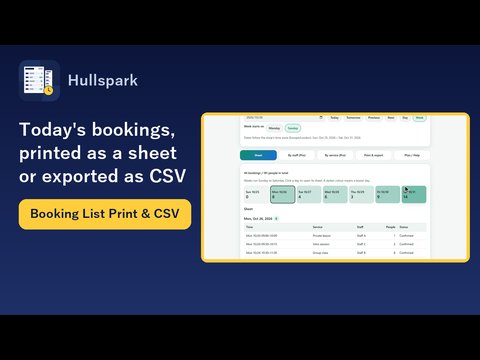
I make a Wix app for this, Booking List Print & CSV by Hullspark. What it does:
- A sheet for the day. Pick a date and the app lays out time, service, staff member and head count. On the free plan one day goes out as an A4 portrait PDF (US Letter in the latest version).
- One person at a time or all grouped by staff. On the Pro plan the By staff tab groups the day by staff member and the export can be limited to the person you picked. A booking with two staff members appears under both.
- Paper size. The PDF paper size menu offers A4 and Letter (8.5 x 11 in). If your browser's region is US or Canada and the app is in English, it starts on Letter; otherwise it starts on A4. The choice is remembered in that browser.
- For the front desk. An optional heading line (a shop name, say) and an "Arrived" check box beside each booking, to tick by pen (on by default, and it can be turned off). The check box is not added to the CSV.
- No customer details. The app reads the date and time, service name, staff name and head count of each booking. It does not read customer names, phone numbers or emails. Cancelled bookings are left out, and nothing in Wix Bookings is changed.
The app makes the PDF; printing is done with your printer's own settings. Per-staff sheets, week and period sheets, a landscape week sheet and receipt widths are on the Pro plan. The service name and staff name appear as they are written in the Wix calendar event.
Questions
Can I print my staff schedule from Wix Bookings?
Not from the Booking Calendar. Wix's help center says printing the schedule of upcoming sessions is not possible and the request is open [1]. You can print the filtered Booking List [3] or export a CSV and print that.
Can I print one staff member's bookings only?
Yes, with the Booking List: use the staff member filter, then print or export the filtered list [3].
Does the sheet show customer names?
Not from this app. It reads the date and time, service, staff and head count. Wix's own CSV export from the Booking Calendar does include client name, email, phone and address [4].
Can I print on US Letter paper?
Yes, in the latest version of the app (2026-10-29): the PDF paper size menu has A4 and Letter (8.5 x 11 in). If you do not see it, the update has not reached your site yet.
Does the app change my bookings?
No. It only reads them.
Sources
Wix claims on this page come from the sources below, read on 2026-10-29. Wix changes its screens, so check them for the current state.
- [1] Wix Help Center: Wix Bookings Request: Printing Your Daily Agenda or Weekly Schedule: https://support.wix.com/en/article/wix-bookings-request-printing-your-daily-agenda-or-weekly-schedule
- [2] Wix Help Center: Wix Bookings: About the Booking Calendar: https://support.wix.com/en/article/wix-bookings-about-the-wix-booking-calendar
- [3] Wix Help Center: Wix Bookings: Managing Bookings with the Booking List: https://support.wix.com/en/article/wix-bookings-managing-bookings-with-the-booking-list
- [4] Wix Help Center: Wix Bookings: Exporting Reports on Bookings and Staff from Your Booking Calendar: https://support.wix.com/en/article/exporting-reports-on-bookings-and-staff-in-wix-bookings
- [5] Wix forum: Create a list of al bookings (2019): https://forum.wixstudio.com/t/36115
Related
- Wix Bookings CSV export: how to get a clean list for the month
- How to print your Wix Bookings list or export it to CSV
- Product page
- All English guides
Checked 2026-10-29. Menu names follow the Wix help center articles above and can differ by plan. Wix is a trademark of Wix.com Ltd. This page and the app are not affiliated with, made by or endorsed by Wix.
Questions? Support or support@hullspark.com. Privacy policy