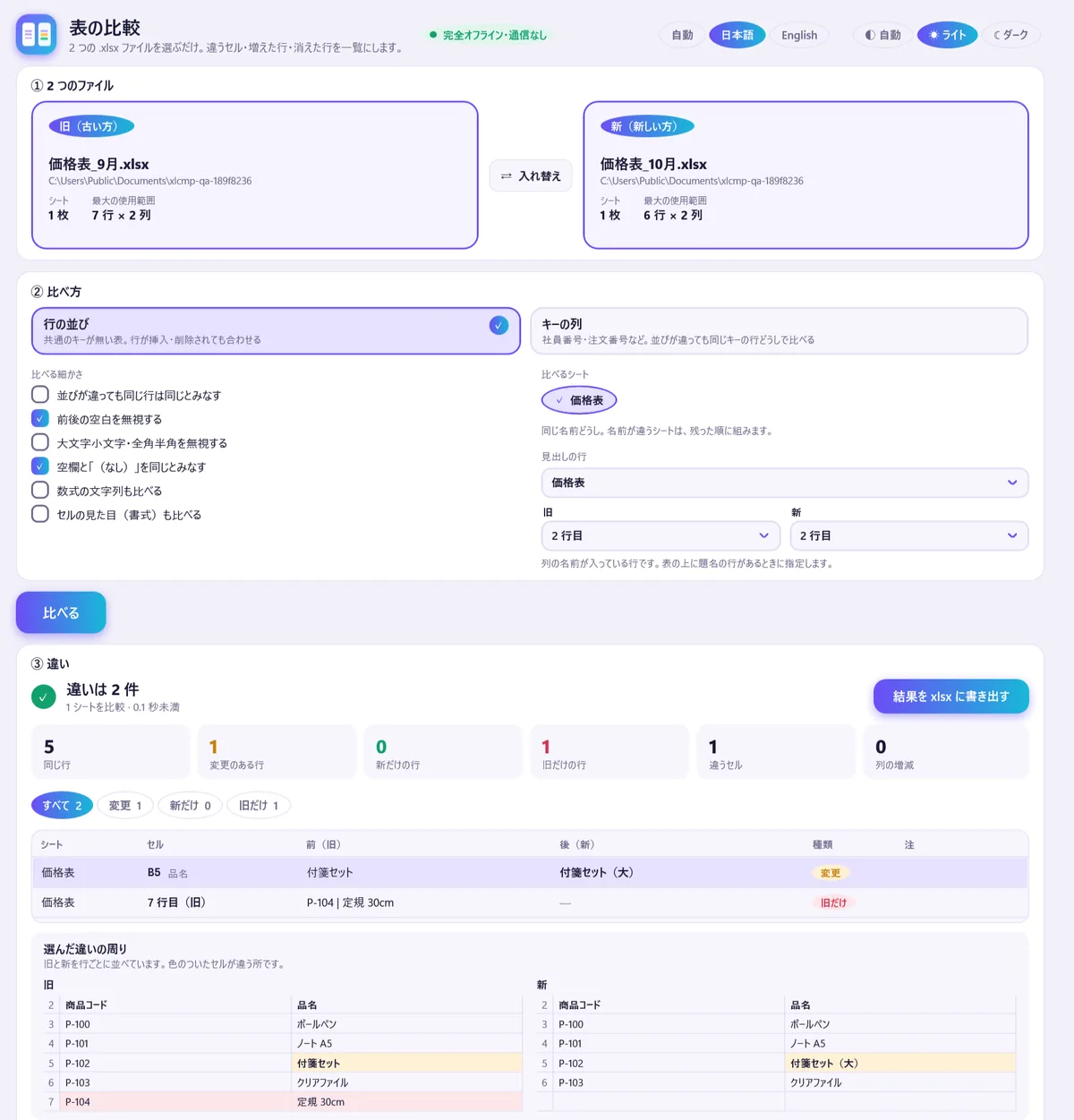
Pick two .xlsx files and get a diff in one list: changed cells, added rows, removed rows and column changes. Select a row to see it side by side, old and new. Works offline.
Windows only. Your files are only read and nothing goes over the network.
In four lines
The problemFinding what changed between last month’s .xlsx and this month’s by eye is slow, and one changed cell is easy to miss.
Where it is on screenStep 1: drop or click a file into the Old and New boxes. The result appears in step 3, Differences.
What it doesPress Compare. Changed cells, added rows, removed rows and column changes go into one list. Filter by changed, only in new or only in old, and select a row to see its surroundings side by side. Export the result to .xlsx to hand it on.
What you getSix counts at the top and the differences in one list. Your originals are only read, and nothing goes over the network.
What you can do
Every difference in one list
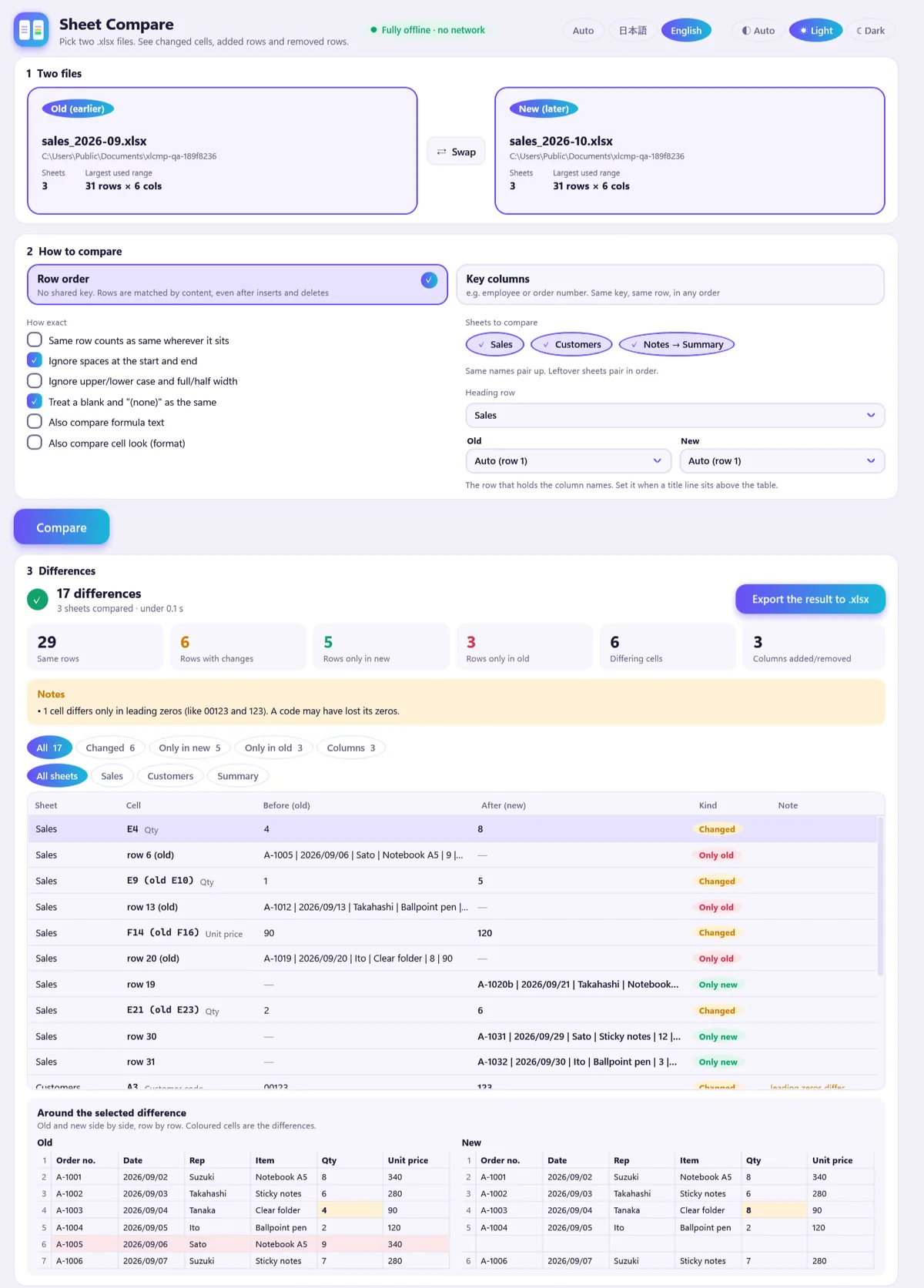
Changed cells, added rows, removed rows and added or removed columns are listed with the sheet, the cell, the value before and after, and the kind. Six tiles at the top give the counts first: same rows, changed rows, only in new, only in old, differing cells, columns added or removed.
Seventeen differences from sample sales workbooks, with the selected one shown side by side.
Rows that moved or were inserted
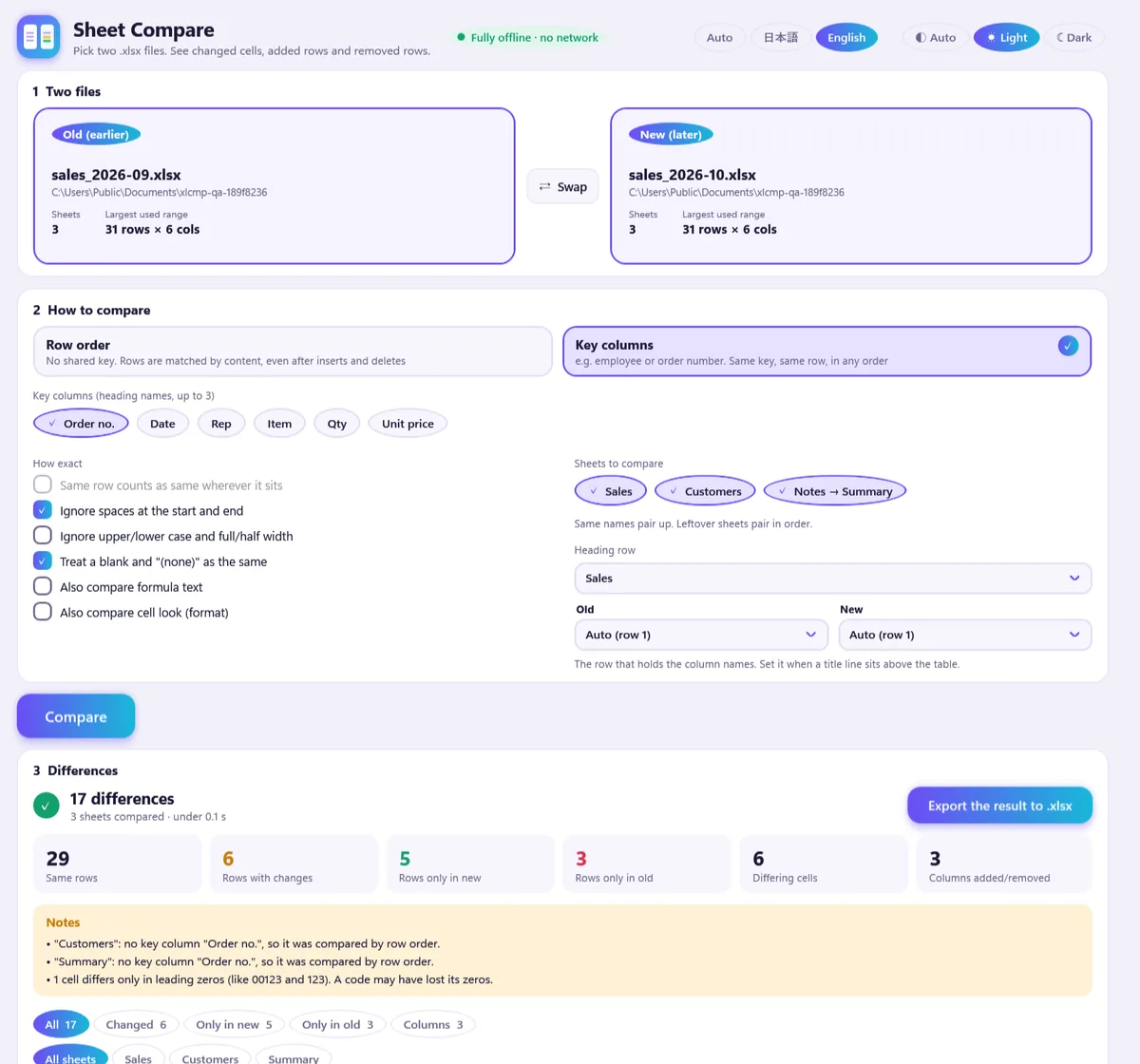
Row order lines rows up by content even when rows were inserted or deleted. Key columns lets you pick up to three columns, such as an employee or order number, and compares rows with the same key. If a sheet lacks the key column, the Notes box says it was compared by row order instead. It also flags codes that lost their leading zeros.
Key columns picked, with the Notes box.
A title line above the table
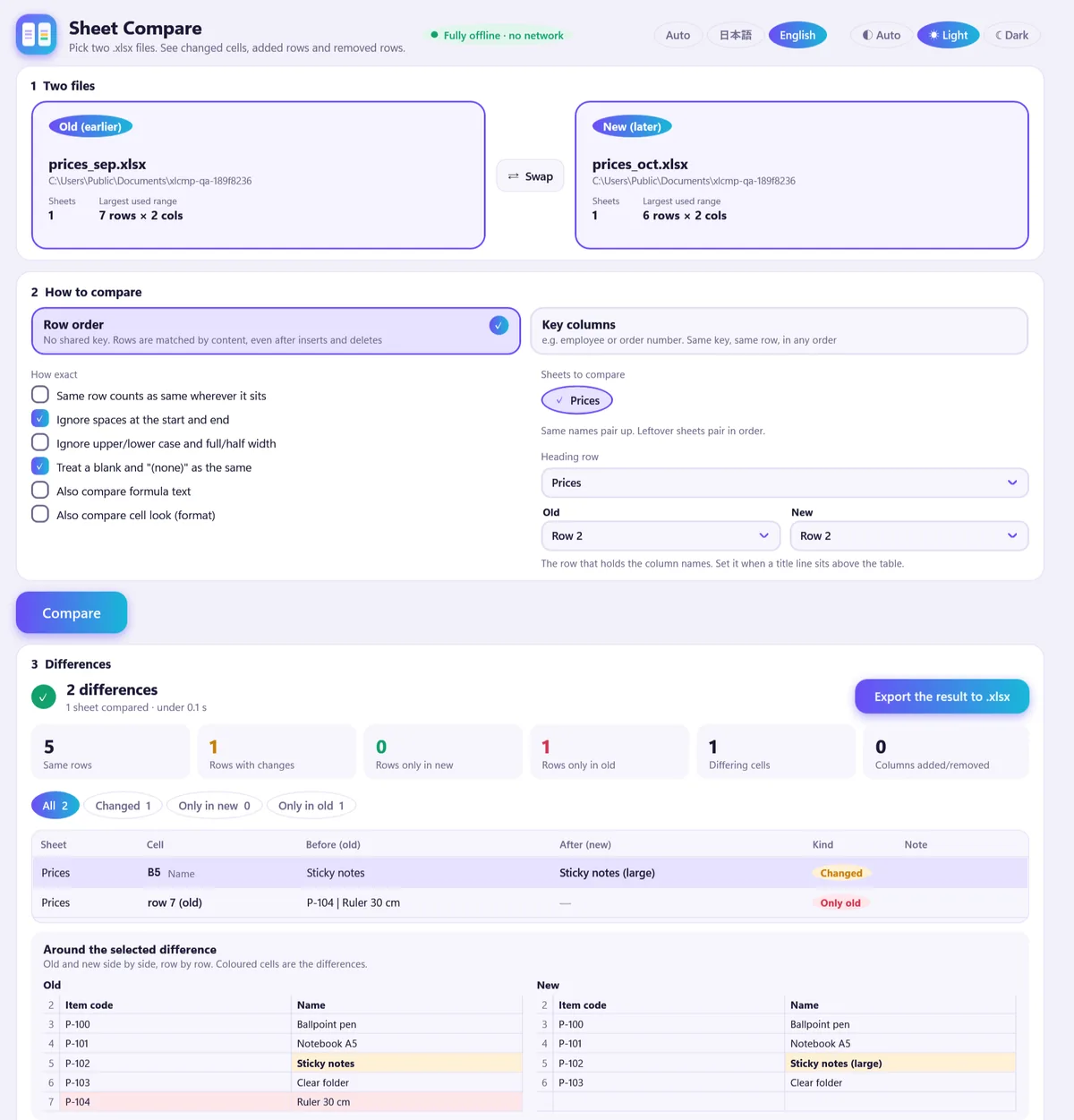
The heading row is picked automatically and can be set per sheet and per side, rows 1 to 30 or none. When the pick may be a title line, Notes in the result names the row.
Heading row set to row 2 on both sides.
Hand the result on
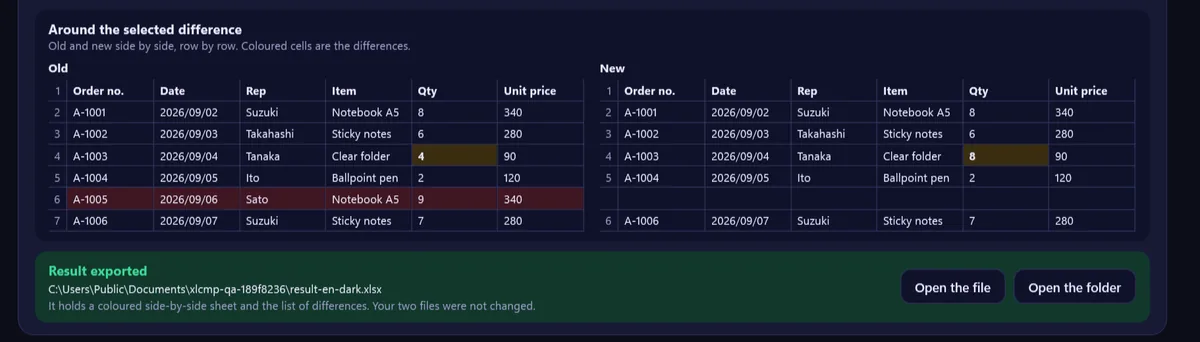
Export the result to .xlsx writes one file: a summary, a differences list with a filter and a frozen header, and a side-by-side sheet for each compared sheet (changed is yellow, only in new green, only in old red). Dates are written as real date cells. Then open the file or its folder from the app. Japanese and English, light and dark.
The result written, in the dark theme.
Good to know
Windows only. Available on the Microsoft Store.
Only .xlsx. .xls, .xlsm, .xlsb and password-protected files are not read.
It compares cell values. Comments, pictures, shapes, charts, pivot tables, conditional formatting and data validation are not compared.
Scale, measured on the author’s PC with made-up data: 100,000 rows × 20 columns takes about 15 seconds and about 700 MB. 1,000,000 rows was not measured.
The on-screen list shows the first 10,000 differences. The exported file holds all of them.
A title line as wide as the table and identical in both files can be mistaken for the heading. Check the column names, or set the heading row in step 2.
The exported .xlsx has not been opened in a spreadsheet app itself.
The pictures on this page show made-up sample workbooks, not anyone’s data. No comparison with other tools has been made.
Questions
Do I need Excel?
No. Sheet Compare reads .xlsx files itself, so no other app is needed.
Rows were inserted and deleted. Will everything below show as different?
No. Row order lines rows up by content, so one inserted row does not turn the rows below it into differences. Key columns compares rows that share a key such as an employee or order number, even when the order differs. Columns with the same heading match even if they moved.
The first row of my sheet is a title, not the headings.
The heading row is picked automatically at first. A title line as wide as the table that is identical in both files cannot be told from a heading. When that title holds a number or a date (a year, version or month), the row the app took is named under Notes. A title with neither is not flagged, so check the column names on screen. Under Heading row in step 2 you can set the row per sheet and per side (rows 1 to 30, or none).
How big a file can it handle?
Measured on the author's PC with made-up data: 100,000 rows × 20 columns, nearly every value different, took about 15 seconds to read, compare and write, and used about 700 MB of memory. A table with many repeated values took about 13 seconds and 430 MB. 1,000,000 rows was not measured. Time and memory on other PCs were not measured either.
What does it not compare?
It compares cell values: text, numbers, dates, booleans and error values. Formulas are compared by their saved results. Comments, pictures, shapes, charts, pivot tables, conditional formatting and data validation are not compared. Only .xlsx is read. .xls, .xlsm, .xlsb and password-protected files are not read, and for .xls and password-protected files the reason is shown in a red box. The on-screen list shows the first 10,000 differences; the exported file holds all of them.
Does it change my files or send them anywhere?
No. The originals are only read, and nothing goes over the network. The exported file contains no author name and no file location.
Has the exported .xlsx been opened in a spreadsheet app?
Not yet. The file passed a validator with 0 errors, but it has not been opened in a spreadsheet application itself, so a repair prompt is not ruled out.
Can it compare two Excel workbooks?
Yes, when they are saved as .xlsx. It lists every changed cell, added and removed row and column change between the two files.
What does it cost?
$3.99, one time, on the Microsoft Store.
Where can I get it?
On the Microsoft Store, linked at the top and bottom of this page.
 Hullspark