Free. Windows only. Your images are never uploaded.
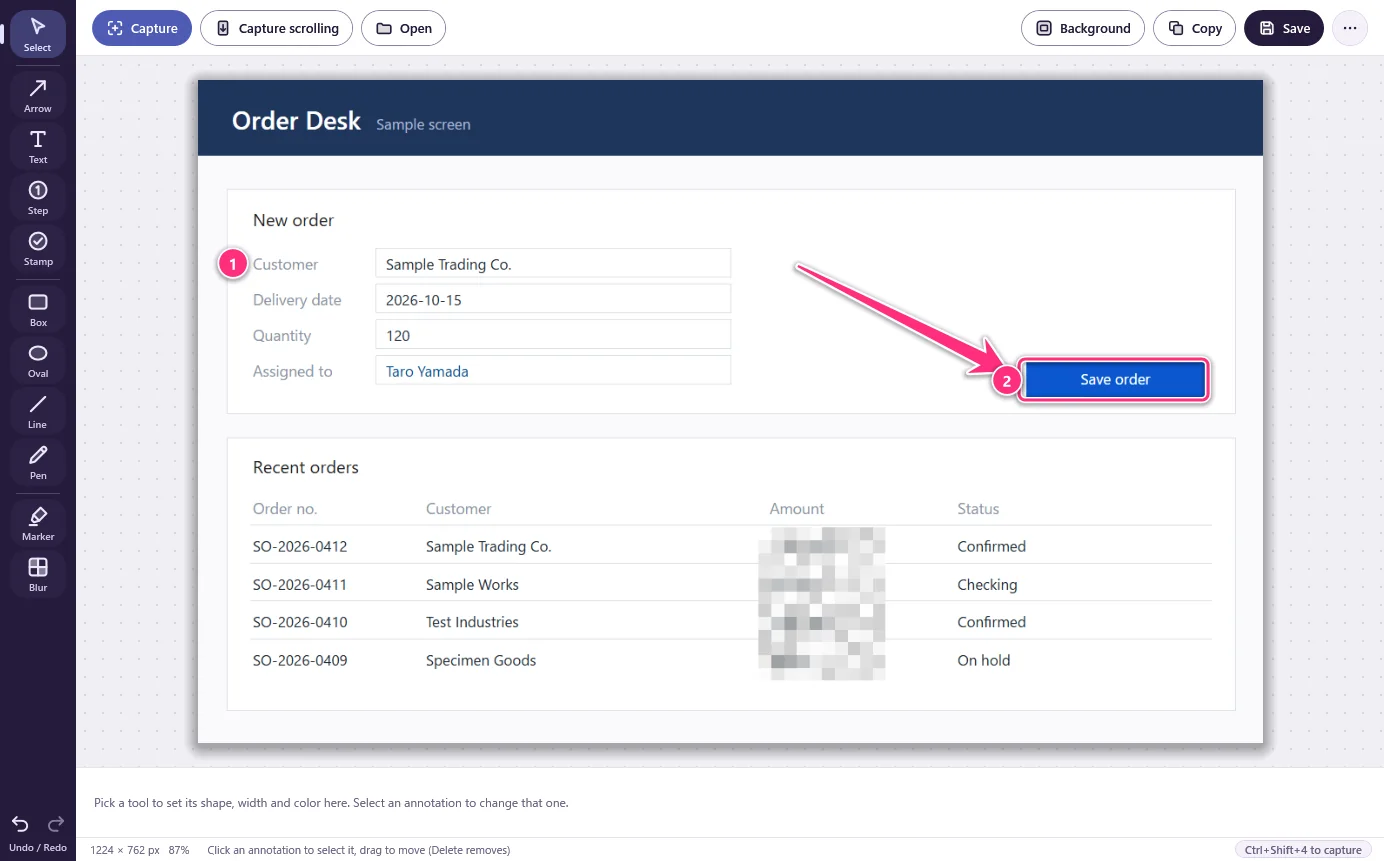
Step numbers, an arrow to the button, and a blurred amount column.
In four lines
The problemSometimes one image with an arrow and a number says more than three paragraphs. A plain screenshot leaves people guessing where to look.
Where it is on screenPress Ctrl+Shift+4 anywhere in Windows and drag over the part of the screen you need. The capture opens in Markshot’s editor.
What you doAdd arrows, boxes, text and numbered steps. Blur anything private. Press Save for a PNG, or Copy to paste it into a chat or a document.
What you getA clear PNG in seconds, with the arrow pointing at the right button. Your images are never uploaded: Markshot saves where you choose.
What you can do
Arrows, boxes, text and step numbers
The rail on the left holds the tools: select, arrow, text, step, stamp, box, oval, line, pen, marker and blur. Number your steps so people know the order. The toolbar also has a Capture scrolling button for pages longer than the screen.
Mark up what matters
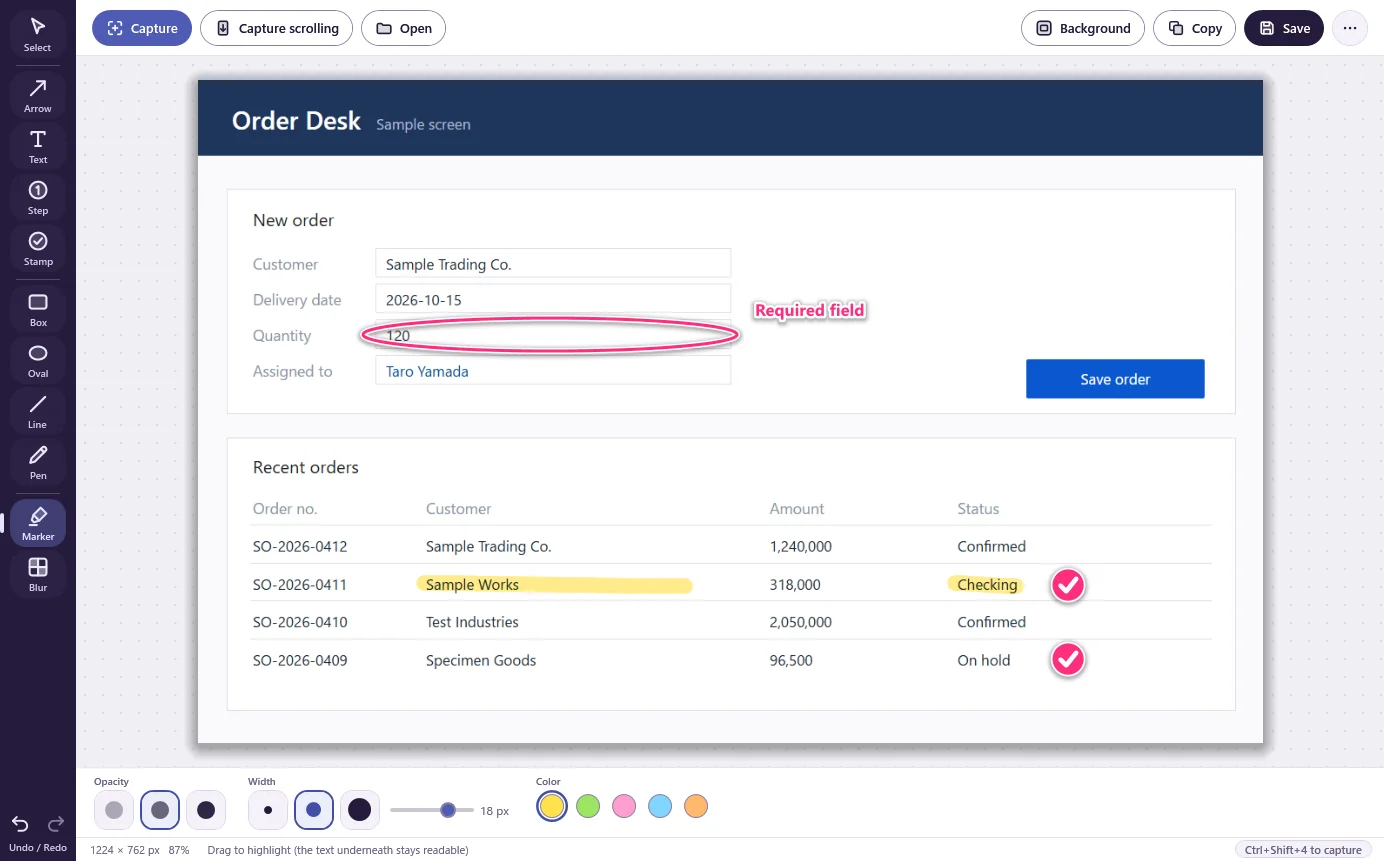
Highlight a line with the marker, circle a field and label it, or drop a check stamp. Pick the width and colour of the tool you are using in the bar under the toolbar.
Marker, stamps, an oval and a text label.
Blur what you can’t show
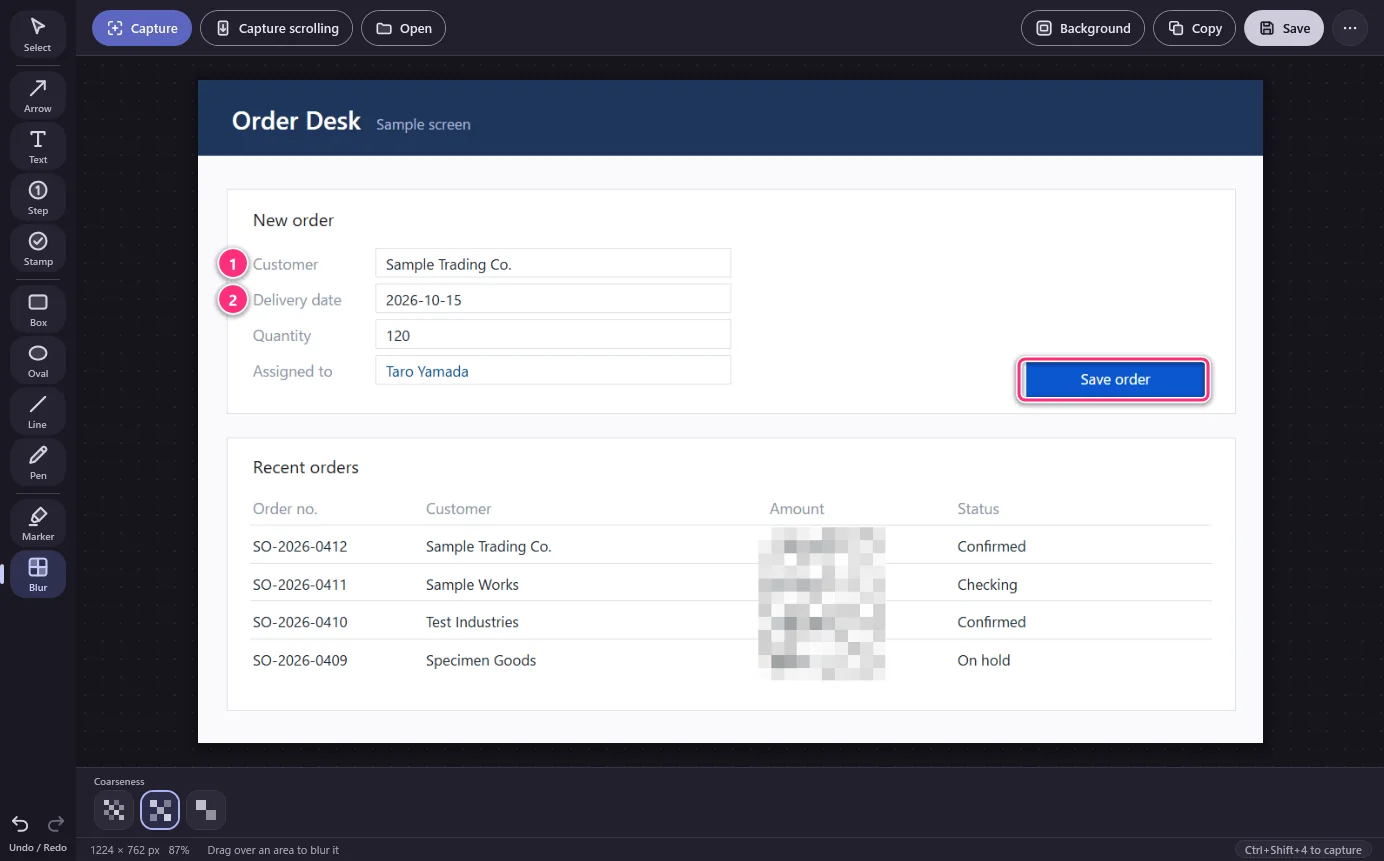
Drag over an area to blur it, and choose how coarse the blur is. The dark theme is one click away.
Blur with a choice of coarseness, in the dark theme.
Save it with a background
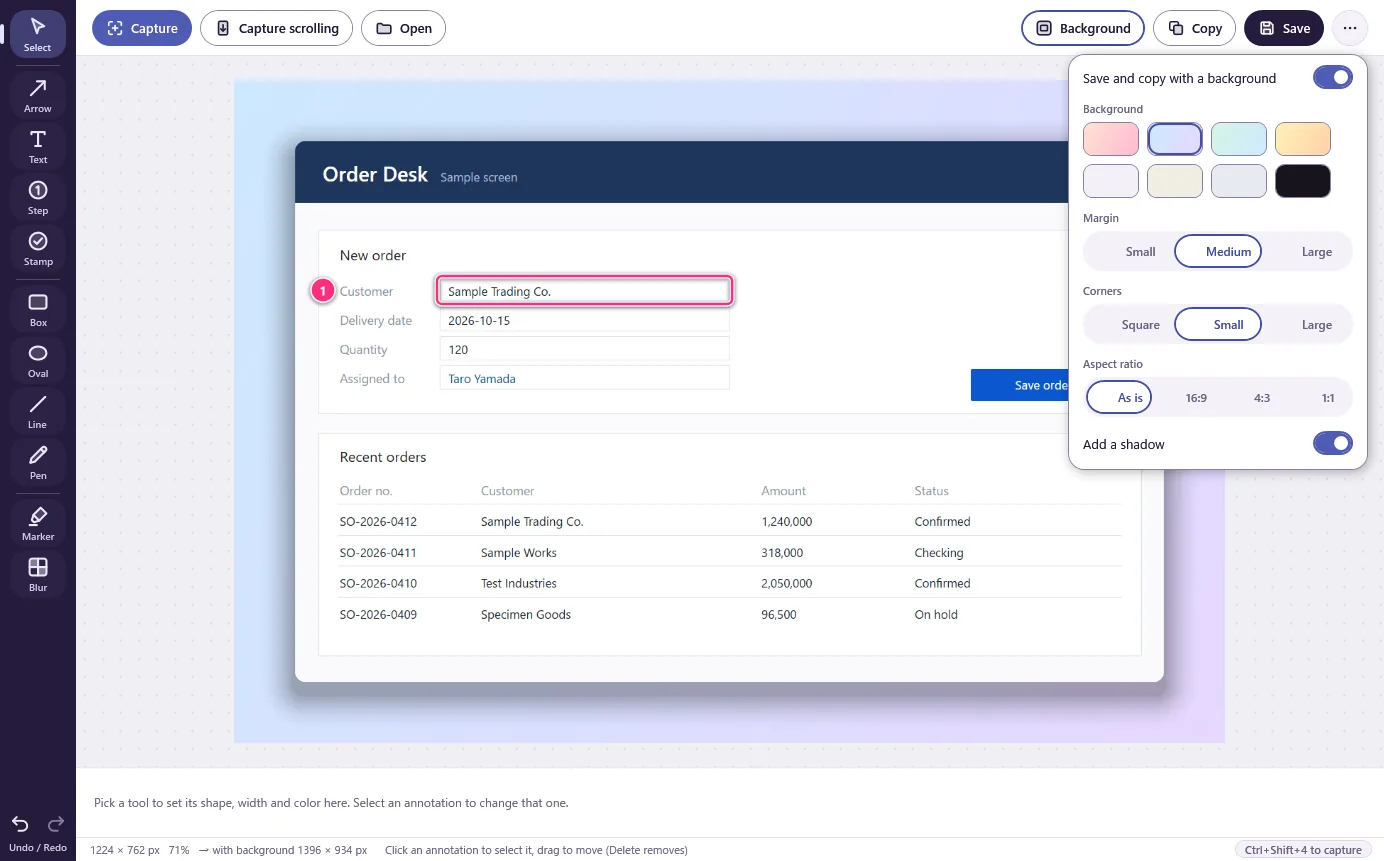
Save and copy with a background puts the capture on a coloured backdrop. Choose the colour, the margin (small, medium, large), the corners, the aspect ratio (as is, 16:9, 4:3, 1:1) and a shadow.
The Background settings.
Make it yours
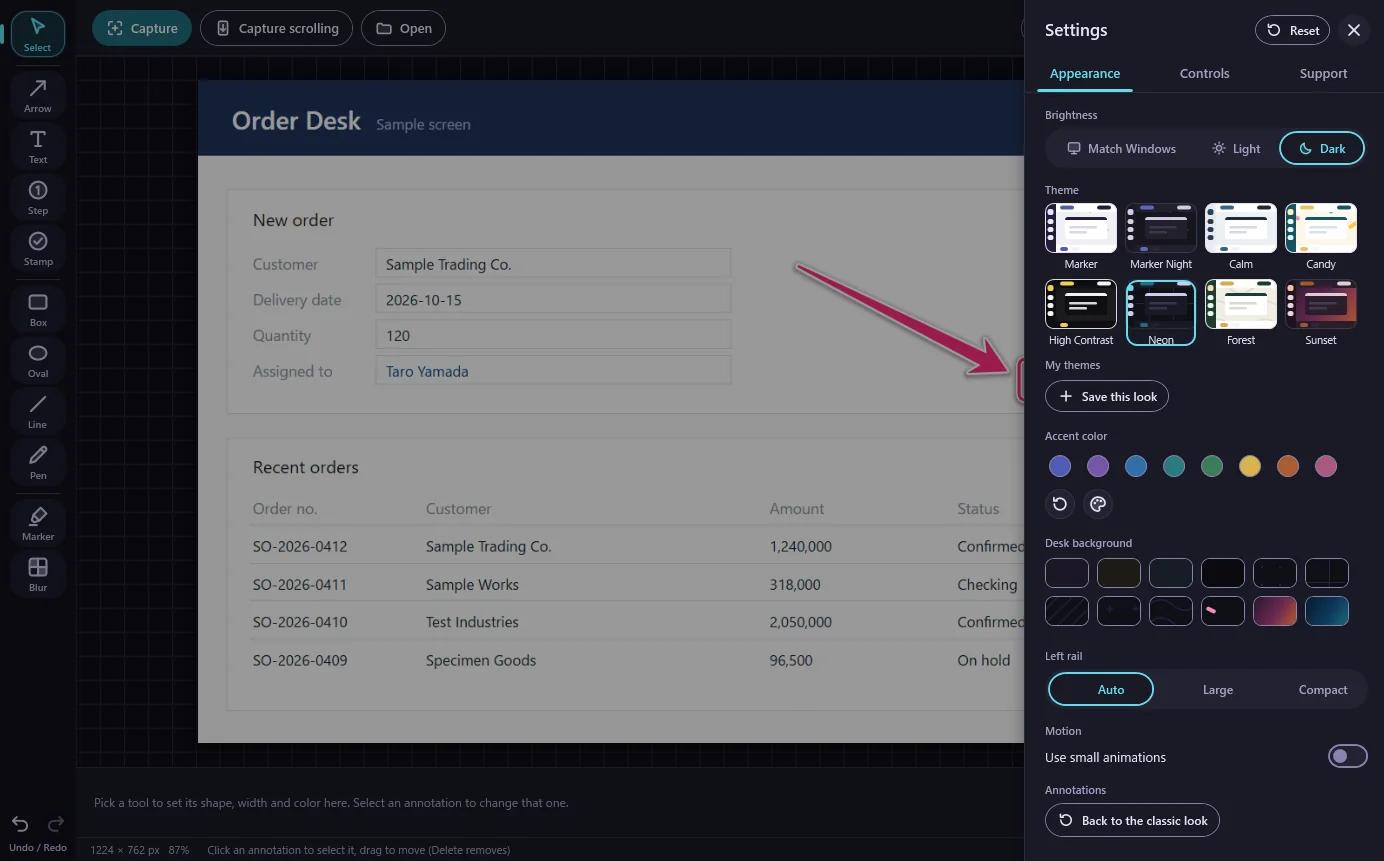
Eight themes, light, dark or matching Windows, an accent colour and a desk background. Your look is saved in Settings.
The Settings screen with eight themes.
Good to know
Windows only. Free, from the Microsoft Store.
If the hotkey does nothing, another app probably has the same combination. Click the Hotkey box at the top of Markshot’s window and press a different one. New Capture… in the window always works.
The pictures on this page are of Markshot 0.5 with a made-up “sample screen”, not a real customer’s data.
Questions
How do I capture?
Press Ctrl+Shift+4 and drag over the part of the screen you need, or click New Capture… in the window. The capture opens in the editor. Save it as a PNG with Save.
The hotkey does nothing.
Another app has probably registered the same combination. In the Hotkey box at the top of Markshot’s window, click and press a different combination. Markshot tells you right away if the new one is also taken. Reset to default goes back to Ctrl+Shift+4.
Is anything uploaded?
No. Your images are never uploaded. Files are written only where you save them. See the privacy policy.
What does it cost?
Markshot is free.
How do I report a bug?
Email support@hullspark.com with your Windows version, the Markshot version shown in your Microsoft Store library, what you did and what you expected. A screenshot helps. Blur anything private first.
 Hullspark