 Hullspark
Choose the columns of a Wix Events guest list and print a check-in sheet
A caterer wants names and meal choices, the door team wants a sheet to tick, and the venue wants a head count. Wix Events exports the guest list to a CSV, answers to your own registration questions included. Here are the steps, and what an app adds when you need only some columns, groups, or a printed check-in sheet.
Hullspark · 2026-10-30 · 日本語
Short answer
- Wix: Events > Manage > Guests tab > Export Guests icon saves a .csv. The export also shows all answers to custom registration questions [1].
- What the help articles do not describe: choosing columns, grouping by ticket, or printing a guest list [1] [2].
- With the app: choose and order the columns, group by ticket type or by an answer, save the set as a template, and download a CSV. A printable sign-in sheet is on the Pro plan.
The Wix way
- In your site dashboard, go to Events.
- Click Manage next to the event.
- Open the Guests tab.
- Click the Export Guests icon.
- Save the .csv file. How you save it depends on the browser [1].
For one guest, click the guest in the Guests tab to see the registration form responses [2]. Purchases are a separate export: the Orders tab has Export Order List [1].
When one export is not enough
- The file layout is not documented. The article does not say whether rows are per guest or per order, which columns there are, or whether you can choose them [1]. Export your own event to see it.
- No print view is described, and choosing columns is a request, not a feature. The guest list article covers viewing, editing and removing guests and does not mention printing [2]. Wix has a request page about choosing which information to export [3]. Until then the usual route is to clean the CSV in a spreadsheet and print from there.
- One list for every reader. A caterer needs name and meal choice; a door team needs name and ticket. With a single export you delete columns and sort by hand each time.
With the app
I make a Wix app for this, Guest List Builder by Hullspark. It reads the guest list and changes no guests, orders or tickets.
- Choose the event and load the guests. Include ticket holders and RSVPs, ticket buyers only, or both.
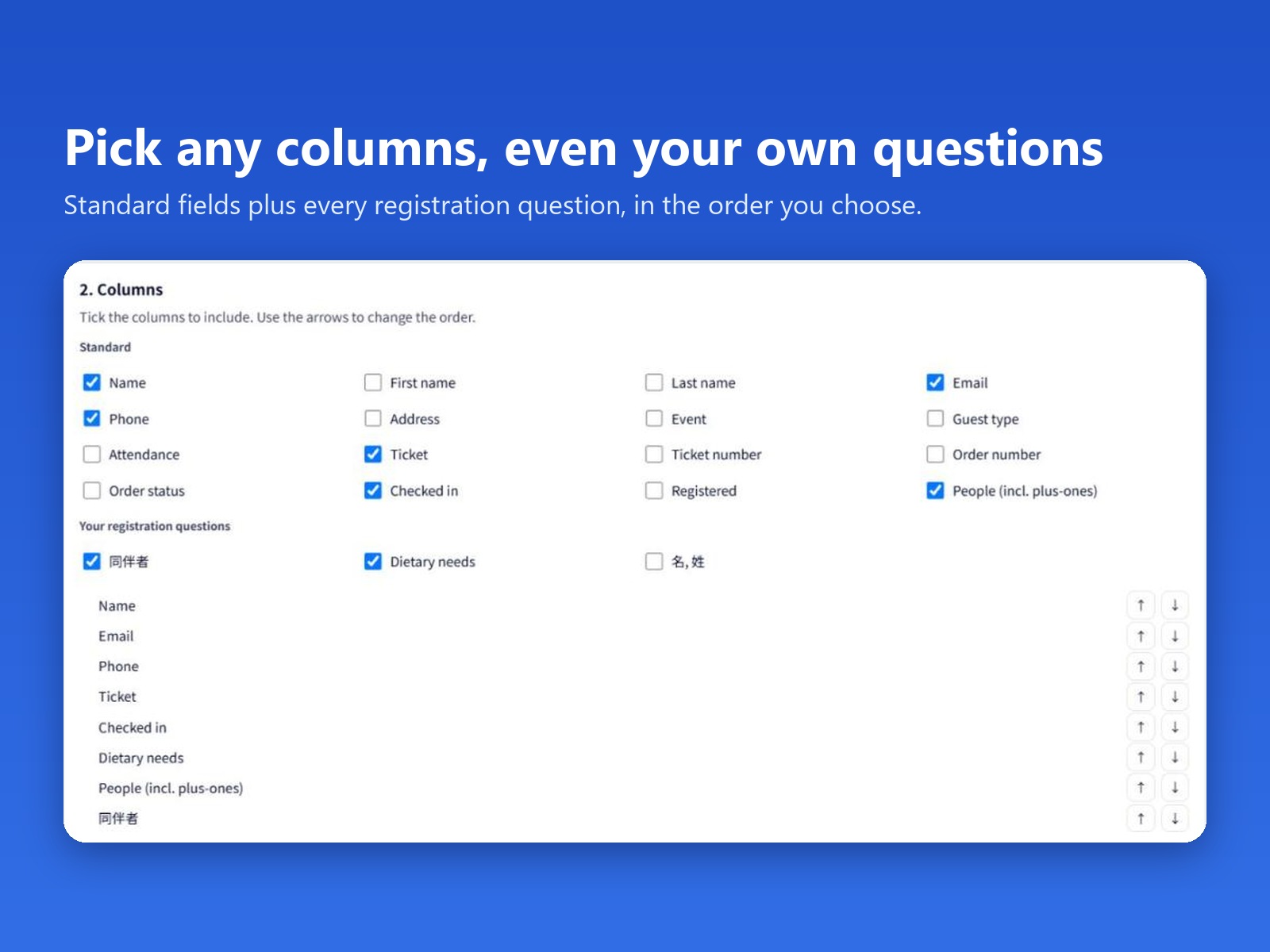
- Tick the columns. Standard columns (name, email, phone, ticket, attendance, checked in, head count with plus-ones, and more) are in one group. Every custom registration question found for the event is listed under Your registration questions, and each becomes its own column. Use the arrows to set the order.
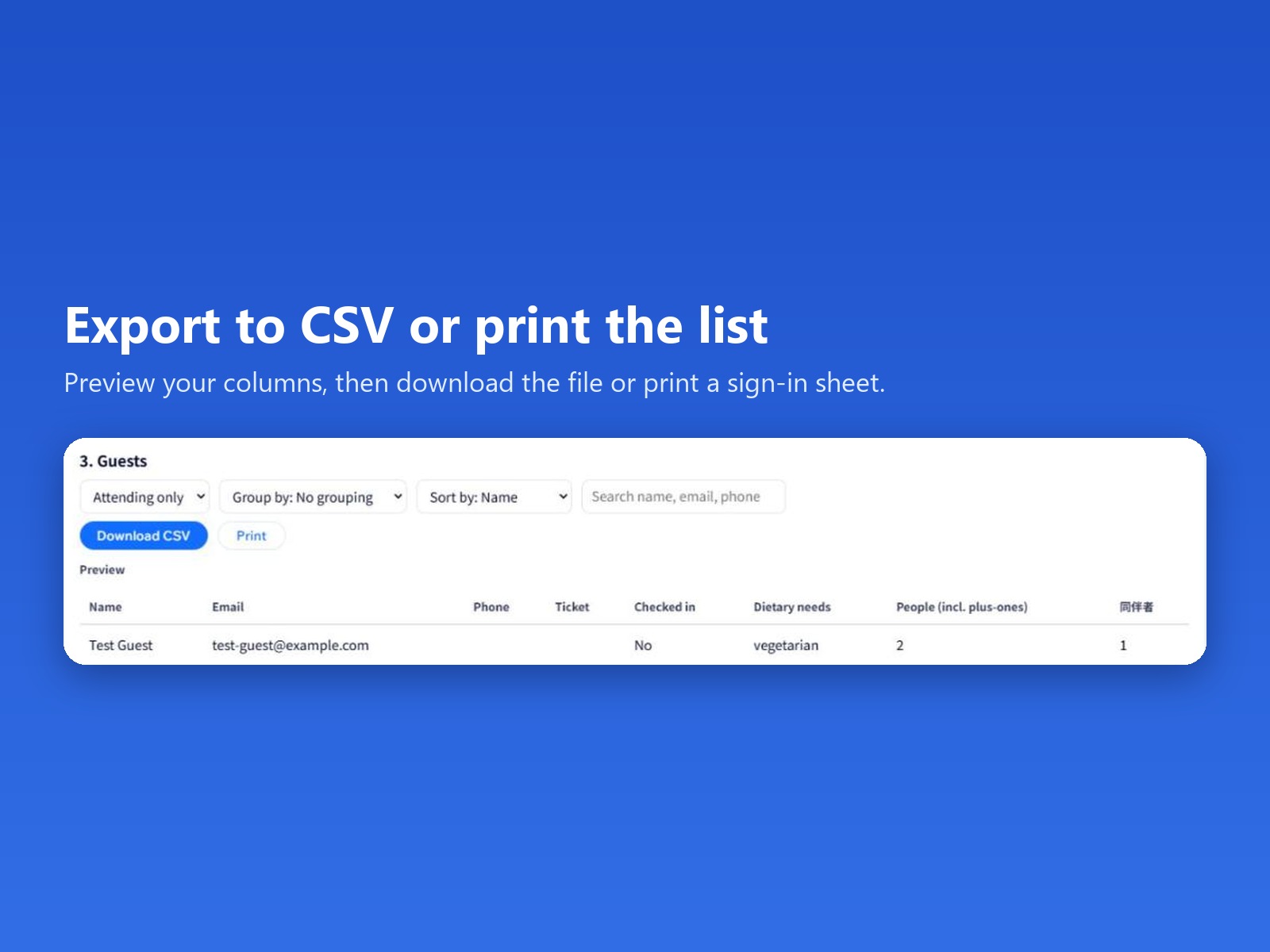
- Filter, sort and group. Show attending guests only, search by name, email or phone, and group by ticket type or by the answer to a question. Each group has a subtotal of guests and people.
- Download the CSV. It opens in Excel or Google Sheets with accents and Japanese text shown correctly. A cell that starts with = + - or @ gets a leading apostrophe so a typed answer is not run as a formula. Phone numbers that start with + are kept as text and show as typed.
- Save the columns as a template, such as Caterer list, and apply it to another event. A question is matched by its key first, then by its label; a question the other event lacks is dropped.
The app keeps your column templates only. Guest names, emails and answers are used on screen and in the file you download. It needs Wix Events.
Free and Pro
- Free: up to 50 guests per event (the list and the CSV stop at 50), 1 saved template, all columns including your own questions, filters, sorting, grouping and CSV download.
- Pro, $3.99 a month: up to 20,000 guests per event, up to 50 templates, and the print sheet with a check box per guest and the head count.
See the Guest List Builder page
Questions
How do I export a Wix Events guest list to CSV?
In the dashboard open Events, click Manage next to the event, open the Guests tab and click the Export Guests icon. Wix says the export also shows the answers to custom registration questions.
Does the Wix export include answers to my own registration questions?
Yes. The Wix help article says exporting the guest list shows all answers to custom registration questions on one page.
Can I choose the columns or print a check-in sheet in Wix Events?
The Wix help articles read for this page do not describe choosing columns, grouping, or printing a guest list, and a Wix request page says choosing what to include is not possible yet. The app does all three; printing is on the Pro plan.
What does the app add?
You pick and order the columns, group by ticket type or by an answer with subtotals, save the column set as a template, and download a CSV. Printing a sign-in sheet is part of the Pro plan.
What are the free plan limits?
Up to 50 guests per event (the list and the CSV stop at 50) and 1 saved template. Pro is $3.99 a month: up to 20,000 guests per event, up to 50 templates and the print sheet.
Sources
Wix statements on this page come from the sources below, read on 2026-10-30. Wix changes its screens, so check them for the current state. App details follow the app's source code.
- [1] Wix Help Center: Wix Events: Exporting Your Guest List or Order List: https://support.wix.com/en/article/wix-events-exporting-your-guest-list-or-order-list
- [2] Wix Help Center: Wix Events: Managing Your Guest List: https://support.wix.com/en/article/wix-events-managing-your-guest-list
- [3] Wix Help Center: Wix Events: Request: Exporting Customized Guest Lists: https://support.wix.com/en/article/wix-events-request-exporting-customized-guest-lists
Related
Checked 2026-10-30. Wix is a trademark of Wix.com Ltd. This page and the app are not affiliated with, made by or endorsed by Wix.
Questions? Support or support@hullspark.com. Privacy policy