
Page Review Reminders for Confluence

Set a reviewer and a due date on a page. A banner shows on the page, and the reviewer is @mentioned when it is due. No Premium plan needed.

Try it on the Atlassian Marketplace Getting started: your first review date in four steps

Free for up to 10 users, 30-day free trial for larger sites. Runs entirely on Atlassian. For Confluence Cloud.
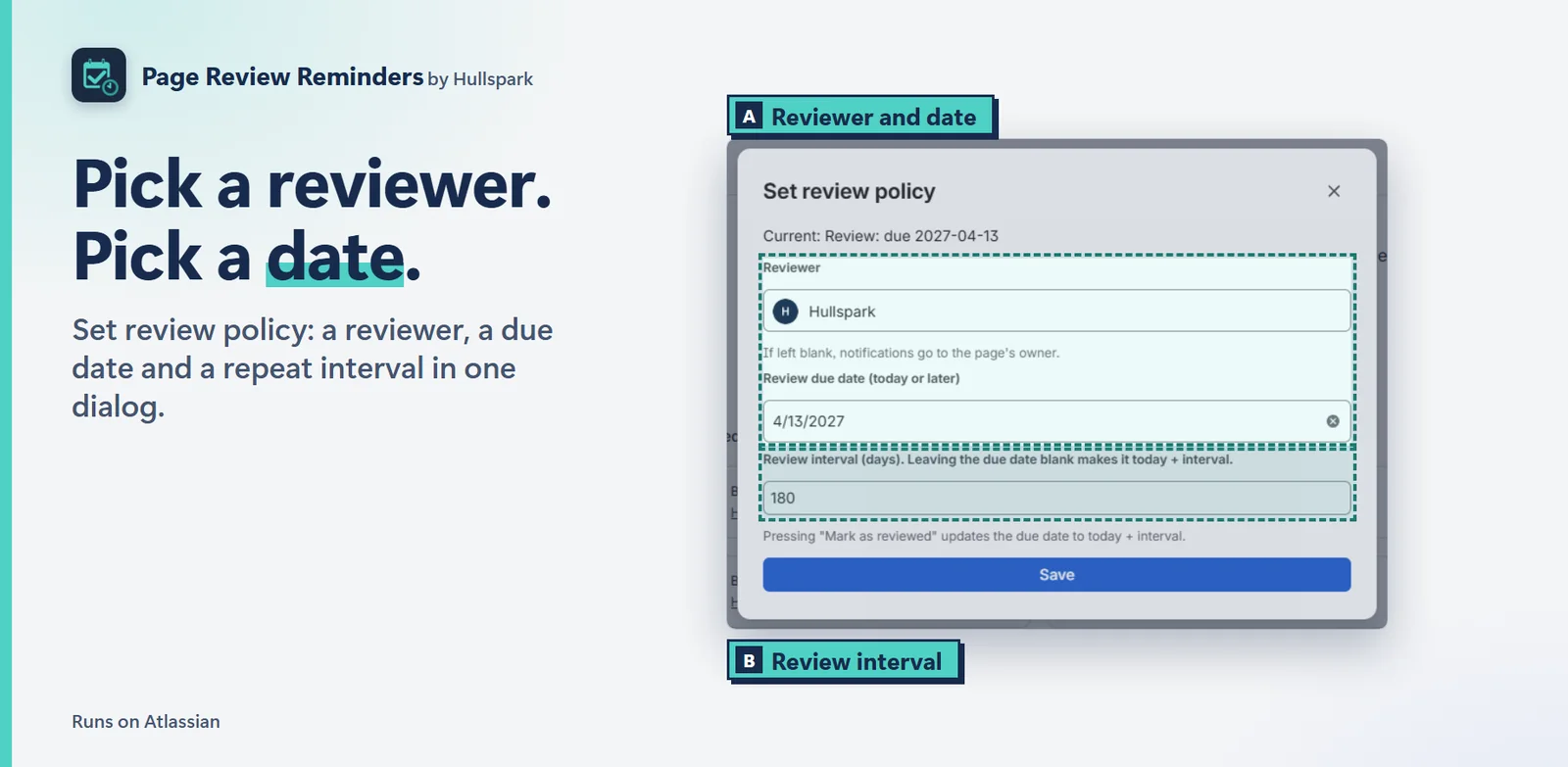
The Set review policy dialog
Set review policy: reviewer, due date and repeat interval.

In four lines

  1. The problemPages go stale and nobody reviews them. Confluence Cloud keeps review dates in Premium’s Content Manager, so on other plans there is no review date at all.
  2. Where it is on screenOn the page itself: a banner at the top, the Review item in the byline, and Set review policy in the page’s “…” menu. The admin dashboard is under Apps.
  3. What you doPick a reviewer and a due date, or a repeat interval. When it comes due the page shows a banner and the reviewer is @mentioned in a comment. Press Mark as reviewed to move the date on.
  4. What you getOverdue and due-soon pages are easy to see, in a table for admins, and the reviewer gets Confluence’s own notification.

What you can do

Pick a reviewer. Pick a date.

Set review policy takes a reviewer, a due date and, if you like, a repeat interval, in one dialog. The settings are saved as a page property. The page body is not edited.

A banner on the page when review is due

The page itself tells you: a banner when the review is due soon or overdue, with Mark as reviewed. The byline shows the due date.
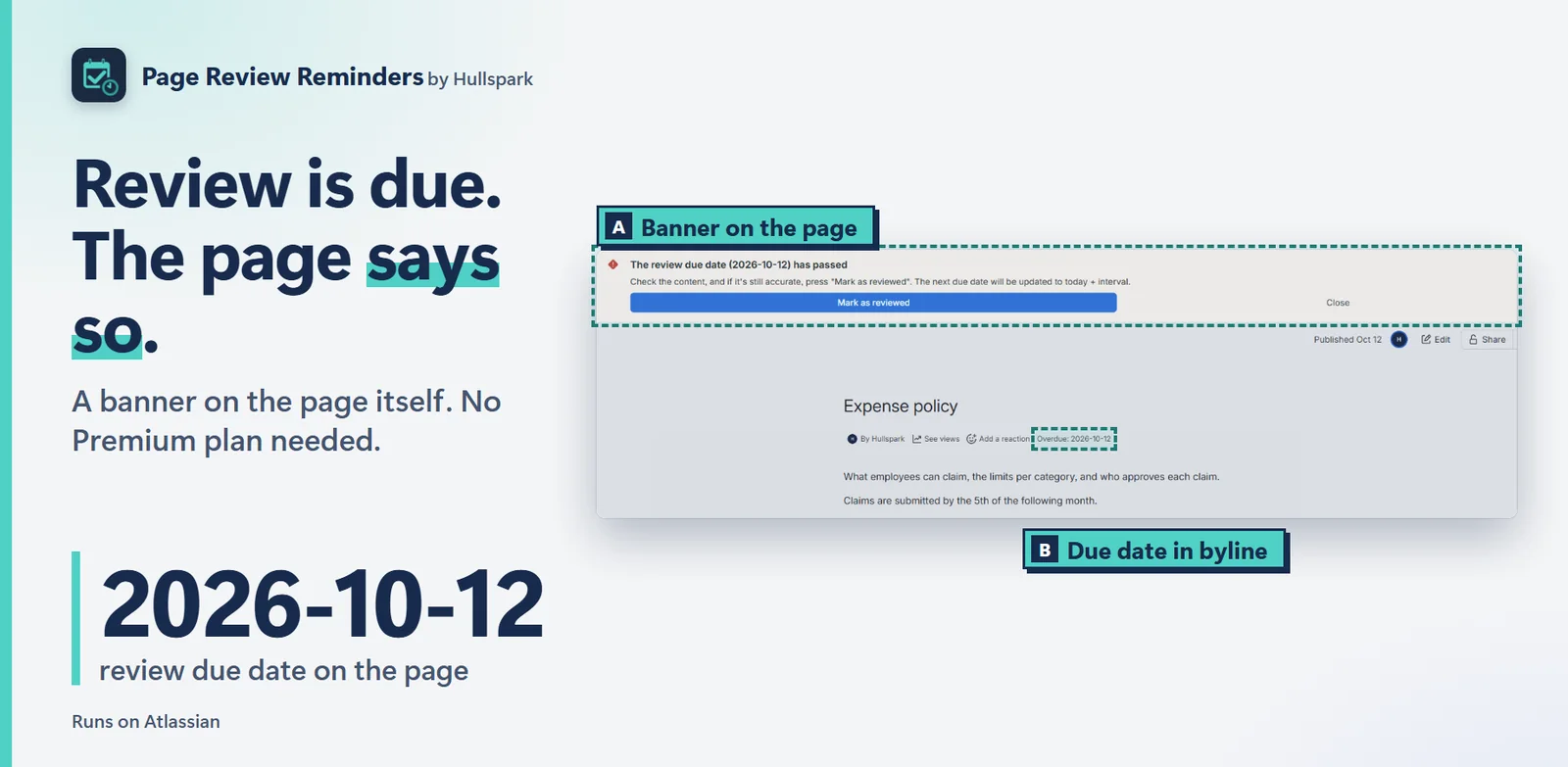
A page with a review-due banner
The review banner at the top of a page, and the due date in the byline.

The reviewer gets @mentioned

A daily scan posts one comment that @mentions the reviewer, or the page owner if none is set. Confluence then sends its own notification for the mention. The same page is not mentioned again for 30 days.
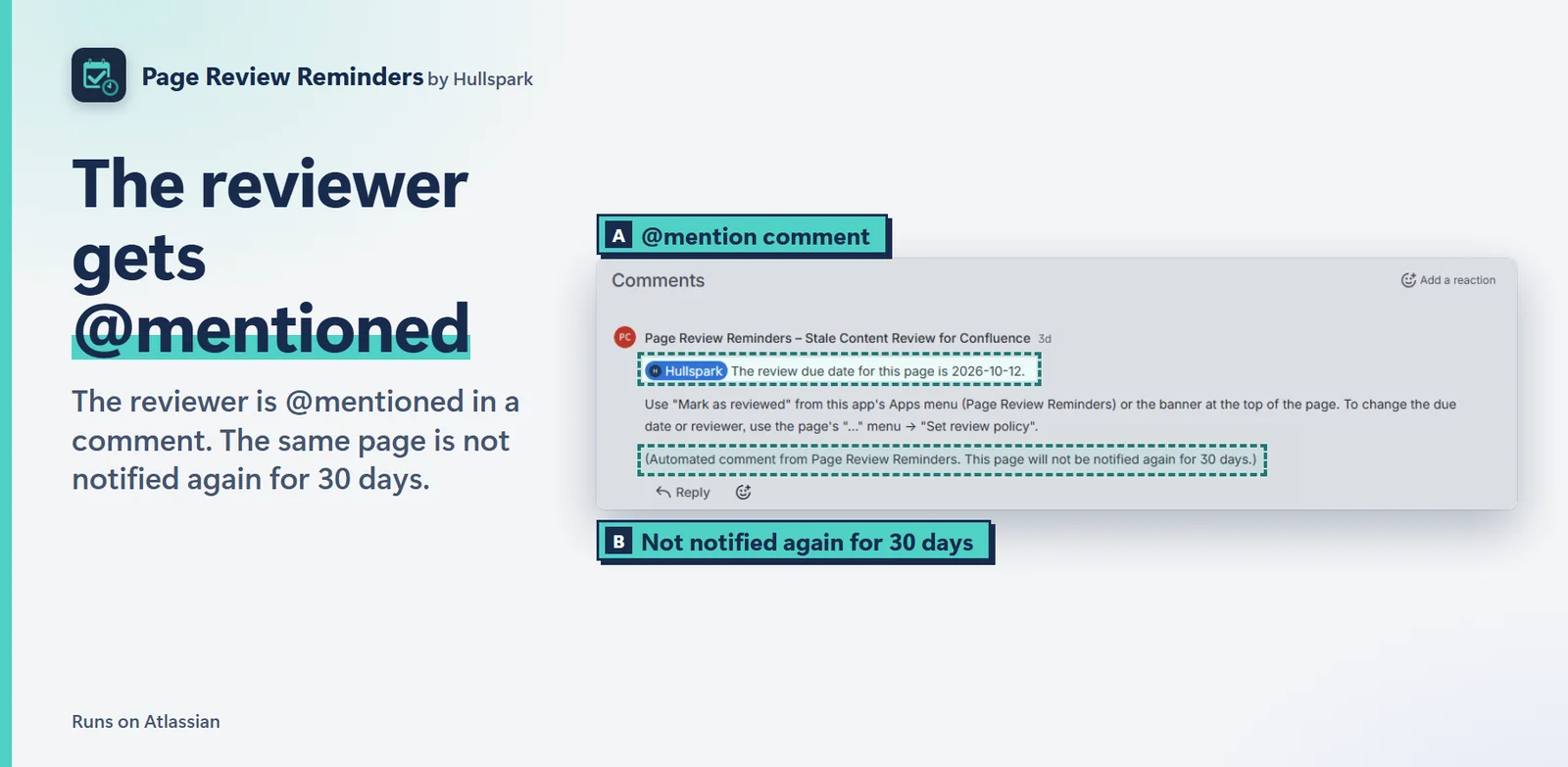
A Page Review Reminders comment that @mentions the reviewer
The @mention comment at the bottom of a page.

Every page with a policy in one table

Site administrators get a table of pages with a review policy: reviewer, due date and status. They can set or clear policies on many pages at once, after a dry-run count.
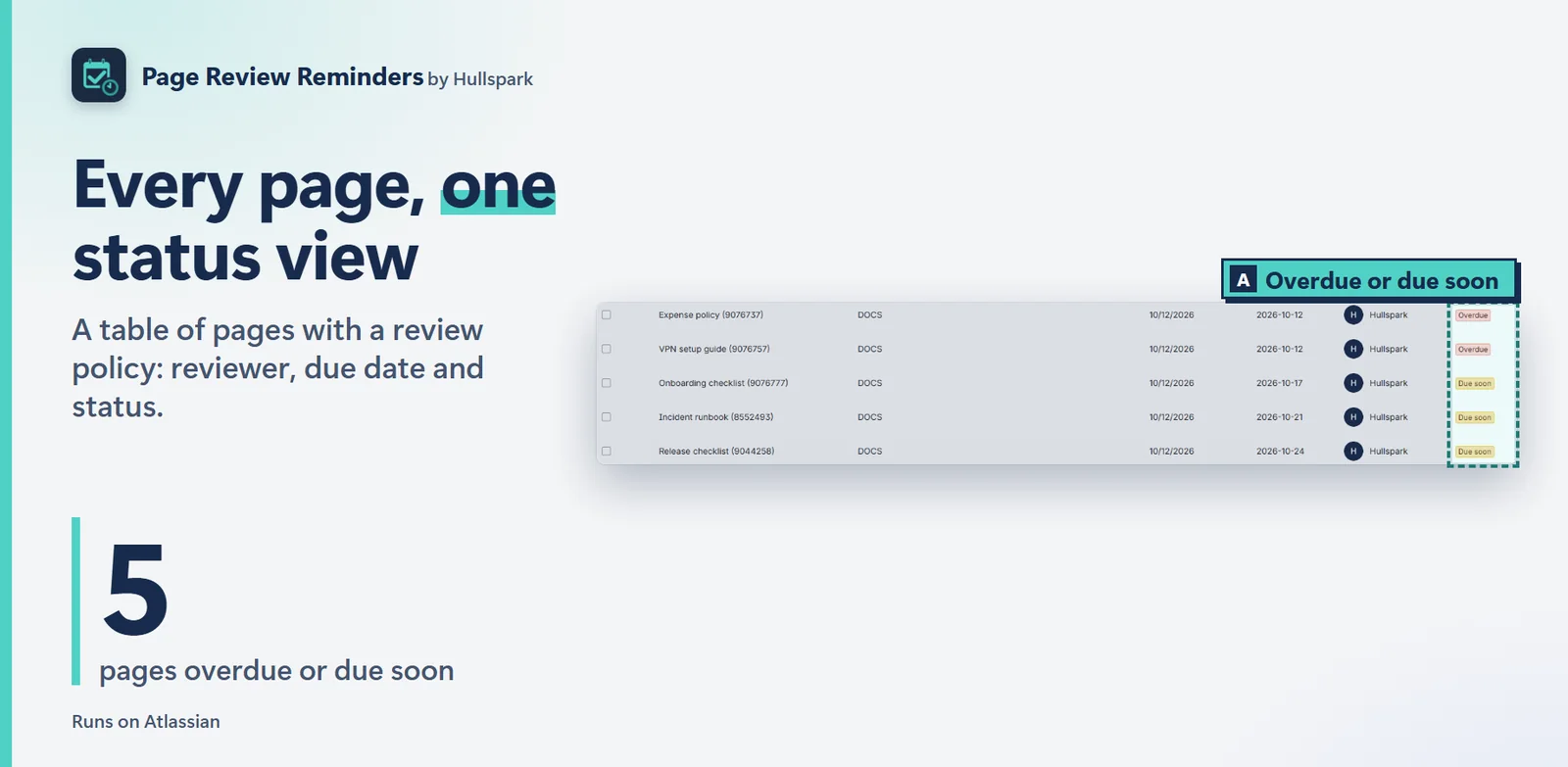
Admin overview table of pages with review status
The admin overview table.

Mark as reviewed. The date moves on.

One click, and the next due date is set from the interval.
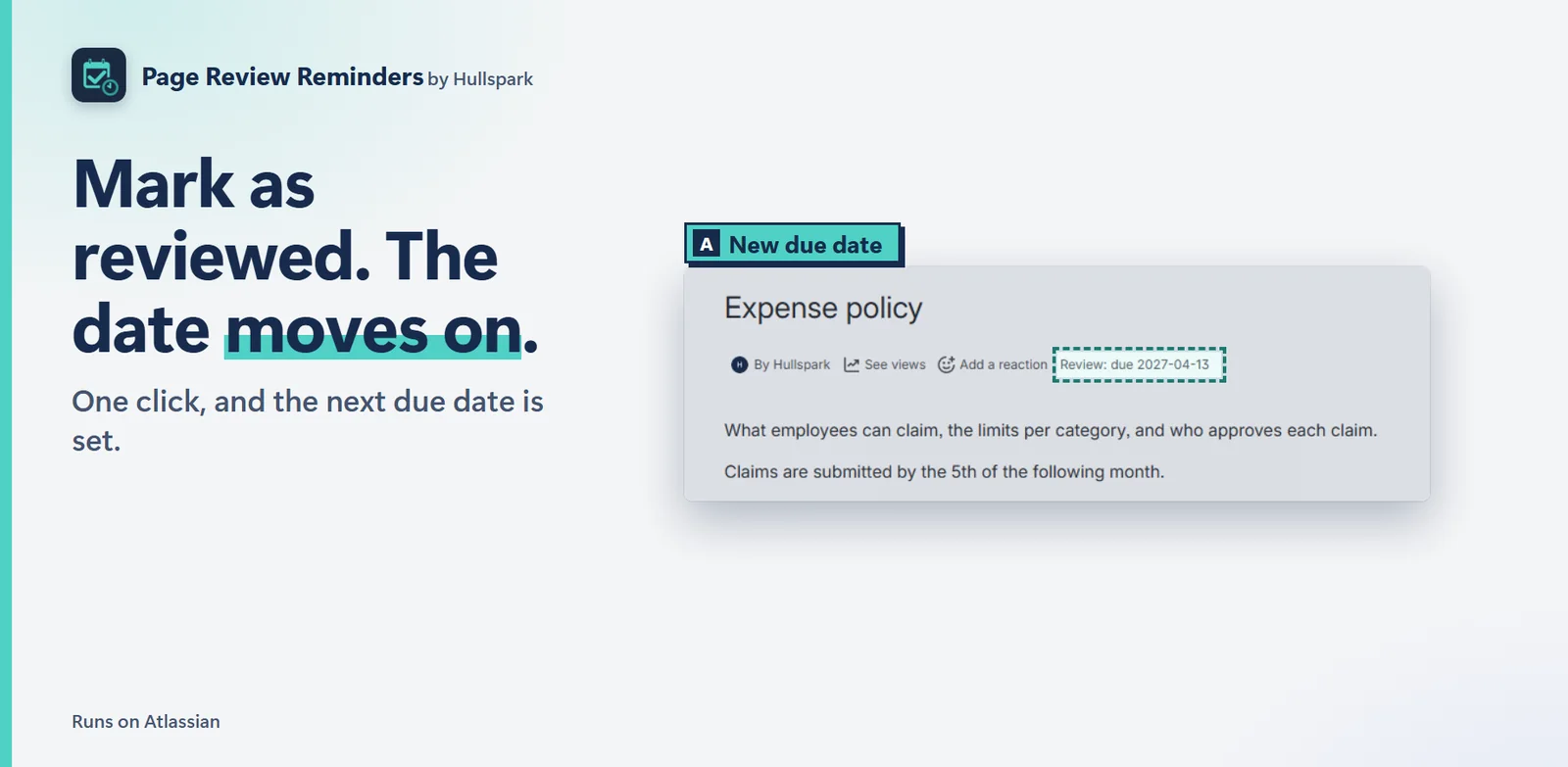
A page byline showing the new review due date
A page after Mark as reviewed, with the new due date in the byline.

Good to know before you start

  • The app does not send email itself. It posts an @mention comment, and Confluence delivers its own notification according to the reader’s settings. Check the page’s comments and the bell first.
  • A page gets at most one reminder per 30 days.
  • Setting or changing a policy needs an active license. Viewing works without one.
  • Confluence may not email mention notifications on a site that is still in its trial period.

Questions

How do I set a review policy on a page?

Open the page and choose Set review policy from the “…” menu, or click the Review: not set item in the byline. Pick a reviewer, then a due date or a review interval in days, and save.

Why didn’t I get an email?

The app does not send email. It posts a comment that @mentions the reviewer, and Confluence sends its own notification, in the bell and by email according to your notification settings. A page gets at most one reminder per 30 days.

Do I need the Premium plan?

No. The app works on every Confluence Cloud plan.

Does my data leave Atlassian?

No. The app runs on Atlassian. Details are in the privacy policy.

What does it cost?

Free for up to 10 users. Larger sites get a 30-day free trial, and current pricing is on the Marketplace listing.

Try it on the Atlassian Marketplace

Other Hullspark apps

Questions? Support or support@hullspark.com.

Page Review Reminders for Confluence

ページに担当者と見直しの期日を決めます。期日が来るとページの上に帯が出て、担当者に @メンションが届きます。Premium は要りません。

Atlassian Marketplace で試す はじめに: 最初の見直し期日を 4 ステップで

10 ユーザーまで無料、それ以上は 30 日間無料で試せます。すべて Atlassian の中で動きます。Confluence Cloud 向け。

Set review policy のダイアログ
Set review policy: 担当者・期日・繰り返しの間隔。

4 行でいうと

  1. 困りごとページは古くなり、誰も見直しません。Confluence Cloud では見直しの期日は Premium の Content Manager にあり、ほかのプランには見直しの期日そのものがありません。
  2. 画面のどこページそのものです。上部の帯、byline の Review の項目、ページの「…」メニューの Set review policy。管理画面は Apps の中です。
  3. やること担当者と、期日または繰り返しの間隔を決めます。期日が来ると、ページに帯が出て、担当者がコメントで @メンションされます。Mark as reviewed を押すと、次の期日に進みます。
  4. 結果期限切れ・期限間近のページが、管理者向けの表で見やすくなり、担当者には Confluence 標準の通知が届きます。

できること

担当者を選ぶ。期日を選ぶ。

Set review policy の 1 つのダイアログで、担当者、期日、必要なら繰り返しの間隔を決めます。設定はページのプロパティに保存され、本文は編集しません。

期日が来るとページの上に帯が出る

見直しの期日が近い・過ぎていると、ページ自体に帯が出て、Mark as reviewed を押せます。byline には期日が出ます。

見直し期日の帯が出たページ
ページ上部の見直しの帯と、byline の期日。

担当者が @メンションされる

毎日の走査が、担当者(いなければページの所有者)を @メンションするコメントを 1 つ投稿します。そのメンションに対して Confluence が標準の通知を送ります。同じページへは 30 日間、もう一度は送りません。

担当者を @メンションする Page Review Reminders のコメント
ページ下部の @メンションのコメント。

ポリシーのあるページを 1 つの表で

サイト管理者は、見直しポリシーのあるページを、担当者・期日・状態つきの表で見られます。ドライランの件数を確認してから、多くのページのポリシーをまとめて設定・解除できます。

見直しの状態つきでページを並べた管理者向けの一覧表
管理者向けの一覧表。

Mark as reviewed で、期日が進む

1 回の操作で、次の期日が間隔にしたがって決まります。

新しい見直し期日が出たページの byline
Mark as reviewed のあとのページ。byline に新しい期日が出ています。

始める前に知っておくこと

  • アプリ自身はメールを送りません。@メンションのコメントを投稿し、Confluence が読む人の設定にしたがって通知を送ります。まずページのコメントとベルを確かめてください。
  • 同じページへのリマインドは、30 日に 1 回までです。
  • ポリシーの設定・変更には有効なライセンスが要ります。表示だけならライセンスなしでも使えます。
  • 試用期間中のサイトでは、Confluence がメンションの通知メールを送らないことがあります。

よくある質問

ページに見直しポリシーを設定するには。

ページを開き、「…」メニューの Set review policy、または byline の Review: not set をクリックします。担当者と、期日または間隔(日数)を選んで保存します。

メールが届きません。

アプリはメールを送りません。担当者を @メンションするコメントを投稿し、Confluence が標準の通知を、ベルとメールで(通知の設定にしたがって)送ります。同じページへのリマインドは、30 日に 1 回までです。

Premium プランは必要ですか。

いいえ。Confluence Cloud のどのプランでも使えます。

データは Atlassian の外へ出ますか。

出ません。アプリは Atlassian の中で動きます。詳しくはプライバシーポリシーをご覧ください。

料金は。

10 ユーザーまで無料です。それより大きなサイトには 30 日間の無料試用があります。現在の料金は Marketplace の掲載ページをご覧ください。

Atlassian Marketplace で試す

ほかの Hullspark のアプリ

質問は サポートページか support@hullspark.com へ。