Split an .xlsx spreadsheet into separate files by the values in a column, by sheet, or every N rows. Formatting stays, each file holds only its own rows, and it works offline.
Windows only. Your file is only read and nothing goes over the network.
In four lines
The problemHanding each person or branch only their own rows by copy, paste and delete takes half a day, and one wrong paste shows someone the wrong figures.
Where it is on screenStep 1: drop an .xlsx on the window. Step 2, How to split: pick the column. The files that will be made appear right below it with their row counts.
What it doesPress Split. By column value makes one file per person, branch or customer, By sheet one file per sheet, Every N rows files cut for an import limit. Header rows stay on top, and rows with an empty value go into a (blank) file.
What you getThe files, each with only its own rows and its formatting, and a list with row counts. A Check before you hand them out box lists what to look at. Your original is only read.
What you can do
One file per person, branch or customer
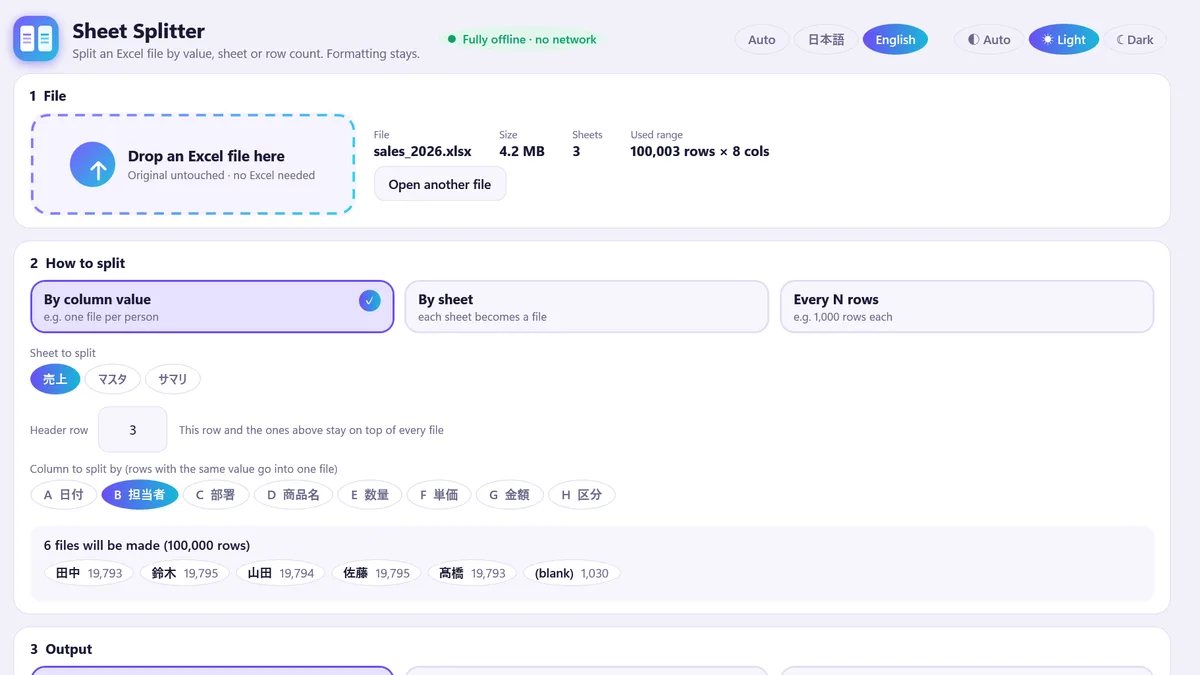
Pick a column and rows with the same value go into one file. The preview under the column lists every file with its row count before anything is written, and an empty value becomes a (blank) file instead of being dropped. The header rows, up to the row you set, stay on top of every file.
A 100,000-row sample sales sheet, split by person: six files with their row counts.
What to check before you hand the files out
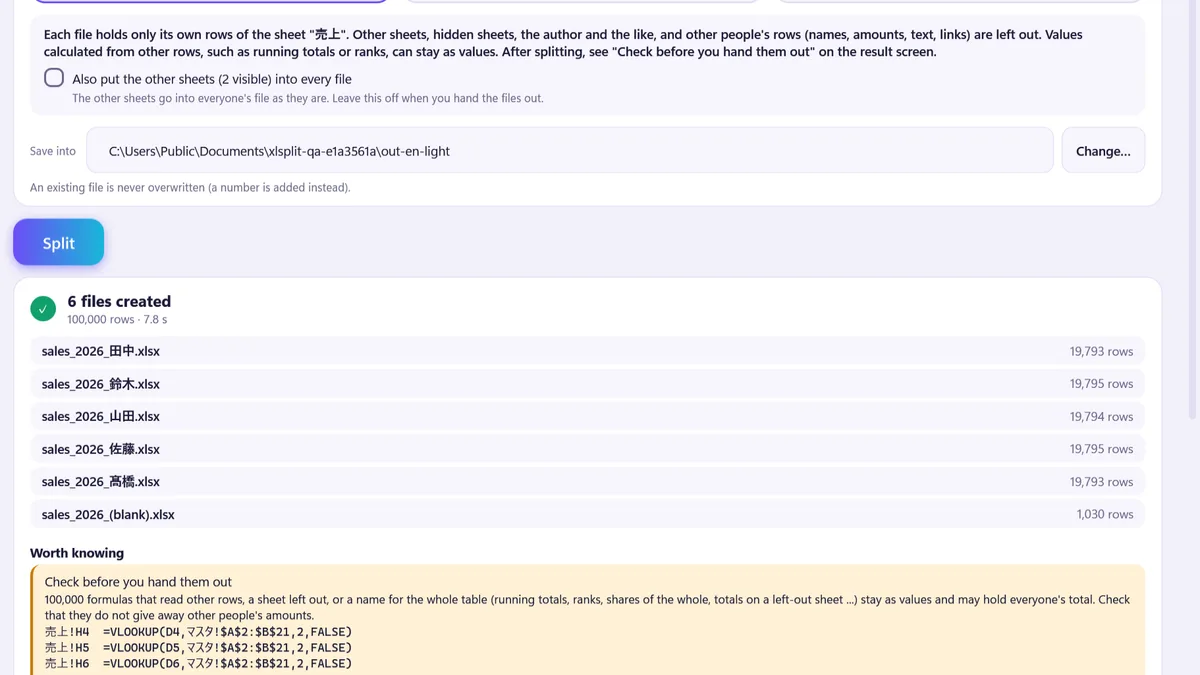
Each file holds only its own rows. Other people's rows, other sheets, hidden sheets and the author's name are left out. Values calculated from other rows stay as values, so the result screen lists them in the Check before you hand them out box with a count and examples.
Six files created, with the check list below.
By sheet, and what happens to formulas
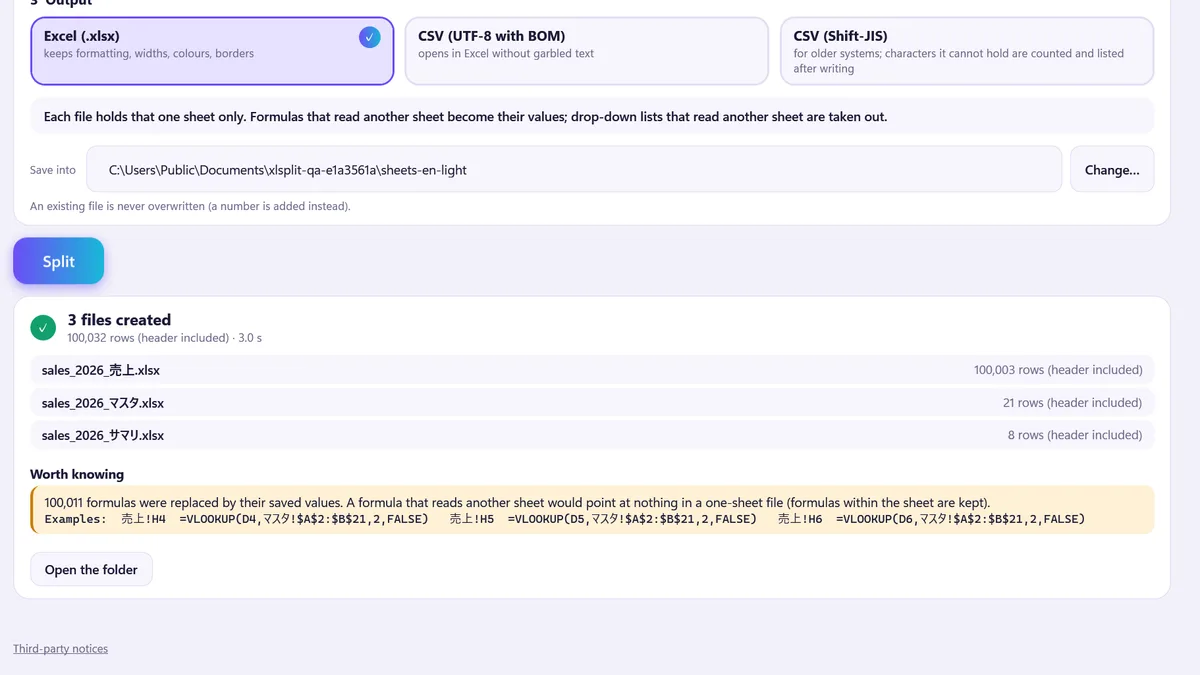
By sheet turns each sheet into a file. A formula that reads another sheet would point at nothing, so it becomes its saved value, and a drop-down list that reads another sheet is taken out. The counts and examples are shown.
By sheet: three files, and the formulas that became values.
CSV for an older system
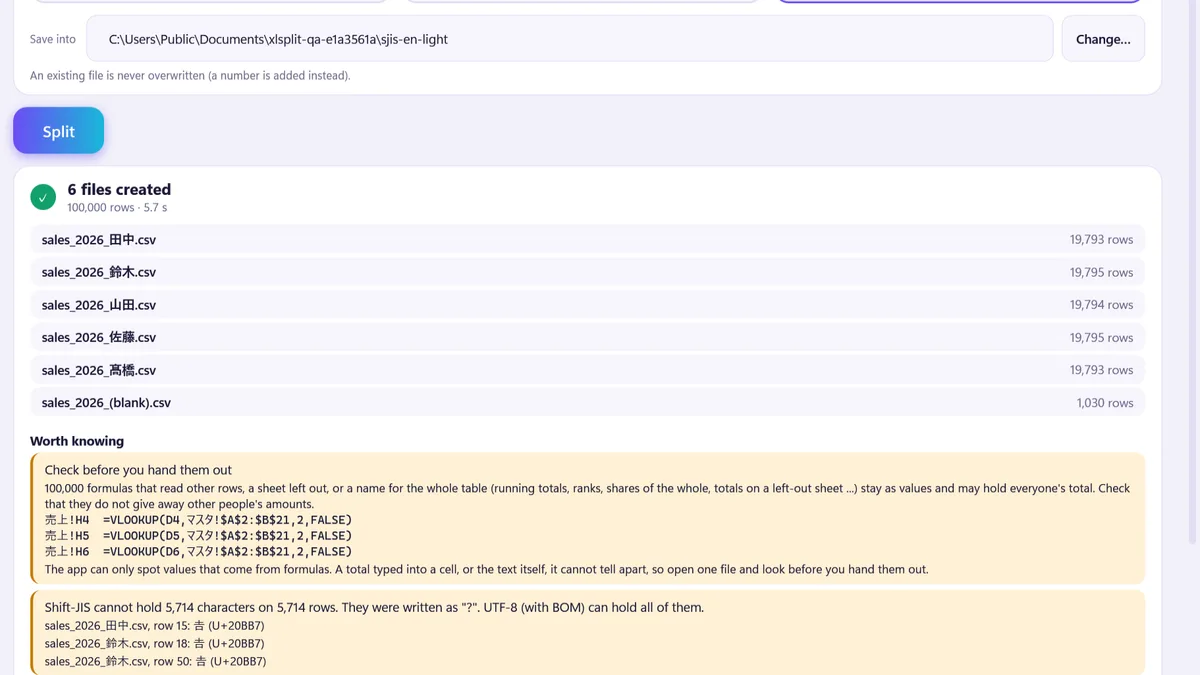
Write CSV in UTF-8 with BOM or in Shift-JIS. Characters Shift-JIS cannot hold are counted and listed, with the file and row, right after writing. One button writes the files again in UTF-8.
Shift-JIS: the characters it could not hold are listed.
A file it could damage is refused
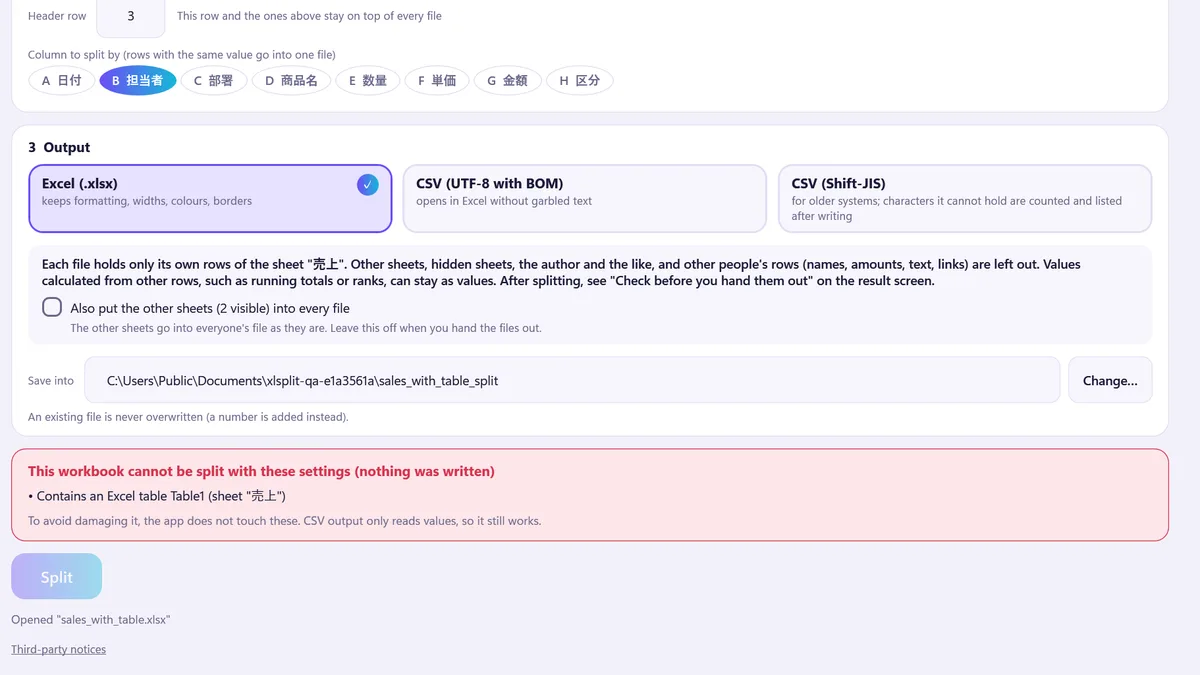
A workbook with a table, pivot table, chart, picture or comment is refused with the reason in a red box, and nothing is written. CSV output reads values only, so it can still be used. Macro files (.xlsm) are not read.
A workbook with a table: refused with the reason.
Good to know
Windows only. Available on the Microsoft Store.
Only .xlsx is read. .xls, .xlsm, .xlsb and password-protected files are not.
Tables, pivot tables, charts, pictures and comments stop the .xlsx split with the reason shown; CSV output still works for them. Macro files (.xlsm) are not read at all.
Values calculated from other rows (running totals, ranks) stay as values and may hold everyone's total. The app lists the ones it finds, but a total typed into a cell cannot be told from other text. Open one file before you hand them out.
Rows with no value at all are not written; the count is shown. Keys that differ only by spaces, full/half width or case become separate files.
CSV: dates are written as yyyy/MM/dd and numbers without their display format. Excel for the web (English display) may show a Shift-JIS CSV as garbled text; use UTF-8 with BOM there.
Speed was measured on the author's PC with made-up data: 100,000 rows in about 6 to 8 seconds. Other PCs were not measured.
On 2026-10-25, 39 .xlsx files written by the app from made-up sample data were opened in Excel with no repair prompt. Files saved by Excel in real work were not tested.
The pictures show made-up sample data. The window title in them reads Sheet Splitter; the Store name is Spreadsheet Splitter. No comparison with other tools has been made.
Questions
How do I split a spreadsheet into multiple files, one per person or branch?
Open the .xlsx, choose By column value in step 2, pick the column (for example the person in charge) and press Split. Rows with the same value go into one file, and the files that will be made are listed with their row counts before you start.
Do I need Excel?
No. Spreadsheet Splitter reads and writes .xlsx itself, so no other app is needed. Excel is not started.
Is the formatting kept?
In .xlsx output colours, borders, column widths, frozen rows, filters and conditional formatting are kept. In CSV output only the values are written.
Will the other people's rows end up in a file?
No. Each file holds only its own rows. Other sheets, hidden sheets and the author's name are left out. One thing to check: values calculated from other rows, such as running totals and ranks, stay as values and may still hold everyone's total. The result screen lists them in the "Check before you hand them out" box with a count and examples. The app can only spot values that come from formulas, so open one file and look before you hand them out.
What happens to formulas that read another sheet?
When each file holds one sheet, a formula that reads another sheet is replaced by its saved value and a drop-down list that reads another sheet is taken out. The result screen shows how many. Formulas within the same sheet stay formulas.
Can I split every 10,000 rows for an import limit?
Yes. Every N rows cuts the data into files of N rows with the header rows on top of each. The names are numbered.
Can it write CSV?
Yes, in UTF-8 with BOM or in Shift-JIS. Characters Shift-JIS cannot hold are written as "?", and the result screen counts them and lists examples right after writing. One button writes the files again in UTF-8. In CSV, dates are written as yyyy/MM/dd and numbers without their display format.
My Shift-JIS CSV looks garbled in Excel for the web.
Excel for the web with an English display may show a Shift-JIS CSV as garbled text. Choose CSV (UTF-8 with BOM) if you open the files there.
Which files does it refuse?
It refuses what it could damage and writes nothing, with the reason on screen: tables, pivot tables, charts, pictures, comments, macros (.xlsm), the old .xls format and password-protected files. Only .xlsx is read; .xlsb is not.
How fast is it?
Measured on made-up data on the author's test PC: a 100,000-row sales sheet split by person into 6 files in about 6 to 8 seconds. Other PCs and larger files were not measured.
Does it change my original file or send it anywhere?
No. The original is only read. Nothing goes over the network and there is no account. An existing file is never overwritten; a number is added to the name instead.
 Hullspark