 Hullspark
See how much space unused files take
One scan ends with one line: how many attachments no page uses, and their total size. The table lists each file with its page and size, biggest first.
Find the attachments no page uses, see how much space they take, check with a dry run, then move them to the Confluence trash. Nothing is purged.
Try it on the Atlassian Marketplace Getting started: your first cleanup in four steps
Free for up to 10 users, 30-day free trial for larger sites. Runs entirely on Atlassian. For Confluence Cloud administrators.
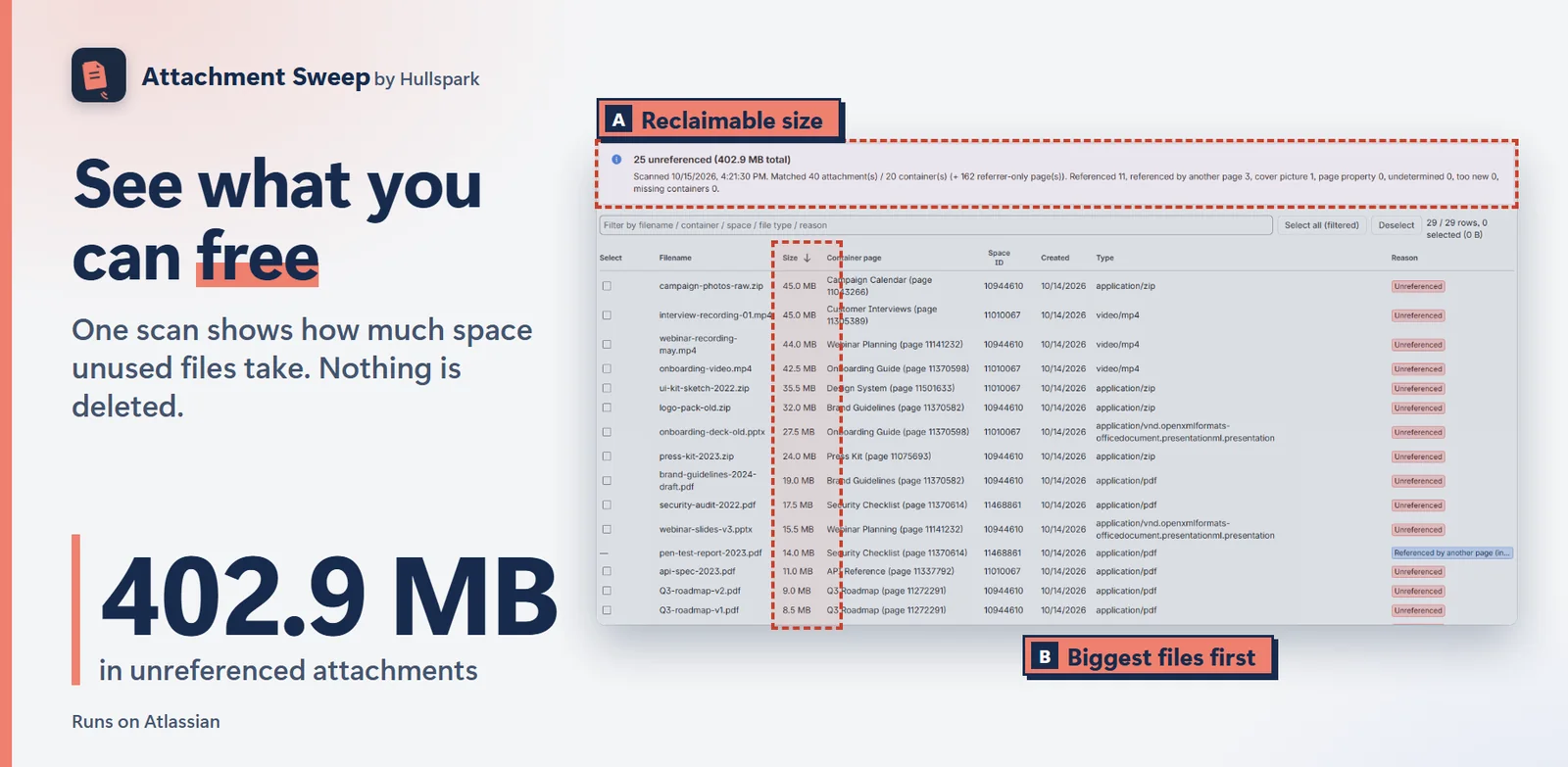
One scan ends with one line: how many attachments no page uses, and their total size. The table lists each file with its page and size, biggest first.
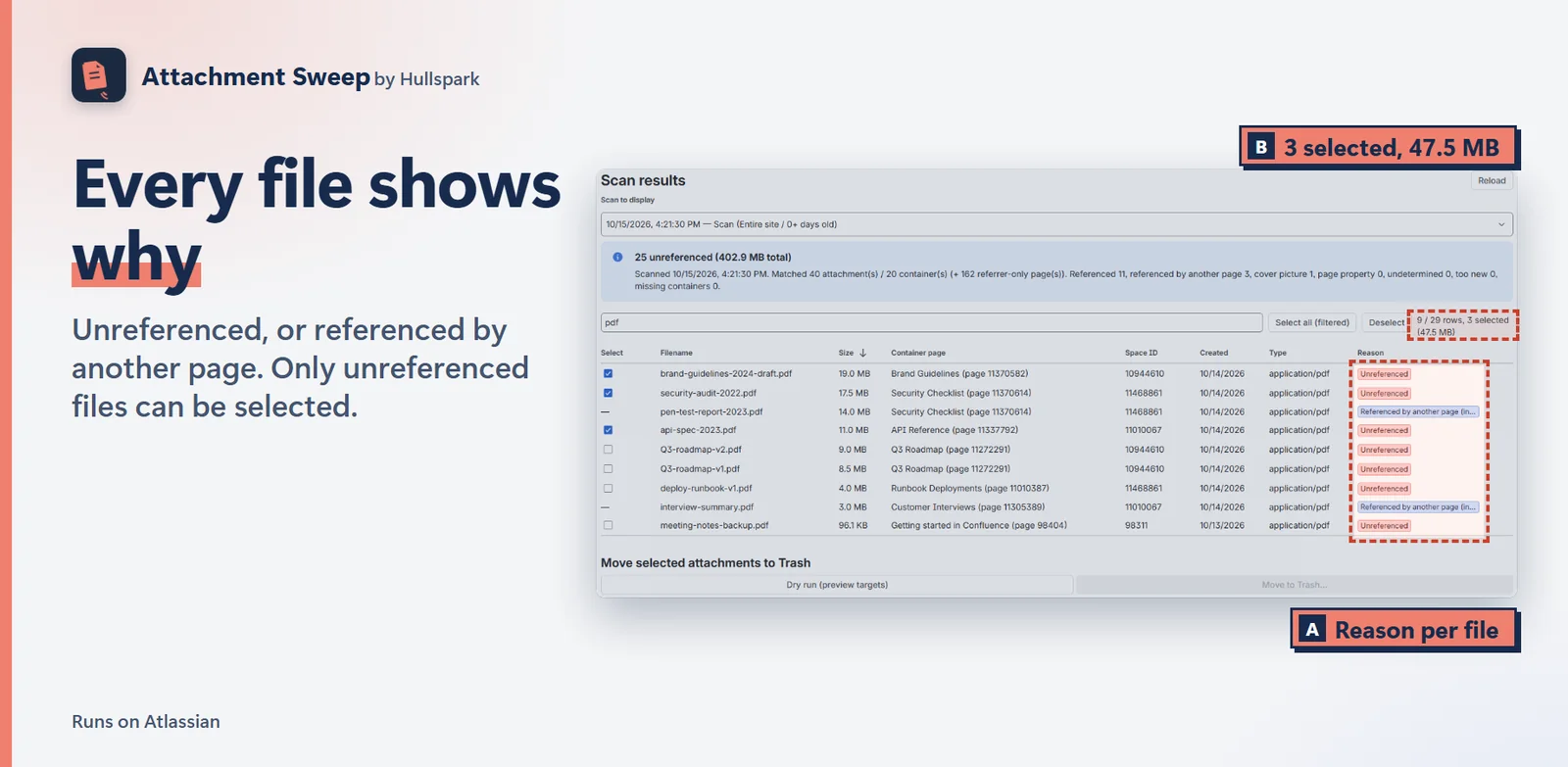
Each row says why: unreferenced, referenced by another page, or a cover picture. Only unreferenced files can be selected, so a file that is in use is never picked by mistake.
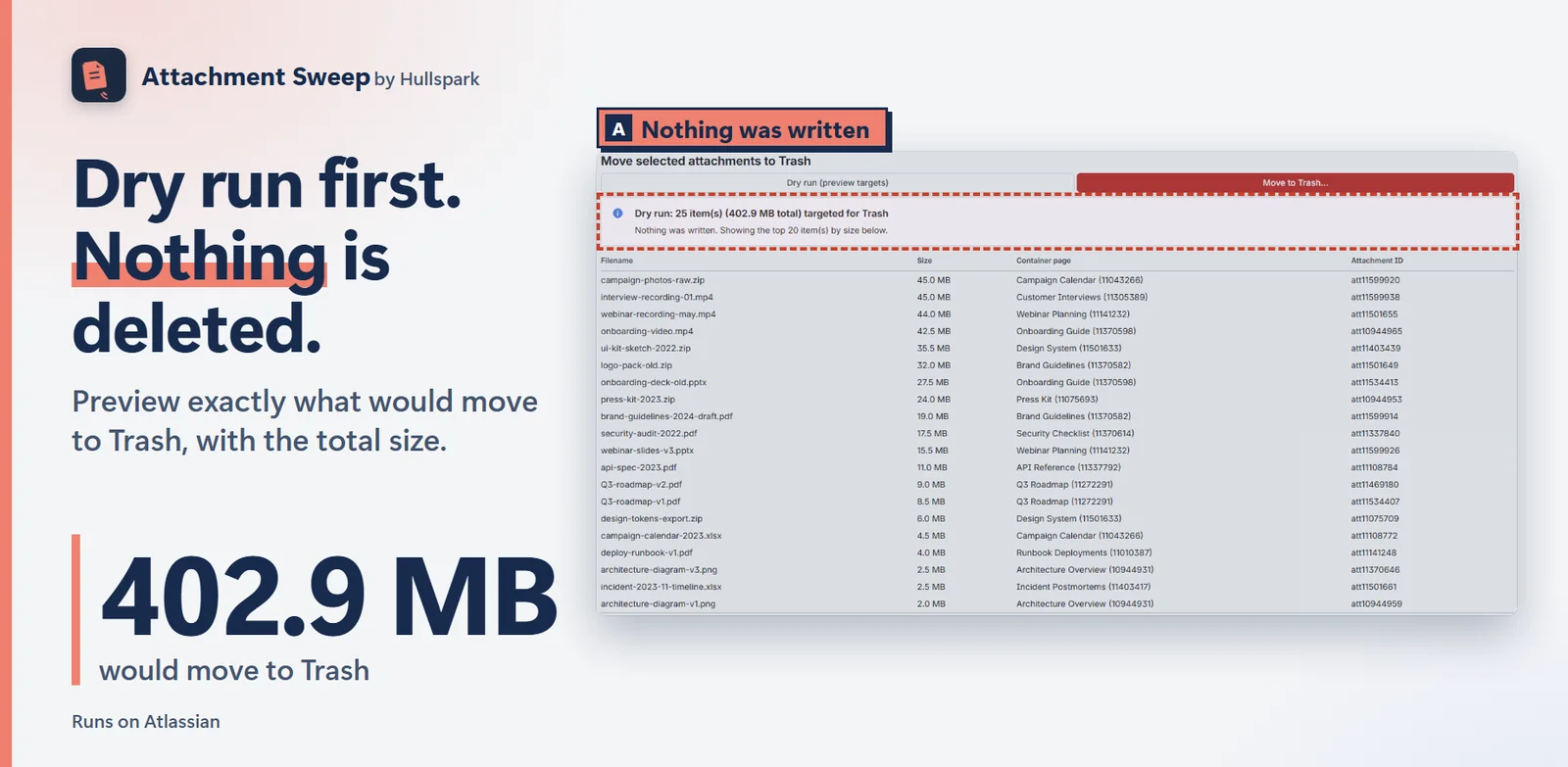
Press Dry run to see how many files would move to the trash and their total size. Nothing is written until you confirm.
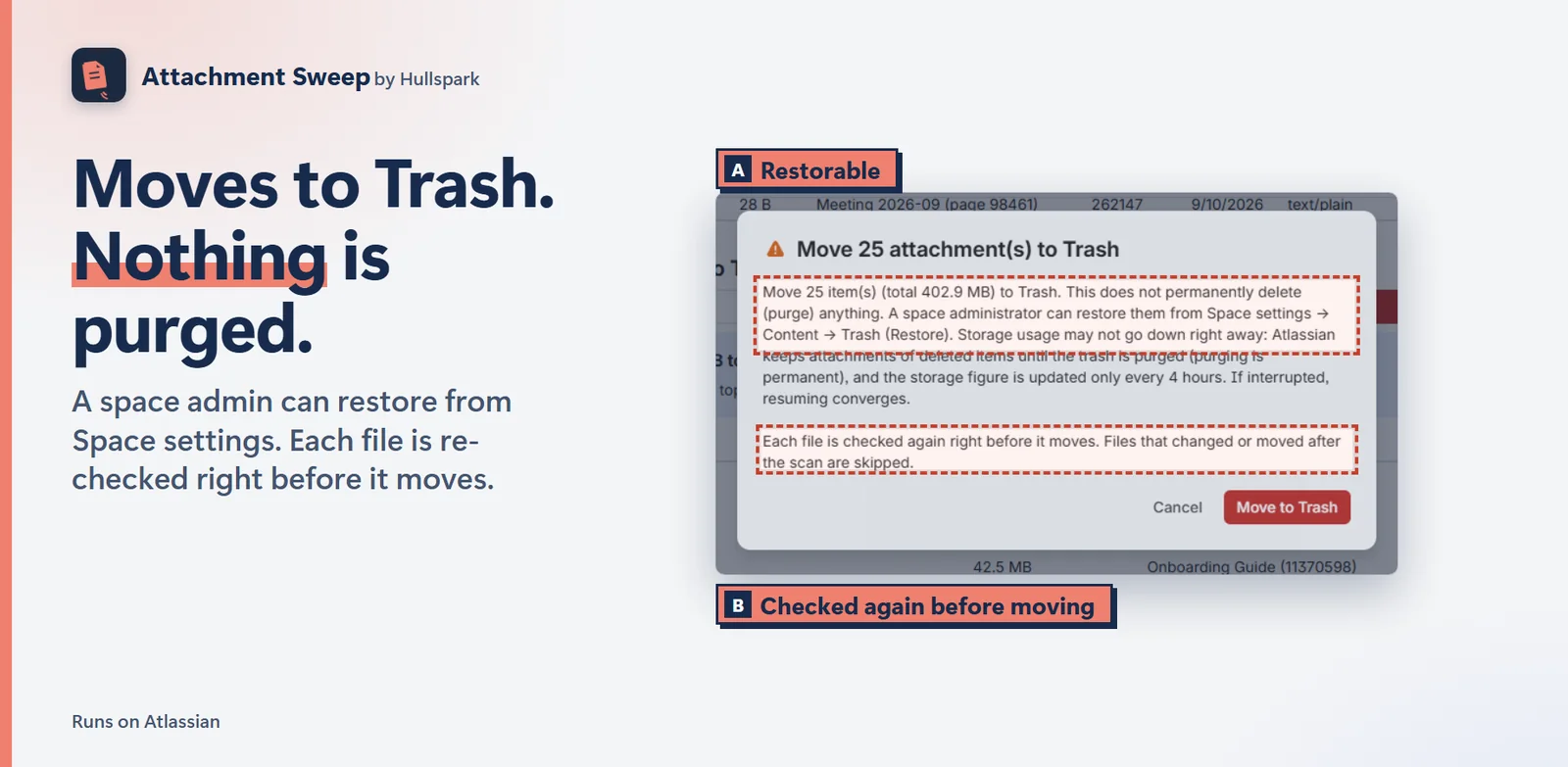
Files go to the Confluence space trash, where a space administrator can restore them. Each file is checked again right before it moves, and skipped if it changed.
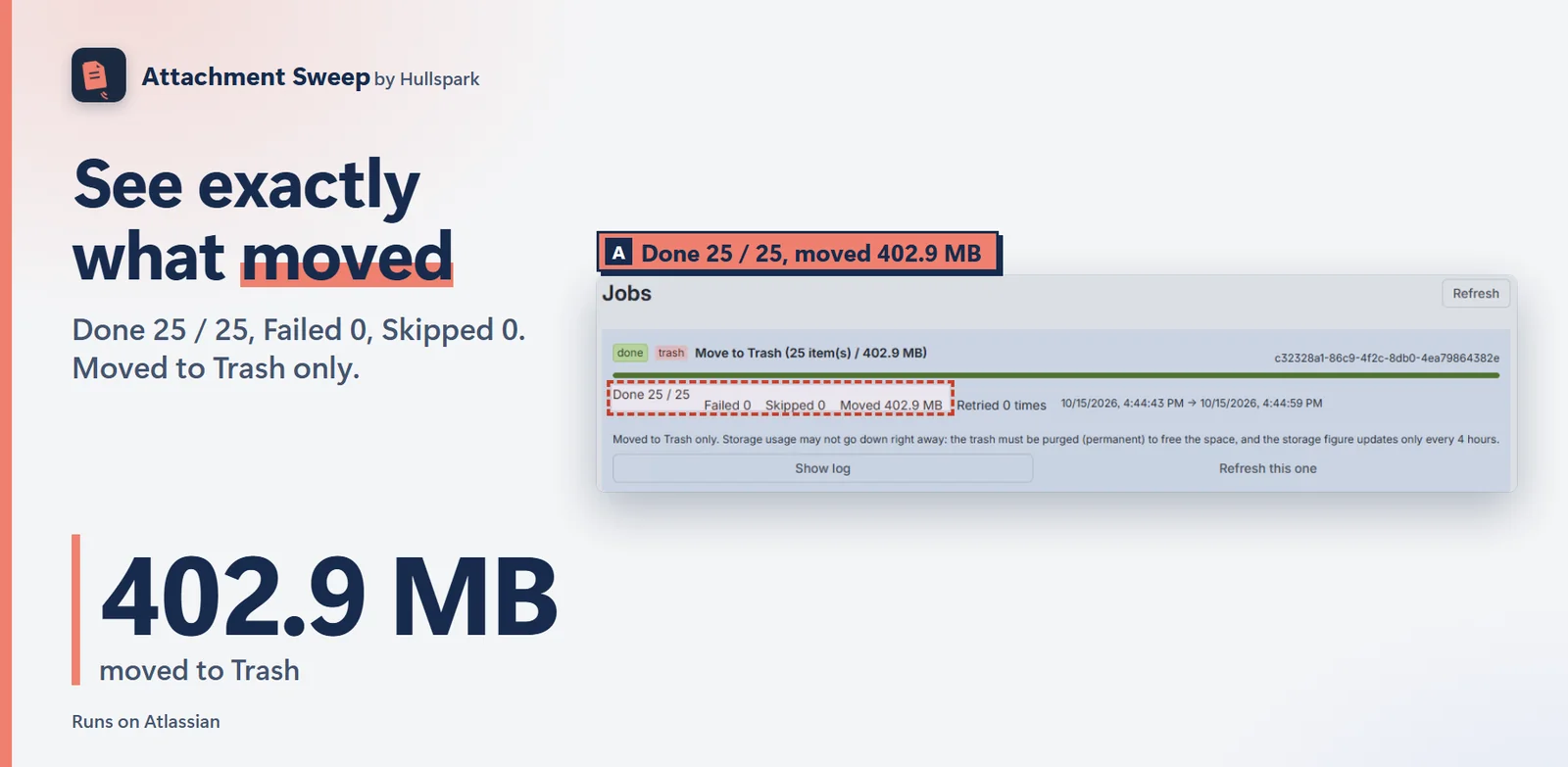
The Jobs tab shows how many files were done, failed or skipped, with a log you can open.
No, it is not permanent. The app uses Confluence’s normal delete, which moves the attachment to the space trash. It never purges. A space administrator can restore it from the trash. Before anything moves you get a dry run, and every job writes a log.
Attachment Sweep is shown to site administrators only. It also runs with your own permissions, so attachments in spaces you cannot view are never scanned or listed.
The scan reads page and blog post bodies, attachment and gallery macros, and page properties such as cover images. A scan limited to one space does not see references from other spaces, so run a site-wide scan if in doubt. If a result is still wrong, email support@hullspark.com with the page URL and file name.
No. The app runs on Atlassian and your attachments are not sent to Hullspark. Details are in the privacy policy.
Free for up to 10 users. Larger sites get a 30-day free trial, and current pricing is on the Marketplace listing.
Try it on the Atlassian Marketplace
Questions? Support or support@hullspark.com.
どのページからも使われていない添付ファイルを見つけ、取っている容量を確かめ、ドライランのあとで Confluence のゴミ箱へ移します。完全削除はしません。
Atlassian Marketplace で試す はじめに: 最初の整理を 4 ステップで
10 ユーザーまで無料、それ以上は 30 日間無料で試せます。すべて Atlassian の中で動きます。Confluence Cloud の管理者向け。
1 回の走査の最後に、どのページからも使われていない添付の数と合計サイズが 1 行で出ます。表にはファイルごとにページとサイズが並び、大きい順です。
各行に理由が付きます(未参照・他のページから参照・カバー画像)。選べるのは「未参照」だけなので、使われているファイルを間違えて選ぶことはありません。
Dry run を押すと、ゴミ箱へ移すファイルの数と合計サイズが出ます。確定するまで何も書き込みません。
ファイルは Confluence のスペースのゴミ箱に入り、スペース管理者が復元できます。移す直前に各ファイルをもう一度確かめ、変わっていれば飛ばします。
Jobs タブに、完了・失敗・飛ばした数が出て、ログを開けます。
完全削除ではありません。Confluence の通常の削除で、添付ファイルはスペースのゴミ箱に入ります。完全削除(purge)はしません。スペース管理者がゴミ箱から復元できます。移す前にドライランがあり、すべてのジョブにログが残ります。
Attachment Sweep はサイト管理者にだけ表示されます。また、操作はあなたの権限で動くため、見られないスペースの添付は走査も一覧もされません。
走査は、ページとブログ記事の本文、添付一覧やギャラリーのマクロ、カバー画像などのページプロパティを読みます。1 つのスペースだけの走査では、ほかのスペースからの参照が見えません。迷うときはサイト全体で走査してください。それでも結果が違うときは、ページの URL とファイル名を support@hullspark.com へお送りください。
出ません。アプリは Atlassian の中で動き、添付ファイルが Hullspark へ送られることはありません。詳しくはプライバシーポリシーをご覧ください。
10 ユーザーまで無料です。それより大きなサイトには 30 日間の無料試用があります。現在の料金は Marketplace の掲載ページをご覧ください。
質問は サポートページか support@hullspark.com へ。