A Wix app that turns your unfulfilled store orders into CSV files for Yamato B2 Cloud, Japan Post Click Post and Sagawa e-Hiden III. Orders that cannot be exported are flagged before you download, not after the carrier rejects the file.
Free for up to 30 orders a month. The app screen is in Japanese. Recipient details are processed in your browser only.
The app screen is in Japanese. Sample data.
In four lines
The problemYou retype Wix order addresses into a carrier's system one by one, or fix an exported order list in a spreadsheet before every shipment.
Where it livesA page in your Wix dashboard. It lists your unfulfilled orders, a pre-export check and a preview of the file, with the CSV download button at the bottom.
What you doSelect orders, choose a carrier, fix what the check flags, and download the CSV. Then import that file into B2 Cloud, Click Post or e-Hiden III.
The resultNo retyping. Wrong postal code lengths, over-long names and items, and stray spaces in addresses show up before you import.
Demo video, 56 seconds. Nothing loads from YouTube until you press play.
Who it is for
Wix Stores owners in Japan who ship with Yamato Transport (Kuroneko Yamato), Japan Post (Click Post) or Sagawa Express, and import orders into the carrier's own shipping tool.
Sellers who run their store in English, or from outside Japan, but send parcels to addresses inside Japan. The carrier tools want Japanese-format addresses, so the orders need to have them.
Not for you if you ship to addresses outside Japan, or if you want an app that books the carrier or prints the label itself. This app makes the import file only.
How it works in 3 steps
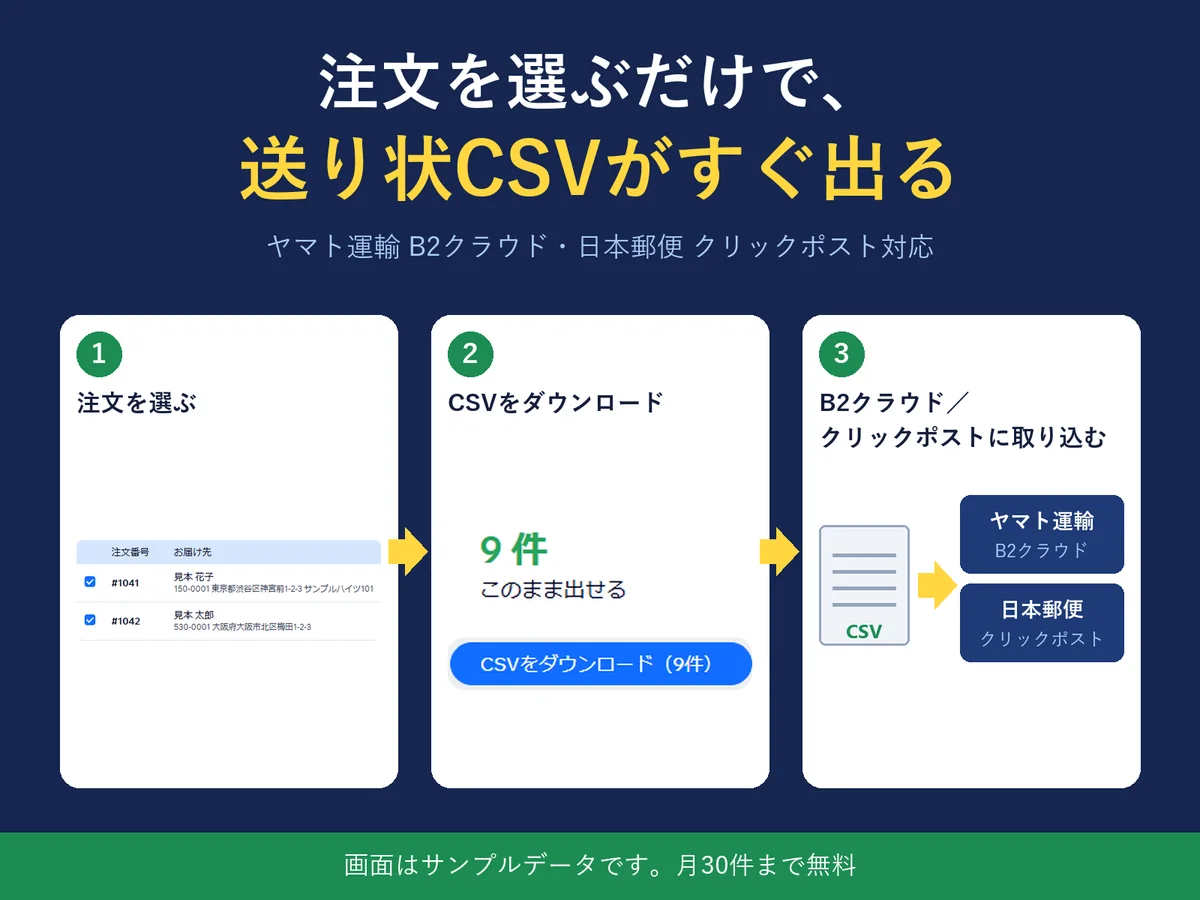
Pick the orders. The list shows unfulfilled orders that are not canceled or archived and go to an address in Japan, newest first, up to 1,000. Tick the ones to ship.
Choose a carrier and read the check. Pick Yamato B2 Cloud, Japan Post Click Post or Sagawa e-Hiden III. The pre-export check lists what cannot be exported, what to confirm and what is fine. Fix problem orders on the spot, then look at the preview of the file.
Download and import. Download the CSV and import it into B2 Cloud, Click Post or e-Hiden III. The issued-data CSV from B2 Cloud can later bring tracking numbers back to your Wix orders.
The first time only, you enter your sender details and, for Yamato, your contract (billing) codes. These stay in your browser.
What it does
Checks every order before you export
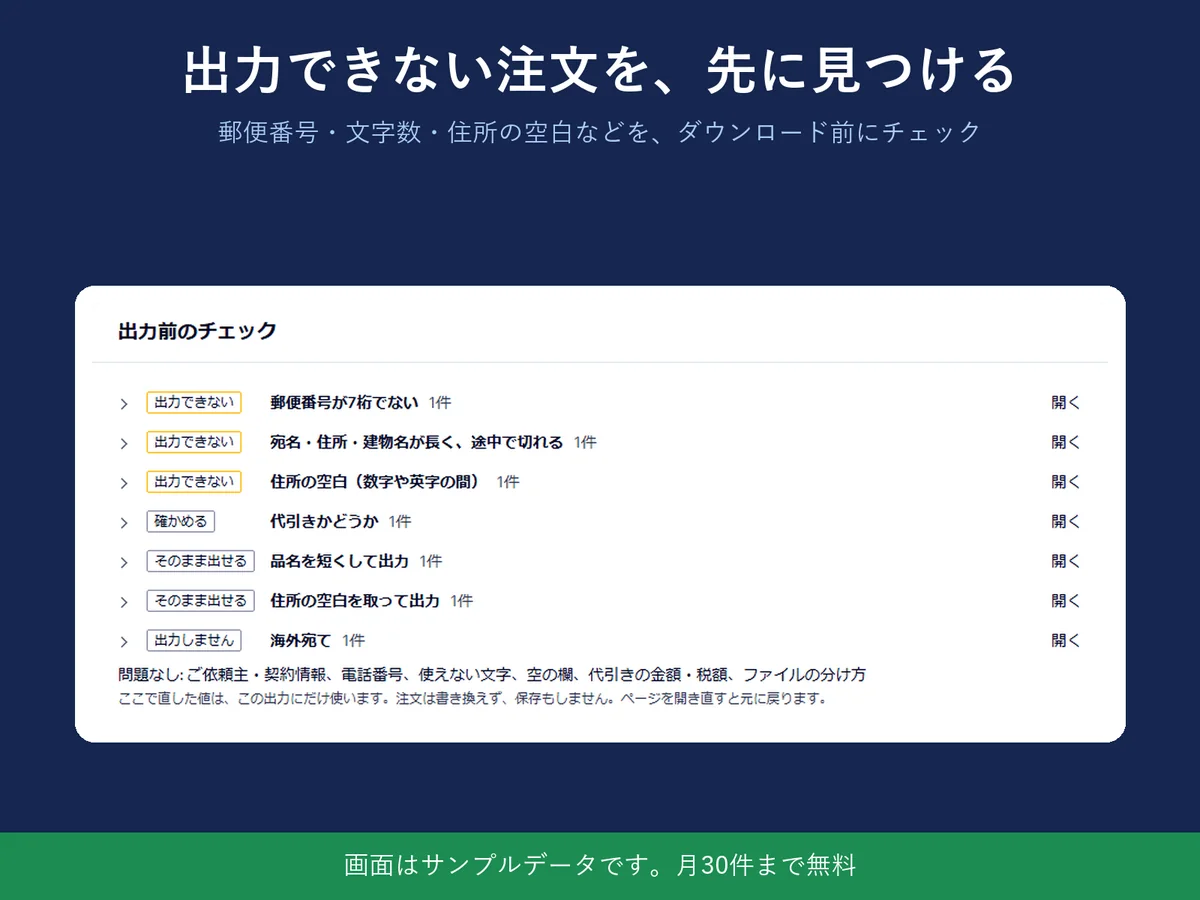
The check flags a postal code that is not 7 digits, a name, address or building that is too long and would be cut off, spaces inside an address, characters the carrier cannot print, empty required fields, cash-on-delivery orders, and more. Only the items that apply are shown; if nothing applies, it collapses to one line.
The pre-export check. Sample data.
Fix it in place, without touching your orders
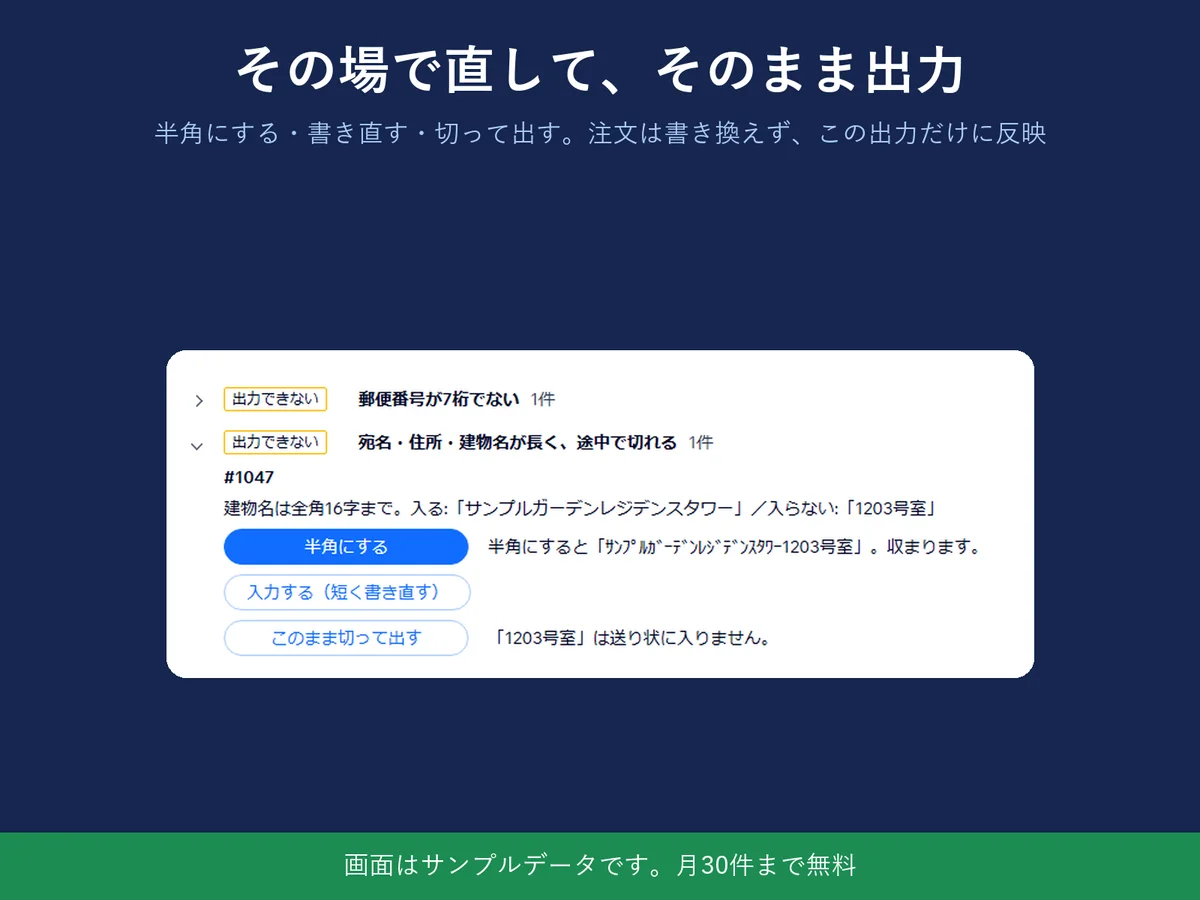
For a name or building that is too long, choose half-width characters, rewrite it, or cut it short. The corrected value is used only for this export. Your Wix order is not changed, nothing is saved, and reloading the page brings back the original.
Fixing a long building name. Sample data.
See the file before you download it
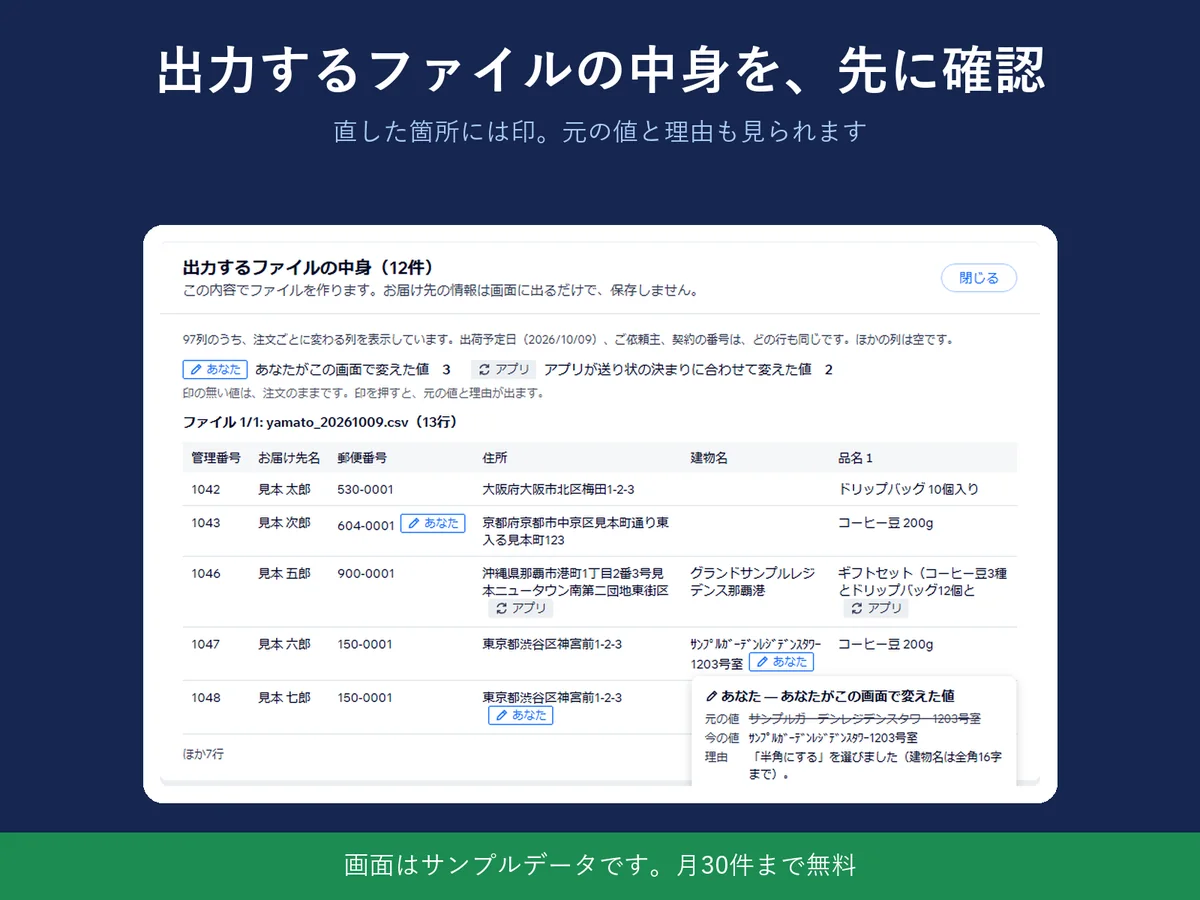
A table shows what the file will contain. Changed cells are marked, and you can see the original value and the reason.
Preview of the file. Sample data.
Three carriers, one switch
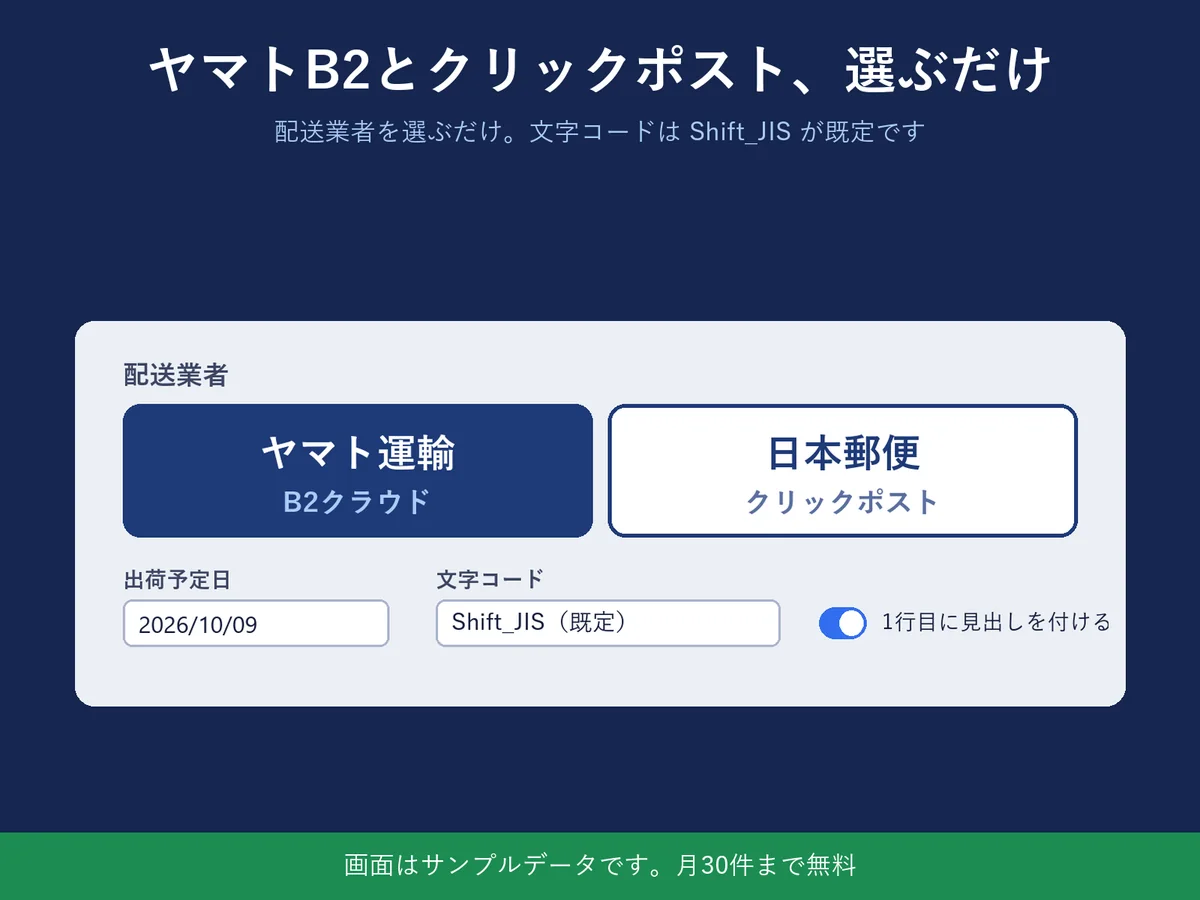
Choose Yamato Transport B2 Cloud, Japan Post Click Post or Sagawa Express e-Hiden III. The default character encoding is Shift_JIS. You can also set the shipping date and, for Yamato, whether to put a heading row on line 1.
Carrier, shipping date and encoding. Sample data.
Your customers' details are not stored
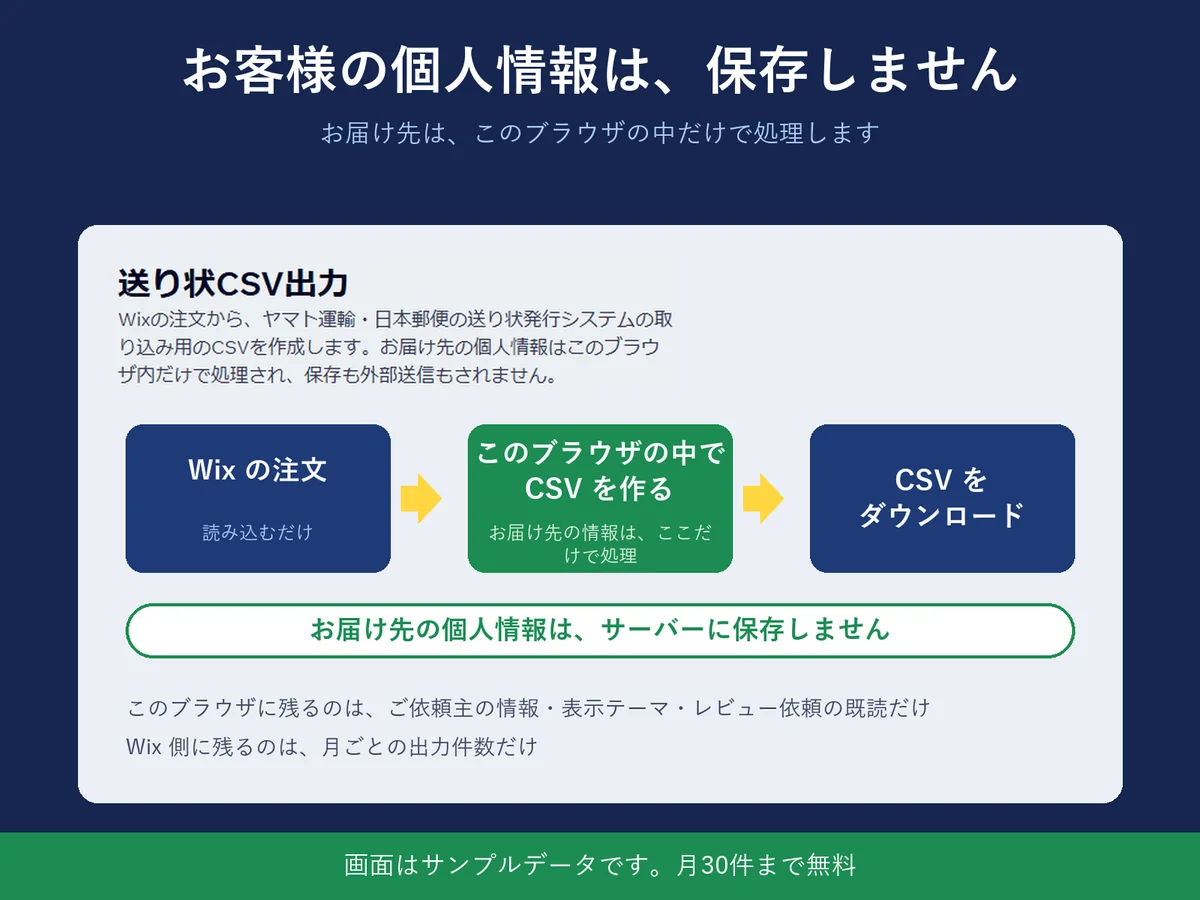
Recipient details are processed in your browser. They are not saved on a server and not sent anywhere else. What stays in the browser is your sender details, the display theme and whether you dismissed the review request. What stays on the Wix side is the monthly export count and the shipments (tracking number and carrier name) you register through the tracking number import.
How personal data is handled.
What it can and cannot do
The Yamato B2 Cloud CSV follows the import layout (CSV specification) that Yamato Transport publishes. It has not been tried in a real B2 Cloud account yet. If something goes wrong, write to support@hullspark.com.
The Click Post CSV follows Japan Post's published import format. It has not been tried in a real account yet either.
The Sagawa e-Hiden III file follows the column table in Sagawa's manual for its shipping-data import. Whether the column order matches the import template has not been checked in a real import, and the app says so on screen.
Using B2 Cloud requires a contract with Yamato Transport. The app makes the import file; it does not sign you up with a carrier or issue the label.
Only unfulfilled, not canceled, not archived orders to addresses in Japan are listed, newest first, up to 1,000. Overseas orders are left out, and the check says how many.
One file holds up to 40 orders for Click Post, 1,000 rows for Yamato and 999 orders for Sagawa. Beyond that the export is split into several files.
The tracking number import compares the issued-data CSV from B2 Cloud with your unfulfilled orders, and only when you press the button on the confirmation screen does it register the carrier name and tracking number on the orders you selected. It needs the Manage Orders permission. Depending on your store settings, Wix may email the buyer a shipping notice, which the app cannot stop.
The first 30 orders you export each month are free. Beyond that you need the paid Pro plan; the price is on the Wix App Market listing.
Questions
Which carriers does it support?
Yamato Transport B2 Cloud, Japan Post Click Post and Sagawa Express e-Hiden III. Each is a CSV in that carrier's import layout. The Yamato and Click Post files follow the layouts the carriers publish, and neither has been tried in a real carrier account yet. For Sagawa, the column order of the import template is not confirmed either, and the app says so on screen.
Can I import the CSV straight into B2 Cloud?
The CSV follows the import layout (CSV specification) that Yamato Transport publishes for B2 Cloud. An import into a real B2 Cloud account has not been tried yet. If an import fails, send the message on screen to support@hullspark.com and we will look into it.
Do I need a B2 Cloud or Click Post contract?
Using B2 Cloud requires a contract with Yamato Transport. For Click Post, check Japan Post's own guidance. The app only makes the import CSV; it does not sign you up with a carrier or issue the shipping label.
Is the app screen in English?
No. The app screen inside the Wix dashboard is in Japanese. The App Market listing and this page are in English, and you can write to support@hullspark.com in English.
Can it handle orders going outside Japan?
No. It is built for orders delivered inside Japan. Orders to overseas addresses are left out, and the pre-export check tells you how many were left out.
It says the postal code is not 7 digits.
The pre-export check marks that order as one that cannot be exported. Correct the address on the order in Wix and reload the app page.
It says a name or building is too long.
The check says the name, address or building name is too long and would be cut off. You can switch it to half-width characters, rewrite it, or cut it short, right there. The corrected value is used only for this export. Your Wix order is not changed and the correction is not saved. Reload the page and it is back to the original.
What happens to cash-on-delivery orders?
Whether an order is cash on delivery is listed in the check as an item to confirm. It is never switched on automatically; you confirm each order before you export.
Will Japanese characters come out garbled?
The default character encoding is Shift_JIS. Characters that cannot be encoded show up in the check as characters the carrier cannot print.
How does the free plan count?
Up to 30 orders a month can be exported for free. The count is the number of orders you exported that month. Going beyond that needs the paid Pro plan, whose price is on the Wix App Market listing.
Does the app store my customers' addresses?
No. Recipient details are processed in your browser only, are not stored on a server and are not sent anywhere else. What stays in the browser is your sender details, the display theme and whether you dismissed the review request. What stays on the Wix side is the monthly export count and the shipments (tracking number and carrier name) you register with the tracking number import.
Can it put tracking numbers back onto my Wix orders?
Yes. The tracking number tab reads the issued-data CSV you export from B2 Cloud and matches it to your unfulfilled orders. Only when you press the button on the confirmation screen does it register the carrier name and tracking number on the orders you selected. It needs the Manage Orders permission, and depending on your store settings Wix may email the buyer a shipping notice, which the app cannot stop.
Where do I go if the carrier's import shows errors?
 Hullspark